


Upwork to Google Sheets, leads logged automatically
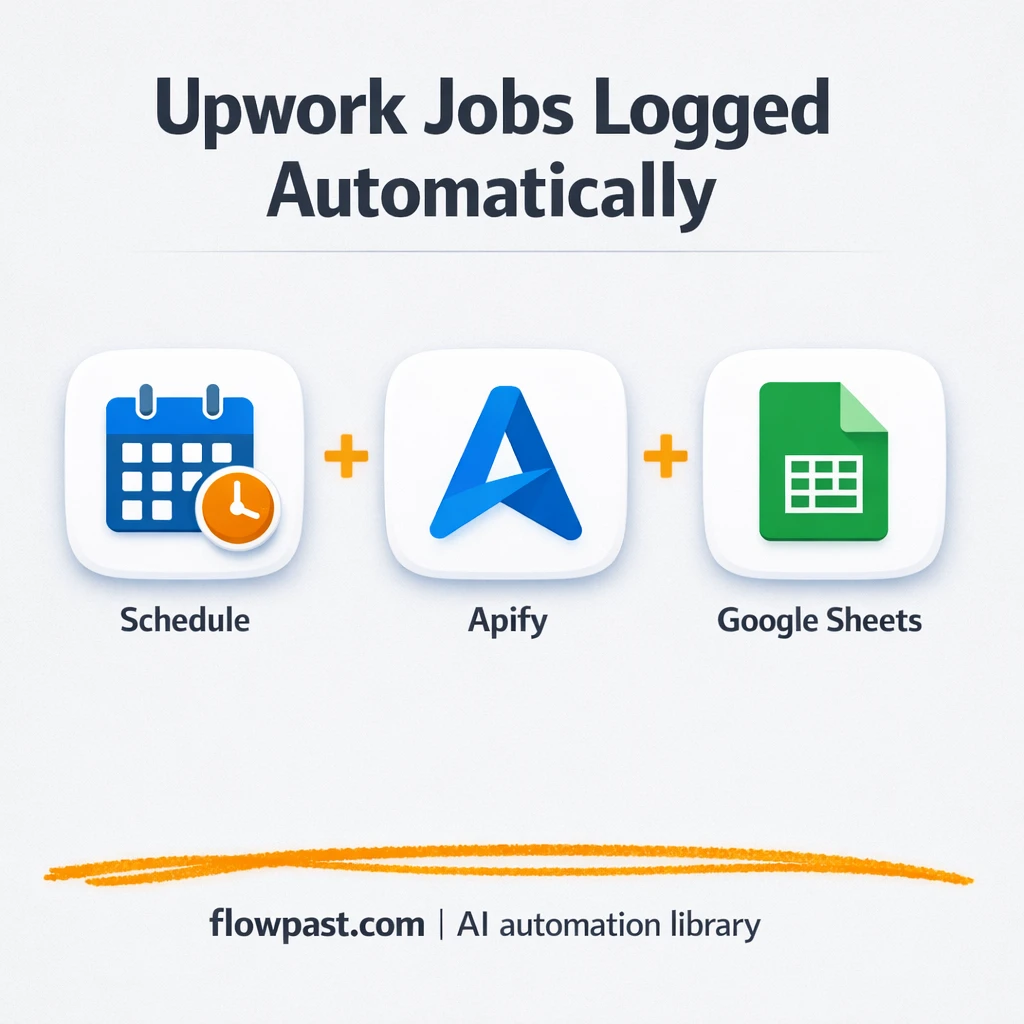

Copying Upwork job posts into a spreadsheet sounds simple. Until you’re doing it all day, switching tabs, losing posts, and realizing you forgot the link you actually needed.
Freelancers feel this fastest, but agency owners and in-house business development folks run into the same problem. This Upwork Sheets automation turns new job listings into a clean, searchable log, so you can review faster and respond while the post is still fresh.
Below, you’ll see exactly what the workflow does, what you need to run it, and what kind of time you get back once the logging is hands-off.
How This Automation Works
The full n8n workflow, from trigger to final output:
n8n Workflow Template: Upwork to Google Sheets, leads logged automatically
flowchart LR

    subgraph sg0["Check Upwork Jobs - Flow"]
        direction LR
        n0@{ icon: "mdi:play-circle", form: "rounded", label: "Check Upwork Jobs - Trigger", pos: "b", h: 48 }
        n1["<div style='background:#f5f5f5;padding:10px;border-radius:8px;display:inline-block;border:1px solid #e0e0e0'><img src='https://flowpast.com/wp-content/uploads/n8n-workflow-icons/httprequest.dark.svg' width='40' height='40' /></div><br/>Fetch Upwork Jobs using Apify"]
        n2@{ icon: "mdi:swap-vertical", form: "rounded", label: "Format scrape Data", pos: "b", h: 48 }
        n3@{ icon: "mdi:database", form: "rounded", label: "Log Jobs to Google Sheets", pos: "b", h: 48 }
        n2 --> n3
        n0 --> n1
        n1 --> n2
    end

    %% Styling
    classDef trigger fill:#e8f5e9,stroke:#388e3c,stroke-width:2px
    classDef ai fill:#e3f2fd,stroke:#1976d2,stroke-width:2px
    classDef aiModel fill:#e8eaf6,stroke:#3f51b5,stroke-width:2px
    classDef decision fill:#fff8e1,stroke:#f9a825,stroke-width:2px
    classDef database fill:#fce4ec,stroke:#c2185b,stroke-width:2px
    classDef api fill:#fff3e0,stroke:#e65100,stroke-width:2px
    classDef code fill:#f3e5f5,stroke:#7b1fa2,stroke-width:2px
    classDef disabled stroke-dasharray: 5 5,opacity: 0.5
    class n0 trigger
    class n3 database
    class n1 api
    classDef customIcon fill:none,stroke:none
    class n1 customIcon
The Problem: Upwork leads get missed (or forgotten)
Upwork moves quickly. A good posting can get a pile of proposals in the first hour, which means “I’ll come back later” usually turns into “I never saw that one again.” Manually tracking jobs is worse than it looks, too. You copy the title, paste the link, try to capture the budget, then you realize the skills list matters, then you lose the client details in the scroll. Do this across multiple saved searches and it becomes a daily tax on your focus, not just your time.
The friction compounds. Here’s where it breaks down in real life.
- You end up reviewing the same posts twice because nothing is centralized.
- Important fields get skipped (budget, posted date, skills), so sorting and prioritizing becomes guesswork.
- Sharing “good leads” with a teammate turns into screenshots, DMs, and confusion.
- By the time you’re ready to pitch, the job is already crowded with proposals.
The Solution: Scheduled Upwork scraping to a live Sheets lead log
This workflow creates an automated pipeline from Upwork job discovery to an organized Google Sheets log. It starts on a schedule you control, then pulls job listings from Upwork based on your saved searches (via an Apify-powered HTTP request). Next, it “normalizes” what comes back, which means it picks out the details you actually care about and formats them consistently. Finally, each job is appended to your Google Sheet so your lead list updates without you doing anything. You wake up to a clean pipeline, not a pile of tabs.
The workflow starts with a scheduled check. It retrieves job data, reshapes it into a tidy structure, then writes each listing into Google Sheets as a new row. After that, you can sort, filter, and share the same sheet with anyone who helps you qualify or pitch.
What You Get: Automation vs. Results
| What This Workflow Automates | Results You’ll Get |
|---|---|
|
|
Example: What This Looks Like
Say you track 3 saved searches and you typically skim 15 new jobs per day. Manually logging each one (title, budget, link, a quick note) takes maybe 2 minutes, which is about 30 minutes daily. Add the inevitable “wait, where was that post?” re-checking and you’re easily at 45 minutes. With this workflow, you spend about 5 minutes setting filters in Sheets and reviewing what came in, because the collection and logging runs on schedule.
What You’ll Need
- n8n instance (try n8n Cloud free)
- Self-hosting option if you prefer (Hostinger works well)
- Upwork account to define your saved searches.
- Google Sheets to store and share the lead log.
- Apify API access (get it from your Apify account settings).
Skill level: Beginner. You’ll connect accounts, paste an API key, and choose a target Google Sheet.
Don’t want to set this up yourself? Talk to an automation expert (free 15-minute consultation).
How It Works
A schedule kicks it off. The workflow runs on a timer (for example, every morning or every hour) so new Upwork posts get checked consistently.
Jobs are retrieved automatically. n8n sends an HTTP request to an Apify job retrieval endpoint, which returns job listings for your saved search criteria. If you monitor multiple criteria, you can run the same pull per search and merge results.
The raw output gets cleaned up. The workflow maps fields into a consistent format, so the sheet columns stay predictable (job title, description, budget or hourly rate, client info, posted date, skills, URL).
Everything lands in Google Sheets. Each job becomes a new row in your “Upwork Leads” log, ready for filtering, sorting, and sharing during daily reviews.
You can easily modify which fields get captured to match how you qualify leads. See the full implementation guide below for customization options.
Step-by-Step Implementation Guide
Step 1: Configure the Schedule Trigger
Set the workflow to run on a fixed interval so Upwork listings are pulled automatically.
- Add the Scheduled Upwork Check node as your trigger.
- In Rule, keep the interval to hours by ensuring Field is set to
hours. - Connect Scheduled Upwork Check to Apify Job Retrieval to match the execution flow.
Step 2: Connect Apify Job Retrieval
Configure the HTTP request that calls your Apify task to fetch job listings.
- Open Apify Job Retrieval and set Method to
POST. - Set URL to
https://api.apify.com/v2/actor-tasks/[YOUR_ID]/run-sync-get-dataset-items?token=[CONFIGURE_YOUR_TOKEN]. - Enable Send Body (it is already set to
true). - Connect Apify Job Retrieval to Normalize Scrape Output.
[YOUR_ID] and [CONFIGURE_YOUR_TOKEN] in the URL with your Apify task ID and API token, or the request will fail.Step 3: Set Up Normalize Scrape Output
Map the Apify response to consistent fields before sending to Google Sheets.
- In Normalize Scrape Output, add assignments for each field.
- Set title to
={{ $json.title }}. - Set description to
={{ $json.description }}. - Set postedDate to
={{ $json.postedDate }}. - Set skills to
={{ $json.skills }}and keep the type as array. - Set link to
={{ $json.link }}.
Step 4: Configure Append to Sheets Log
Append each normalized job listing to your Google Sheet.
- Open Append to Sheets Log and set Operation to
append. - Credential Required: Connect your googleSheetsOAuth2Api credentials.
- Select the target spreadsheet in Document ID (currently set to
[YOUR_ID]) and the sheet in Sheet Name (currentlygid=0). - Map columns with expressions: link →
={{ $json.link }}, title →={{ $json.title }}, skills →={{ $json.skills }}, postedDate →={{ $json.postedDate }}, description →={{ $json.description }}. - Ensure Normalize Scrape Output outputs directly to Append to Sheets Log in the connection flow.
Step 5: Test and Activate Your Workflow
Validate the entire chain from schedule to Google Sheets, then activate for ongoing logging.
- Click Execute Workflow to run a manual test from Scheduled Upwork Check.
- Confirm Apify Job Retrieval returns items and Normalize Scrape Output shows the mapped fields.
- Verify new rows appear in your spreadsheet from Append to Sheets Log with the expected columns populated.
- Turn on the workflow using the Active toggle to enable scheduled production runs.
Common Gotchas
- Google Sheets credentials can expire or need specific permissions. If things break, check the Google connection inside n8n’s Credentials menu first.
- If you’re using Wait nodes or external rendering, processing times vary. Bump up the wait duration if downstream nodes fail on empty responses.
- Default prompts in AI nodes are generic. Add your brand voice early or you’ll be editing outputs forever.
Frequently Asked Questions
About 15 minutes if your accounts are ready.
No. You will connect accounts and paste an API key, then choose the Google Sheet to write into.
Yes. n8n has a free self-hosted option and a free trial on n8n Cloud. Cloud plans start at $20/month for higher volume. You’ll also need to factor in Apify usage costs depending on how often you pull jobs.
Two options: n8n Cloud (managed, easiest setup) or self-hosting on a VPS. For self-hosting, Hostinger VPS is affordable and handles n8n well. Self-hosting gives you unlimited executions but requires basic server management.
Yes, and it’s a common tweak. You can duplicate the HTTP Request that pulls jobs (the “Apify Job Retrieval” part), change the search input, then merge results before the “Normalize Scrape Output” mapping. Many teams also add extra columns like a lead score, proposal status, or an “owner” field so Sheets becomes a lightweight pipeline.
Usually it’s expired OAuth permission or the connected Google account no longer has access to the target spreadsheet. Reconnect the Google Sheets credential in n8n, then confirm the Sheet and tab still exist with the same name. If you’re writing to a shared Drive, double-check the account you authenticated with is actually allowed to edit.
On n8n Cloud Starter, you can run a healthy number of scheduled checks each month for a small pipeline, and higher tiers handle more. If you self-host, there’s no execution cap, but you’re limited by your server and your Apify plan. Practically, most teams log dozens of jobs per day without issues, as long as you don’t schedule pulls every few minutes.
Often, yes, because this workflow relies on an HTTP pull and custom field normalization, which is where n8n tends to feel more flexible. Zapier and Make can work, but you may hit limits once you want multiple searches, merging, or more advanced data shaping. n8n also gives you the self-hosting route, which can be simpler financially once you run it frequently. If you’re only logging a handful of posts per week, a lighter tool might be “good enough,” honestly. Talk to an automation expert if you want a quick recommendation for your setup.
Once your Upwork leads are logged automatically, your “job search” turns into a quick daily review. The workflow handles the repetitive stuff so you can spend your attention where it pays off: qualifying and pitching.
Need Help Setting This Up?
Our automation experts can build and customize this workflow for your specific needs. Free 15-minute consultation—no commitment required.
