


Webform to Google Sheets, leads logged clean

Leads are coming in, but they’re landing everywhere except the one place you actually check. Some hit your inbox, some end up in a form tool, and a few get lost in that “I’ll log it later” pile.
This is where webform Google Sheets automation pays off fast. Agency owners feel it when inquiries stack up overnight. A freelancer misses it when they’re in client work. And a marketing manager gets blamed when “no one followed up.”
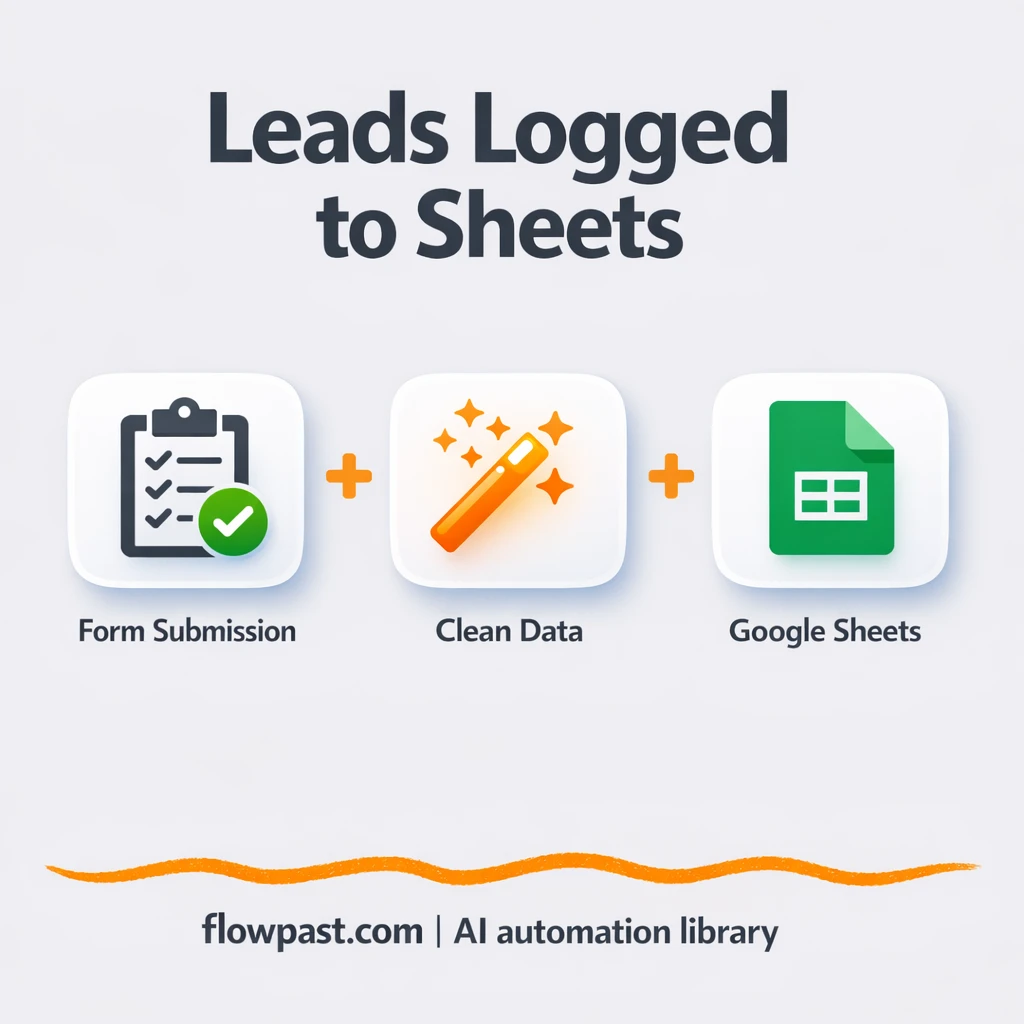
This workflow captures every form submission, cleans the data, and drops it into Google Sheets as a tidy new row. You’ll see what it does, why it works, and how to set it up without turning your day into a tech project.
How This Automation Works
The full n8n workflow, from trigger to final output:
n8n Workflow Template: Webform to Google Sheets, leads logged clean
flowchart LR

    subgraph sg0["Flow 1"]
        direction LR
        n0["<div style='background:#f5f5f5;padding:10px;border-radius:8px;display:inline-block;border:1px solid #e0e0e0'><img src='https://flowpast.com/wp-content/uploads/n8n-workflow-icons/webhook.dark.svg' width='40' height='40' /></div><br/>Form Submission Hook"]
        n1["<div style='background:#f5f5f5;padding:10px;border-radius:8px;display:inline-block;border:1px solid #e0e0e0'><img src='https://flowpast.com/wp-content/uploads/n8n-workflow-icons/code.svg' width='40' height='40' /></div><br/>Parse + Clean Lead Data"]
        n2@{ icon: "mdi:database", form: "rounded", label: "Save To Google Sheets", pos: "b", h: 48 }
        n0 --> n1
        n1 --> n2
    end

    %% Styling
    classDef trigger fill:#e8f5e9,stroke:#388e3c,stroke-width:2px
    classDef ai fill:#e3f2fd,stroke:#1976d2,stroke-width:2px
    classDef aiModel fill:#e8eaf6,stroke:#3f51b5,stroke-width:2px
    classDef decision fill:#fff8e1,stroke:#f9a825,stroke-width:2px
    classDef database fill:#fce4ec,stroke:#c2185b,stroke-width:2px
    classDef api fill:#fff3e0,stroke:#e65100,stroke-width:2px
    classDef code fill:#f3e5f5,stroke:#7b1fa2,stroke-width:2px
    classDef disabled stroke-dasharray: 5 5,opacity: 0.5
    class n2 database
    class n0 api
    class n1 code
    classDef customIcon fill:none,stroke:none
    class n0,n1 customIcon
The Problem: Leads get messy before you ever reply
Most webforms don’t fail loudly. They “work,” but the lead arrives as a clunky email, a half-filled payload, or a notification that someone has to manually retype into a sheet. Then the real problems start. Names come in as one field. Budgets arrive as text like “around five grand-ish.” A timeline is missing, so you chase details later. Meanwhile, the person who submitted the inquiry is waiting, and your response time quietly slips from minutes to days.
The friction compounds. It’s not just the time spent copying and pasting. It’s the follow-up you forgot, the duplicate entry you didn’t notice, and the nagging feeling you can’t trust your own pipeline.
- Someone has to manually move each inquiry into Google Sheets, which usually takes about 5 minutes per lead.
- Form payloads are inconsistent, so your sheet ends up with mismatched columns and empty cells.
- When the inbox is the “CRM,” the team can’t see what’s been handled and what’s still waiting.
- Small typos create big problems later, like bounced emails or leads routed to the wrong rep.
The Solution: Webform → Clean Data → Google Sheets (Instantly)
This workflow turns any form submission into a clean, reliable row in Google Sheets the moment it’s submitted. It starts with a webhook that receives the form data (no matter what tool you use, as long as it can send a POST). Next, a lightweight “sanitize” step formats the payload so your spreadsheet stays consistent, even when the form sends weird field names or missing values. Then n8n writes the lead into your target Google Sheet, placing name, email, business name, message, timeline, and budget into the right columns every time. The end result is simple: open your sheet and every inquiry is already there, ready to qualify and follow up.
The workflow starts when your website (or funnel) submits to the n8n webhook. The workflow then cleans and standardizes the data so it matches your sheet headers. Finally, it appends a new row in Google Sheets so your pipeline stays up to date without anyone touching it.
What You Get: Automation vs. Results
| What This Workflow Automates | Results You’ll Get |
|---|---|
|
|
Example: What This Looks Like
Say your site generates about 20 inquiries a week. If it takes roughly 5 minutes to open the email, copy details, find the right sheet, paste everything, and clean up formatting, that’s about 100 minutes weekly spent on admin. With this workflow, you submit the webhook once during setup, then each lead is logged automatically in a few seconds. You still reply manually (as you should), but the logging work basically disappears.
What You’ll Need
- n8n instance (try n8n Cloud free)
- Self-hosting option if you prefer (Hostinger works well)
- Google Sheets for storing leads in a shared sheet
- A webform tool to send submissions to the webhook
- Google account access (connect via n8n Google credentials)
Skill level: Beginner. You will paste a webhook URL into your form tool and match a few fields to your sheet columns.
Don’t want to set this up yourself? Talk to an automation expert (free 15-minute consultation).
How It Works
A form submission hits the webhook. Your website or funnel sends the lead data to the n8n webhook URL, which means n8n receives it instantly without you checking anything.
The payload gets cleaned and reshaped. The sanitize step (a small JavaScript block) pulls out the important fields and makes them consistent. If a value is missing, it can default to something safe like an empty string, so your sheet doesn’t break.
Google Sheets is updated automatically. n8n connects to your spreadsheet and appends a new row using the cleaned values, so each inquiry becomes a clean record you can sort, filter, and assign.
Your “CRM-lite” stays accurate. The output is a reliable lead log that can power follow-ups, routing, and reporting. Honestly, this is where most teams start seeing momentum, because the basics stop leaking.
You can easily modify the fields you capture to match how you qualify leads based on your needs. See the full implementation guide below for customization options.
Step-by-Step Implementation Guide
Configure the Webhook Trigger
Set up the entry point so your form submissions can reach the workflow.
- Add the Incoming Form Webhook node as your trigger if it is not already present.
- Open Incoming Form Webhook and copy the generated webhook URL to your form provider.
- Send a test submission from your form to create sample data in the workflow.
Connect Google Sheets
Authorize Google Sheets so the workflow can write new lead records.
- Open Update Sheets Record and select the appropriate Google Sheets account.
- Credential Required: Connect your Google Sheets credentials.
- Choose the target spreadsheet and worksheet where leads will be stored.
⚠️ Common Pitfall: The Update Sheets Record node has no credentials configured in the workflow. You must add Google Sheets credentials before the node can write data.
Set Up Processing in the Code Node
Normalize and validate incoming form data before it reaches the spreadsheet.
- Open Sanitize Lead Payload and review the code logic for formatting or validation rules.
- Ensure the output fields from Sanitize Lead Payload align with the columns you plan to update in Google Sheets.
- Keep the execution flow as Incoming Form Webhook → Sanitize Lead Payload to maintain data consistency.
Configure Output to Google Sheets
Map the sanitized lead data to your spreadsheet columns so each submission creates or updates a record.
- In Update Sheets Record, map each column to the corresponding output field from Sanitize Lead Payload.
- Verify the node is connected after Sanitize Lead Payload to preserve the workflow sequence.
Test and Activate Your Workflow
Validate the full workflow from form submission to spreadsheet update, then enable it for production.
- Click Execute Workflow in n8n and submit a test form entry.
- Confirm that Sanitize Lead Payload processes the data and that Update Sheets Record writes a new row in Google Sheets.
- When the test is successful, toggle the workflow to Active to start capturing live leads.
Common Gotchas
- Google Sheets credentials can expire or need specific permissions. If things break, check the n8n Credentials tab and the Google account access to the target sheet first.
- If your form tool sends nested fields or unusual key names, the sanitize code may not find what it expects. Inspect the last webhook execution data in n8n, then update the mapping in “Sanitize Lead Payload.”
- Appending rows is simple, but it’s easy to forget header alignment. If your sheet columns move, your data lands in the wrong place, so lock the header row and avoid renaming columns casually.
Frequently Asked Questions
About 20 minutes if your sheet is already created.
No. You’ll mostly copy a webhook URL and map fields to columns. The included sanitize code is editable, but you can use it as-is.
Yes. n8n has a free self-hosted option and a free trial on n8n Cloud. Cloud plans start at $20/month for higher volume.
Two options: n8n Cloud (managed, easiest setup) or self-hosting on a VPS. For self-hosting, Hostinger VPS is affordable and handles n8n well. Self-hosting gives you unlimited executions but requires basic server management.
Yes, and it’s straightforward. Add the new field to your form, then update the “Sanitize Lead Payload” step to extract it and set a clean default when it’s missing. Finally, add a matching column in Google Sheets and map that value in “Update Sheets Record.” Common customizations include adding UTM parameters, writing a “Lead Status” default like “New,” and splitting a full name into first/last.
Usually it’s expired Google authorization or the connected account doesn’t have edit access to that sheet. Reconnect the Google Sheets credential in n8n, then confirm the spreadsheet is shared with the same Google user. If it fails only sometimes, check for quota limits or a renamed sheet/tab that no longer matches what the workflow expects.
A lot. For most small teams, hundreds of leads a day isn’t an issue, and the limit is usually your Google Sheets quotas or your n8n plan if you’re on Cloud.
Often, yes. n8n is great when you want control over data formatting, because the “sanitize” step can be as strict (or as forgiving) as you want. It also plays nicely with self-hosting, so you’re not paying more just because you had a good lead week. Zapier or Make can be quicker for very basic two-step zaps, though. If you’re on the fence, Talk to an automation expert and you’ll get a clean recommendation based on your volume and tools.
Once this is running, every inquiry lands where your process actually lives. The workflow handles the repetitive part, and you get to focus on replying fast and closing work.
Need Help Setting This Up?
Our automation experts can build and customize this workflow for your specific needs. Free 15-minute consultation—no commitment required.
