


WhatsApp to Asana, every request becomes a ticket

You get a new request. Then another. Suddenly you’re digging through form notifications, Slack pings, and “just checking in” follow-ups trying to figure out what’s actually been logged.
This WhatsApp Asana tickets automation hits service managers first, honestly. But ops leads and client-facing agency owners feel it too, because missed details always come back at the worst time.
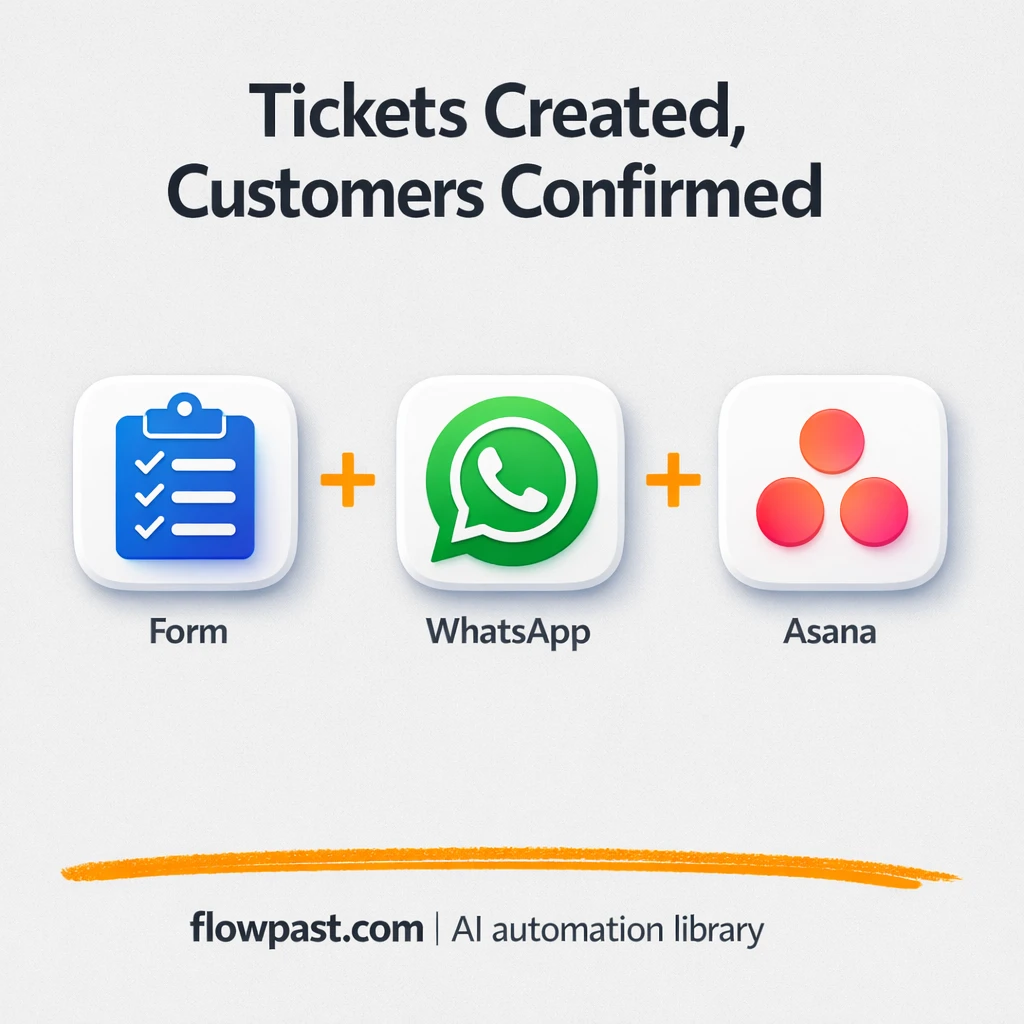
This workflow turns every form submission into two things: a WhatsApp confirmation to the requester and an Asana task for your team. You’ll see what it automates, what you need to run it, and where teams usually trip up.
How This Automation Works
The full n8n workflow, from trigger to final output:
n8n Workflow Template: WhatsApp to Asana, every request becomes a ticket
flowchart LR

    subgraph sg0["Form Intake Flow"]
        direction LR
        n0["<div style='background:#f5f5f5;padding:10px;border-radius:8px;display:inline-block;border:1px solid #e0e0e0'><img src='https://flowpast.com/wp-content/uploads/n8n-workflow-icons/form.svg' width='40' height='40' /></div><br/>Form Intake Trigger"]
        n1["<div style='background:#f5f5f5;padding:10px;border-radius:8px;display:inline-block;border:1px solid #e0e0e0'><img src='https://flowpast.com/wp-content/uploads/n8n-workflow-icons/whatsapp.svg' width='40' height='40' /></div><br/>WhatsApp Message Dispatch"]
        n2["<div style='background:#f5f5f5;padding:10px;border-radius:8px;display:inline-block;border:1px solid #e0e0e0'><img src='https://flowpast.com/wp-content/uploads/n8n-workflow-icons/asana.svg' width='40' height='40' /></div><br/>Asana Task Create"]
        n0 --> n1
        n0 --> n2
    end

    %% Styling
    classDef trigger fill:#e8f5e9,stroke:#388e3c,stroke-width:2px
    classDef ai fill:#e3f2fd,stroke:#1976d2,stroke-width:2px
    classDef aiModel fill:#e8eaf6,stroke:#3f51b5,stroke-width:2px
    classDef decision fill:#fff8e1,stroke:#f9a825,stroke-width:2px
    classDef database fill:#fce4ec,stroke:#c2185b,stroke-width:2px
    classDef api fill:#fff3e0,stroke:#e65100,stroke-width:2px
    classDef code fill:#f3e5f5,stroke:#7b1fa2,stroke-width:2px
    classDef disabled stroke-dasharray: 5 5,opacity: 0.5
    class n0 trigger
    classDef customIcon fill:none,stroke:none
    class n0,n1,n2 customIcon
The Problem: Requests Fall Through the Cracks
Form requests are supposed to be clean. In reality, they arrive during meetings, after hours, or right when your team is busy. Someone sees the submission, plans to create a task “in a minute,” and the moment passes. Then the customer follows up on WhatsApp, but there’s no ticket to reference, no owner, and no due date. You end up doing customer support from memory. That’s stressful, and it’s expensive in a quiet way: slower response times, duplicated work, and a growing pile of “we’ll get back to you” messages.
None of these alone is the problem. Together, they are.
- A request can sit in your inbox for hours before anyone turns it into a task.
- Customers chase updates because they didn’t get a clear confirmation that you received the form.
- Details get retyped into Asana, which is where mistakes sneak in (wrong phone number, wrong priority, missing notes).
- Ownership is fuzzy, so two people respond or nobody does.
The Solution: Form → WhatsApp Confirmation → Asana Task
This workflow catches a request the moment it’s submitted and turns it into an organized ticket automatically. It starts with a form intake trigger inside n8n, so every submission arrives as structured data (name, message, phone, whatever your form collects). From there, the workflow sends a confirmation message through WhatsApp Business Cloud, which reassures the requester and reduces follow-up spam. At the same time, it creates a task in Asana with the request details captured in one place so your team can assign, prioritize, and track it like any other piece of work. The end result is simple: the customer gets an immediate “we got it,” and your team gets a real ticket, not a loose notification.
The workflow begins when a user submits your form. n8n dispatches the WhatsApp confirmation and creates the Asana task in parallel. You’re no longer relying on someone to remember the admin step later.
What You Get: Automation vs. Results
| What This Workflow Automates | Results You’ll Get |
|---|---|
|
|
Example: What This Looks Like
Say you get about 15 form requests a week. Manually, it’s usually 5 minutes to read, 5 minutes to create an Asana task, and another couple minutes to send a WhatsApp reply, so roughly 10 minutes per request. That’s around 2 to 3 hours a week of pure admin. With this workflow, the “work” is basically zero: the form triggers the automation instantly, the WhatsApp confirmation goes out, and the Asana ticket is already waiting for your team.
What You’ll Need
- n8n instance (try n8n Cloud free)
- Self-hosting option if you prefer (Hostinger works well)
- WhatsApp Business Cloud for sending confirmation messages
- Asana to create and assign the ticket/task
- WhatsApp API access token (get it from Meta Developer dashboard)
Skill level: Beginner. You’ll paste credentials, replace placeholders (phone number, IDs), and edit the confirmation message.
Don’t want to set this up yourself? Talk to an automation expert (free 15-minute consultation).
How It Works
Form submission triggers the workflow. When someone submits your intake form in n8n, the workflow starts immediately with the fields you collected.
The request is prepared for messaging and ticketing. n8n maps the form fields into a clean message for WhatsApp and a structured description for the Asana task, so the same details flow to both places.
WhatsApp confirmation is sent. The WhatsApp Business Cloud node sends your customer a confirmation message so they know the request is received and being handled.
An Asana ticket is created. In parallel, the Asana node creates a task with the request content, ready for assignment and tracking inside your existing project.
You can easily modify the confirmation message to match your brand voice based on your needs. See the full implementation guide below for customization options.
Step-by-Step Implementation Guide
Step 1: Configure the Form Trigger
Set up the intake form so new customer requests can start the workflow.
- Add and open Form Intake Trigger.
- Set Path to
15e05cd5-c58d-4bf2-8358-f0cd1917334f. - Set Form Title to
Contact Us!. - Add form fields with labels
Whats is your Name?,What is your Phone Number?(typenumber), andWhat is your problem?—all marked required.
Whats is your Name? is referenced exactly in expressions later—do not change spelling unless you update downstream expressions.Step 2: Configure the WhatsApp Response
Send an immediate confirmation message to the user after form submission.
- Open WhatsApp Message Dispatch and set Operation to
send. - Set Phone Number ID to
YOUR_PHONE_NUMBER. - Set Recipient Phone Number to
=+{{ $json['What is your Phone Number?'] }}. - Set Text Body to
=Hello {{ $json["Whats is your Name?"] }},\n\nThank you for filling out the contact form.\nOur customer support team will get back to you as soon as possible.. - Credential Required: Connect your WhatsApp credentials.
Step 3: Configure the Asana Task Creation
Create a support ticket in Asana using the form submission details.
- Open Asana Task Create and set Workspace to
[YOUR_ID]. - Set Name to
=Support Ticket - {{ $json.submittedAt }}. - Under Other Properties, set Notes to
={{ $json['What is your problem?'] }}. - Credential Required: Connect your Asana credentials.
Step 4: Test and Activate Your Workflow
Validate the form submission, WhatsApp message, and Asana task creation before enabling automation.
- Click Execute Workflow and open the form from Form Intake Trigger to submit a test entry.
- Confirm a WhatsApp message is sent by WhatsApp Message Dispatch and contains the submitted name.
- Verify a task is created in Asana by Asana Task Create with the submitted problem in the notes.
- When successful, toggle the workflow to Active for production use.
Common Gotchas
- WhatsApp Business Cloud credentials can expire or need specific permissions. If things break, check your Meta Developer dashboard token status and app permissions first.
- If you’re using Wait nodes or external rendering, processing times vary. Bump up the wait duration if downstream nodes fail on empty responses.
- Default prompts in AI nodes are generic. Add your brand voice early or you’ll be editing outputs forever.
Frequently Asked Questions
About 30 minutes if you already have your WhatsApp and Asana accounts ready.
No. You’ll connect credentials and replace a few placeholders like phone numbers and IDs. The rest is editing your confirmation message and choosing where the Asana task should land.
Yes. n8n has a free self-hosted option and a free trial on n8n Cloud. Cloud plans start at $20/month for higher volume. You’ll also need to factor in WhatsApp Business Cloud messaging costs based on your conversation volume.
Two options: n8n Cloud (managed, easiest setup) or self-hosting on a VPS. For self-hosting, Hostinger VPS is affordable and handles n8n well. Self-hosting gives you unlimited executions but requires basic server management.
Yes. You can swap the WhatsApp message node for Gmail and send the same confirmation by email. Common customizations include changing the confirmation wording, adding an internal notification to a shared inbox, and writing the request into Google Sheets for reporting.
Most of the time it’s an expired or rotated access token in Meta’s dashboard. Update the token in the WhatsApp Business Cloud node, then confirm the sending phone number ID and template/message permissions match what your app is allowed to send. If you’re testing with new numbers, make sure they’re in your allowed recipients list (depending on your WhatsApp setup). Rate limits can also bite when you suddenly start sending confirmations in bulk.
A lot, and the practical limit is usually your n8n plan and WhatsApp messaging volume, not the workflow itself.
Sometimes. If you want a straightforward form-to-task flow, Zapier or Make can be quick to set up. n8n tends to win when you want more control over formatting, branching, and data handling without paying extra for every “path.” It also gives you the self-hosting option, which is handy when your volume grows. If you’re unsure, Talk to an automation expert and we’ll sanity-check the simplest option.
Once this is running, every request becomes trackable work and every customer gets a clear confirmation. Set it up once, then get your afternoons back.
Need Help Setting This Up?
Our automation experts can build and customize this workflow for your specific needs. Free 15-minute consultation—no commitment required.
