


Wikipedia to LinkedIn posts with OpenAI and Ideogram
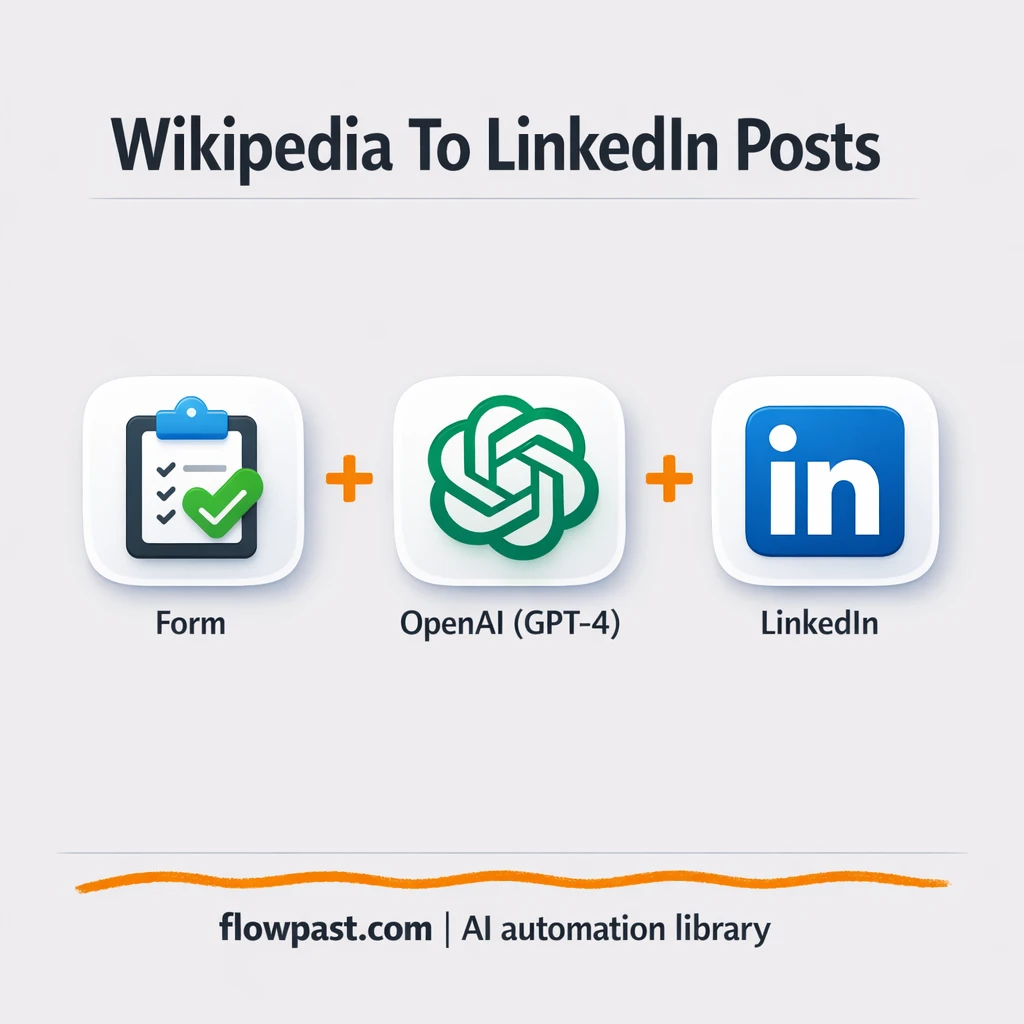

Turning “I should post about this” into an actual LinkedIn post is where momentum dies. You copy from Wikipedia, trim it down, rewrite it, find an image, format it, then still have to publish and grab the link.
Marketing managers feel it when content calendars get tight. A solo founder feels it when posting steals time from sales. And consultants trying to look consistent? Same mess. This LinkedIn post automation turns a single Wikipedia topic into a ready-to-share post plus a matching visual.
You’ll see what the workflow does end-to-end, what you need to run it, and where people usually get stuck when they set it up.
How This Automation Works
Here’s the complete workflow you’ll be setting up:
n8n Workflow Template: Wikipedia to LinkedIn posts with OpenAI and Ideogram
flowchart LR

    subgraph sg0["📝 Form Submission Flow"]
        direction LR
        n0["<div style='background:#f5f5f5;padding:10px;border-radius:8px;display:inline-block;border:1px solid #e0e0e0'><img src='https://flowpast.com/wp-content/uploads/n8n-workflow-icons/form.svg' width='40' height='40' /></div><br/>📝 Form Submission Trigger"]
        n1["<div style='background:#f5f5f5;padding:10px;border-radius:8px;display:inline-block;border:1px solid #e0e0e0'><img src='https://flowpast.com/wp-content/uploads/n8n-workflow-icons/httprequest.dark.svg' width='40' height='40' /></div><br/>🌐 Dataset Trigger Call"]
        n2["<div style='background:#f5f5f5;padding:10px;border-radius:8px;display:inline-block;border:1px solid #e0e0e0'><img src='https://flowpast.com/wp-content/uploads/n8n-workflow-icons/httprequest.dark.svg' width='40' height='40' /></div><br/>Check Crawl Progress"]
        n3@{ icon: "mdi:swap-horizontal", form: "rounded", label: "Validate Crawl Ready", pos: "b", h: 48 }
        n4@{ icon: "mdi:cog", form: "rounded", label: "Delay Retry", pos: "b", h: 48 }
        n5["<div style='background:#f5f5f5;padding:10px;border-radius:8px;display:inline-block;border:1px solid #e0e0e0'><img src='https://flowpast.com/wp-content/uploads/n8n-workflow-icons/httprequest.dark.svg' width='40' height='40' /></div><br/>Retrieve Wiki Snapshot"]
        n6@{ icon: "mdi:robot", form: "rounded", label: "AI Summary Composer", pos: "b", h: 48 }
        n7@{ icon: "mdi:brain", form: "rounded", label: "OpenAI Chat Engine", pos: "b", h: 48 }
        n8@{ icon: "mdi:robot", form: "rounded", label: "Auto-Repair Output Parser", pos: "b", h: 48 }
        n9@{ icon: "mdi:robot", form: "rounded", label: "Structured Result Parser", pos: "b", h: 48 }
        n10@{ icon: "mdi:brain", form: "rounded", label: "Anthropic Chat Engine", pos: "b", h: 48 }
        n11["<div style='background:#f5f5f5;padding:10px;border-radius:8px;display:inline-block;border:1px solid #e0e0e0'><img src='https://flowpast.com/wp-content/uploads/n8n-workflow-icons/httprequest.dark.svg' width='40' height='40' /></div><br/>Generate Visual Asset"]
        n12["<div style='background:#f5f5f5;padding:10px;border-radius:8px;display:inline-block;border:1px solid #e0e0e0'><img src='https://flowpast.com/wp-content/uploads/n8n-workflow-icons/httprequest.dark.svg' width='40' height='40' /></div><br/>Download Image File"]
        n13["<div style='background:#f5f5f5;padding:10px;border-radius:8px;display:inline-block;border:1px solid #e0e0e0'><img src='https://flowpast.com/wp-content/uploads/n8n-workflow-icons/linkedin.svg' width='40' height='40' /></div><br/>Publish LinkedIn Post"]
        n14["<div style='background:#f5f5f5;padding:10px;border-radius:8px;display:inline-block;border:1px solid #e0e0e0'><img src='https://flowpast.com/wp-content/uploads/n8n-workflow-icons/code.svg' width='40' height='40' /></div><br/>Build LinkedIn Link"]
        n4 --> n2
        n6 --> n11
        n13 --> n14
        n12 --> n13
        n11 --> n12
        n2 --> n3
        n7 -.-> n6
        n1 --> n2
        n3 --> n5
        n3 --> n4
        n10 -.-> n8
        n5 --> n6
        n0 --> n1
        n9 -.-> n8
        n8 -.-> n6
    end

    %% Styling
    classDef trigger fill:#e8f5e9,stroke:#388e3c,stroke-width:2px
    classDef ai fill:#e3f2fd,stroke:#1976d2,stroke-width:2px
    classDef aiModel fill:#e8eaf6,stroke:#3f51b5,stroke-width:2px
    classDef decision fill:#fff8e1,stroke:#f9a825,stroke-width:2px
    classDef database fill:#fce4ec,stroke:#c2185b,stroke-width:2px
    classDef api fill:#fff3e0,stroke:#e65100,stroke-width:2px
    classDef code fill:#f3e5f5,stroke:#7b1fa2,stroke-width:2px
    classDef disabled stroke-dasharray: 5 5,opacity: 0.5
    class n0 trigger
    class n6,n8,n9 ai
    class n7,n10 aiModel
    class n3 decision
    class n1,n2,n5,n11,n12 api
    class n14 code
    classDef customIcon fill:none,stroke:none
    class n0,n1,n2,n5,n11,n12,n13,n14 customIcon
Why This Matters: Consistent LinkedIn posting is harder than it should be
LinkedIn rewards consistency, but consistency is usually propped up by last-minute scrambling. You open a Wikipedia page for inspiration, then realize it reads like, well, Wikipedia. Now you’re rewriting, cutting it down to fit under LinkedIn’s practical limits, and trying to make it sound like you. Add in image hunting (or designing), plus posting and grabbing a clean URL for Slack, email, or a newsletter. None of this is difficult, which is exactly why it’s so draining. It’s the kind of work that steals an hour in tiny chunks and leaves you with nothing left for real strategy.
It adds up fast. Here’s where it breaks down in day-to-day use.
- You spend about 30 minutes rewriting source material into something that doesn’t feel copied.
- Image creation becomes a separate mini-project, so posting gets “pushed to tomorrow.”
- Manual publishing means inconsistent formatting, missed hashtags, and the occasional “oops, wrong link.”
- There’s no simple way to scale from “one good post” to “three posts a week” without hiring help.
What You’ll Build: Wikipedia-to-LinkedIn content + image publishing
This workflow takes a Wikipedia article name and turns it into a polished LinkedIn post, complete with a relevant AI-generated image, then publishes it for you. It starts when you submit a topic through a simple form in n8n. From there, Bright Data pulls the Wikipedia content (title and full text) so you’re not copy-pasting anything. An AI agent (OpenAI GPT-4 or optional Claude) rewrites that content into a LinkedIn-friendly summary under 2,000 characters, with a tone that’s meant for professionals, not academics. Then Ideogram generates a 1280×704 visual based on the summary. Finally, the workflow posts to your LinkedIn profile, and returns a shareable LinkedIn post URL so you can reuse it anywhere.
The flow is simple: submit a topic, wait for scraping to finish, then let AI draft the text and image together. LinkedIn publishing happens automatically after the image is downloaded, and the last step builds the public link you can copy into a doc, spreadsheet, or message.
What You’re Building
| What Gets Automated | What You’ll Achieve |
|---|---|
|
|
Expected Results
Say you want to publish three educational posts a week. Manually, a Wikipedia-based post often takes about 30 minutes to rewrite, another 20 minutes to find or make an image, and 10 minutes to format and publish, so you’re around 3 hours weekly. With this workflow: you spend maybe 5 minutes total submitting three topics, then wait roughly 3 minutes per post while the scrape, summary, image, and publishing run. You get most of that time back, and the posts look more consistent.
Before You Start
- n8n instance (try n8n Cloud free)
- Self-hosting option if you prefer (Hostinger works well)
- Bright Data for scraping Wikipedia dataset content
- OpenAI to generate the LinkedIn summary
- Ideogram API key (get it from your Ideogram account dashboard)
Skill level: Beginner. You’ll connect credentials, paste a few IDs/keys, and run a test execution.
Want someone to build this for you? Talk to an automation expert (free 15-minute consultation).
Step by Step
A form submission kicks it off. You type the exact Wikipedia article title into the n8n form and submit. That single input becomes the source for everything that follows.
Wikipedia content is scraped and verified. The workflow calls Bright Data to trigger a dataset extraction, then polls for completion. If the crawl isn’t ready yet, an If-check routes the execution into a short wait and retries until the snapshot is available.
AI turns raw text into a LinkedIn-ready post. Once the snapshot is retrieved, the AI agent composes a professional summary under 2,000 characters. An auto-fixing output parser cleans up the formatting if the model returns something slightly off (honestly, this happens more than people expect).
An image is generated, downloaded, then attached to a LinkedIn post. Ideogram creates the 1280×704 visual from the summary, n8n downloads the file, and LinkedIn publishing runs with both text and image. A final code step builds the LinkedIn post URL so you can share it immediately.
You can easily modify the AI writing style to match your brand voice based on your needs. See the full implementation guide below for customization options.
Step-by-Step Implementation Guide
Step 1: Configure the Form Trigger
This workflow begins when a user submits a form with the encyclopedia topic to publish.
- Add and open 📝 Form Submission Trigger.
- Set Form Title to
Wikipedia Search. - Under Form Fields, add a field labeled
Article Name.
Step 2: Connect Bright Data Crawl and Polling
These nodes submit the article name to Bright Data, poll the crawl, and fetch the snapshot once ready.
- Open 🌐 Dataset Trigger Call and set URL to
https://api.brightdata.com/datasets/v3/triggerwith MethodPOST. - Set JSON Body to
=[
  {
    "keyword": "{{ $json["Article Name"] }}",
    "pages_load": 1
  }
]
. - Configure Query Parameters in 🌐 Dataset Trigger Call:
dataset_idgd_lr9978962kkjr3nx49,include_errorstrue,typediscover_new,discover_bykeyword,limit_per_input1. - In 🌐 Dataset Trigger Call, set the Authorization header to
Bearer [CONFIGURE_YOUR_TOKEN]. - Open Check Crawl Progress and set URL to
=https://api.brightdata.com/datasets/v3/progress/{{ $json.snapshot_id }}with Query Parameterformat=jsonand the same Authorization header. - Open Validate Crawl Ready and set the condition to Left Value
={{ $json.status }}equals Right Valueready. - Open Delay Retry and set Unit to
minutesand Amount to1to retry if the crawl isn’t ready. - Open Retrieve Wiki Snapshot and set URL to
=https://api.brightdata.com/datasets/v3/snapshot/{{ $json.snapshot_id }}with Query Parameterformat=jsonand the same Authorization header.
[CONFIGURE_YOUR_TOKEN] in 🌐 Dataset Trigger Call, Check Crawl Progress, and Retrieve Wiki Snapshot or the requests will fail.Step 3: Set Up AI Summary and Output Parsing
The workflow summarizes the article for LinkedIn using an AI agent with structured output parsing.
- Open AI Summary Composer and set Text to
=here is the title:-  {{ $json.cataloged_text[0].title }}
here is the article of my title :- {{ $json.cataloged_text[0].text }}
. - In AI Summary Composer, set the System Message to
=Task:-
Summarize the following article in under 2000 characters, keeping it professional, informative, and engaging enough for a LinkedIn audience.

Use bullet points if helpful. Avoid repetition. Remove any unnecessary fluff.

Tone should be confident, insightful, and thought-leadership oriented — ideal for busy professionals who want quick understanding.

Here's the content:
---
{{ $json.cataloged_text[0].text }}
---
. - Ensure Has Output Parser is enabled in AI Summary Composer.
- Credential Required: Connect your
openAiApicredentials in OpenAI Chat Engine (this language model feeds AI Summary Composer). - Credential Required: Connect your
anthropicApicredentials in Anthropic Chat Engine (this model supports Auto-Repair Output Parser). - Keep Structured Result Parser set to JSON Schema Example
{
	"text": "California"

}
to validate the AI output format.
Step 4: Generate and Download the Visual Asset
The image generation uses the AI summary text as a prompt and downloads the resulting file for LinkedIn.
- Open Generate Visual Asset and set URL to
https://api.ideogram.ai/v1/ideogram-v3/generatewith MethodPOSTand Content Typemultipart-form-data. - Set Body Parameters: prompt to
={{ $json.output.text }}, rendering_speed toTURBO, and resolution to1280x704. - Set the Api-Key header in Generate Visual Asset to
[CONFIGURE_YOUR_API_KEY]. - Open Download Image File and set URL to
={{ $json.data[0].url }}with Response Format set tofile.
Step 5: Configure LinkedIn Publishing and Link Building
Publish the post with the generated summary and image, then build a LinkedIn URL for the share.
- Open Publish LinkedIn Post and set Text to
={{ $('AI Summary Composer').item.json.output.text }}. - Set Person to your LinkedIn profile ID in
[YOUR_ID]and Share Media Category toIMAGE. - Credential Required: Connect your
linkedInOAuth2Apicredentials in Publish LinkedIn Post. - Open Build LinkedIn Link and keep the provided JavaScript code to convert the share URN into a LinkedIn feed URL.
Invalid LinkedIn URN in Build LinkedIn Link, confirm the LinkedIn API response includes a valid urn:li:share: value.Step 6: Test and Activate Your Workflow
Run a manual test to verify the crawl, summary, image generation, and LinkedIn publish flow.
- Click Execute Workflow and submit a sample Article Name in 📝 Form Submission Trigger.
- Confirm that 🌐 Dataset Trigger Call returns a
snapshot_id, and Validate Crawl Ready eventually routes to Retrieve Wiki Snapshot (with Delay Retry looping as needed). - Verify that AI Summary Composer outputs structured text, Generate Visual Asset returns a valid image URL, and Download Image File fetches a file.
- Check that Publish LinkedIn Post creates a post and Build LinkedIn Link outputs a valid LinkedIn URL.
- When everything is successful, toggle the workflow to Active to publish automatically on new form submissions.
Troubleshooting Tips
- Bright Data credentials can expire or your dataset permissions might be incomplete. If things break, check your Bright Data token and dataset access in the Bright Data dashboard first.
- If you’re using Wait nodes or external rendering, processing times vary. Bump up the wait duration if downstream nodes fail on empty responses.
- LinkedIn OAuth can silently lose permissions after password changes or security prompts. Reconnect the LinkedIn credential in n8n and confirm you’re posting to the right profile ID.
Quick Answers
About 10–15 minutes if you already have the accounts.
No. You’ll mainly add credentials, paste a couple of IDs/keys, and test one run.
Yes. n8n has a free self-hosted option and a free trial on n8n Cloud. Cloud plans start at $20/month for higher volume. You’ll also need to factor in Bright Data credits, plus OpenAI/Ideogram API usage costs (usually cents per run, depending on output size and model).
Two options: n8n Cloud (managed, easiest setup) or self-hosting on a VPS. For self-hosting, Hostinger VPS is affordable and handles n8n well. Self-hosting gives you unlimited executions but requires basic server management.
Yes, and you should. You can swap the “AI Summary Composer” prompt to match your brand voice, change the “Generate Visual Asset” request to enforce a specific style, and add hashtags or mentions in “Publish LinkedIn Post.” A common tweak is to insert a Google Sheets step right before posting so drafts are stored for review.
Usually it’s expired OAuth permissions or the wrong LinkedIn profile ID set in the workflow. Re-authenticate the LinkedIn credential in n8n, then confirm your app has permission to post. If it fails only on longer posts, trim the summary prompt because LinkedIn can reject content that exceeds limits or includes unsupported formatting.
Practically, it’s limited more by API costs and LinkedIn posting frequency than by n8n itself. If you self-host, executions aren’t capped by n8n, but your server and external APIs still have limits. On n8n Cloud, your plan determines monthly executions. The workflow runs one article in about 2–4 minutes, so even a small setup can handle a steady queue as long as you don’t spam LinkedIn.
Often, yes. This workflow needs polling (check crawl progress, wait, retry), structured AI output handling, and multi-step media publishing, which is where n8n tends to be more flexible and easier to debug. Zapier or Make can work if you simplify the flow, but the moment you add retries and formatting rules, it gets fiddly and pricey. n8n also gives you the self-hosted option, which matters if you run lots of posts. If you want, you can keep the same logic and just replace the form trigger with a schedule trigger for hands-off posting. Talk to an automation expert if you’re not sure which fits.
Set it up once, then turn Wikipedia topics into publish-ready LinkedIn posts whenever you need them. The workflow handles the repetitive parts so you can focus on the point you actually want to make.
Need Help Setting This Up?
Our automation experts can build and customize this workflow for your specific needs. Free 15-minute consultation—no commitment required.
