


YouTube + Google Gemini: copy ready video summaries
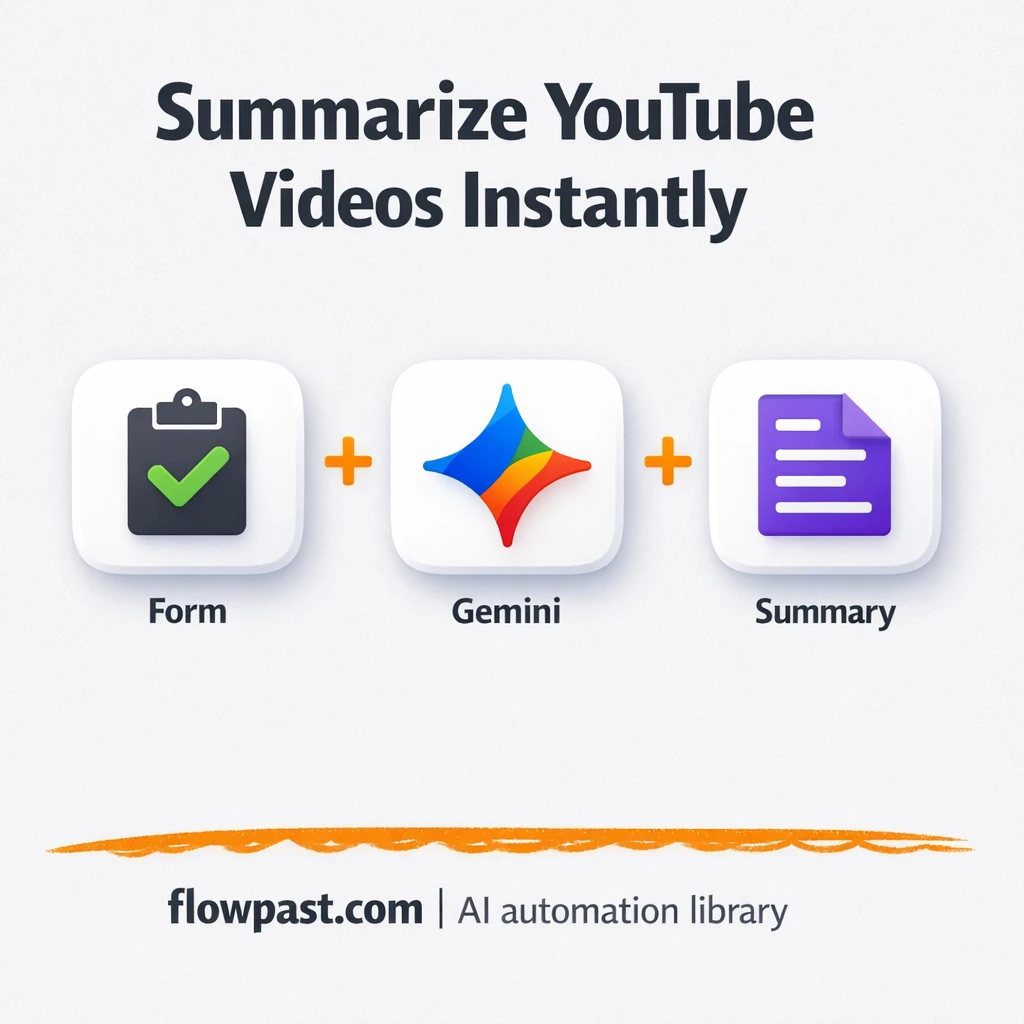

Watching “just one” YouTube video for research turns into 40 minutes. Then you still have to pull quotes, write a clean summary, and translate messy notes into something you can actually paste into a brief.
This is where YouTube Gemini summaries help a lot. Content marketers feel it first, honestly. But founders doing their own research and agency leads building client briefs run into the same bottleneck: too many videos, not enough time, and inconsistent notes.
This n8n workflow takes a YouTube link plus a “what do you want?” prompt, calls Google Gemini’s video understanding endpoint, and returns a structured, copy-ready summary. You’ll see how it works, what you need, and what results to expect.
How This Automation Works
See how this solves the problem:
n8n Workflow Template: YouTube + Google Gemini: copy ready video summaries
flowchart LR

    subgraph sg0["Get Input Flow"]
        direction LR
        n0["<div style='background:#f5f5f5;padding:10px;border-radius:8px;display:inline-block;border:1px solid #e0e0e0'><img src='https://flowpast.com/wp-content/uploads/n8n-workflow-icons/form.svg' width='40' height='40' /></div><br/>Get Input"]
        n1["<div style='background:#f5f5f5;padding:10px;border-radius:8px;display:inline-block;border:1px solid #e0e0e0'><img src='https://flowpast.com/wp-content/uploads/n8n-workflow-icons/code.svg' width='40' height='40' /></div><br/>Check if description is empty"]
        n2["<div style='background:#f5f5f5;padding:10px;border-radius:8px;display:inline-block;border:1px solid #e0e0e0'><img src='https://flowpast.com/wp-content/uploads/n8n-workflow-icons/httprequest.dark.svg' width='40' height='40' /></div><br/>Get analysis from Google Gem.."]
        n3["<div style='background:#f5f5f5;padding:10px;border-radius:8px;display:inline-block;border:1px solid #e0e0e0'><img src='https://flowpast.com/wp-content/uploads/n8n-workflow-icons/form.svg' width='40' height='40' /></div><br/>Analysis result"]
        n4["<div style='background:#f5f5f5;padding:10px;border-radius:8px;display:inline-block;border:1px solid #e0e0e0'><img src='https://flowpast.com/wp-content/uploads/n8n-workflow-icons/form.svg' width='40' height='40' /></div><br/>Redirect for another analysis"]
        n0 --> n1
        n3 --> n4
        n1 --> n2
        n2 --> n3
    end

    %% Styling
    classDef trigger fill:#e8f5e9,stroke:#388e3c,stroke-width:2px
    classDef ai fill:#e3f2fd,stroke:#1976d2,stroke-width:2px
    classDef aiModel fill:#e8eaf6,stroke:#3f51b5,stroke-width:2px
    classDef decision fill:#fff8e1,stroke:#f9a825,stroke-width:2px
    classDef database fill:#fce4ec,stroke:#c2185b,stroke-width:2px
    classDef api fill:#fff3e0,stroke:#e65100,stroke-width:2px
    classDef code fill:#f3e5f5,stroke:#7b1fa2,stroke-width:2px
    classDef disabled stroke-dasharray: 5 5,opacity: 0.5
    class n0 trigger
    class n2 api
    class n1 code
    classDef customIcon fill:none,stroke:none
    class n0,n1,n2,n3,n4 customIcon
The Challenge: Turning YouTube Research Into Usable Notes
YouTube is packed with the exact insights you want. The problem is everything around the video. You watch, pause, rewind, and try to capture the “good parts” while the speaker keeps moving. Later, you look at your notes and they’re half-sentences, missing context, and you can’t remember what timestamp that key quote came from. Multiply that by a few videos per week and it quietly steals hours, plus the mental load of feeling behind on content.
It adds up fast. And the friction compounds when you need consistency across a team.
- Manual note-taking makes “good enough” summaries, but the structure changes every time, so reuse is painful.
- When you’re writing briefs or posts, you end up re-watching segments just to find the one sentence you need.
- People copy quotes inconsistently, which leads to avoidable misquotes and extra review cycles.
- A shared system rarely exists, so research lives in DMs, docs, or someone’s browser tabs.
The Fix: Paste a Link, Get a Structured Summary
This workflow replaces the whole “watch, scribble, rewrite” loop with one simple form. You paste a YouTube URL and optionally add a short description of what you want extracted (key points, quotes, action steps, objections, examples, anything). If you leave that field blank, the workflow automatically injects a solid default prompt, so you still get a detailed summary without thinking about prompt writing. n8n then sends the video link and your prompt to Google Gemini’s video understanding API via an HTTP Request. Finally, the workflow displays the output on a results page and offers a redirect so you can run the next video right away.
The workflow starts with an n8n form submission. From there, a small JavaScript check makes sure a prompt is always present, then Gemini generates the analysis. The last form shows the clean summary and sends you back for another run.
What Changes: Before vs. After
| What This Eliminates | Impact You’ll See |
|---|---|
|
|
Real-World Impact
Say you review 5 YouTube videos a week for content ideas. Manually, even “skimming” at 40 minutes per video is about 3 hours, and you still spend another 10 minutes rewriting notes per video, so call it about 4 hours total. With this workflow, it’s roughly 1 minute to paste the URL and write a short “extract key takeaways + 5 quotes” prompt, then under a minute for Gemini to return a structured summary. That’s close to 4 hours back every week, without the sloppy notes.
Requirements
- n8n instance (try n8n Cloud free)
- Self-hosting option if you prefer (Hostinger works well)
- Google Gemini API for video understanding analysis
- YouTube URL to analyze public video content
- Gemini API key (get it from Google AI Studio / Google Cloud)
Skill level: Beginner. You’ll paste an API snippet into an HTTP Request node and map two form fields.
Need help implementing this? Talk to an automation expert (free 15-minute consultation).
The Workflow Flow
Form submission from your team. The workflow begins when someone fills in the n8n form with a YouTube URL and an optional “what do you want?” instruction.
Prompt validation. A Code node checks the instruction field. If it’s empty, the workflow inserts a default request for a detailed summary, so you never get a blank or low-signal output.
Gemini analysis call. n8n sends an HTTP POST to the Gemini video understanding endpoint, passing the YouTube link plus the prompt you provided (or the default). This is the core of the automate YouTube summaries setup.
Copy-ready output. The result is shown in a final form page, then a redirect sends you back to the starting form so you can run the next video without hunting for the link.
You can easily modify the default prompt to match your voice, then reuse it across every analysis. See the full implementation guide below for customization options.
Step-by-Step Implementation Guide
Step 1: Configure the Form Trigger
Set up the form trigger that collects the YouTube URL and user prompt. This is the entry point for the workflow and starts the execution flow from Collect Video Request to Validate Prompt Field.
- Add the Collect Video Request node and open its settings.
- Set Form Title to
Analyze YouTube Videos and Generate Summaries with Gemini AI. - Set Form Description to
I'll analyze the contents of your YouTube video!. - In Form Fields, add a required field labeled
Video URLwith placeholderwww.youtube. - Add a second field labeled
What do you want?with placeholderSummarize in 3 sentences.
Optional: The Flowpast Branding sticky note is purely informational and does not affect execution.
Step 2: Set Up Prompt Validation
Use a code node to ensure a default prompt exists when the user leaves the prompt blank. This happens immediately after the form trigger.
- Add the Validate Prompt Field node after Collect Video Request.
- Paste the JavaScript into Code to set a default prompt when
What u want?is empty. - Confirm the logic updates
$input.first().json['What u want?']with the default summary instruction.
What u want?, but the form label is What do you want?. Make sure the field key in the form matches the key used in Validate Prompt Field to avoid empty prompts.Step 3: Set Up the AI Analysis Call
Send the user prompt and YouTube video URL to Gemini using an HTTP request. This node drives the analysis output shown to the user.
- Add the Gemini Analysis Call node after Validate Prompt Field.
- Set Method to
POSTand URL tohttps://generativelanguage.googleapis.com/v1beta/models/gemini-2.0-flash:generateContent. - Enable Send Body and Send Headers, and set Body Content Type to
JSON. - Set JSON Body to
{
"contents": [
{
"parts": [
{
"text": "{{ $json['What u want?'] }}"
},
{
"file_data": {
"file_uri": "{{ $json.Video }}"
}
}
]
}
]
}
. - Add a header parameter named x-goog-api-key and paste your Gemini API key as the value.
{{ $json.Video }}, but your form field is labeled Video URL. Ensure the correct key is used or rename the form field to Video.Step 4: Configure Output Forms
Show the AI summary and redirect users to start another analysis. This completes the execution flow from Gemini Analysis Call to Show Summary Output and then to Restart Analysis Redirect.
- Add the Show Summary Output node after Gemini Analysis Call.
- Set Form Title to
Analysisand Button Label toAnother Analysis?. - Set Form Description to
{{ $json.candidates[0].content.parts[0].text }}so the AI summary is displayed. - Add the Restart Analysis Redirect node after Show Summary Output.
- Set Operation to
completionand Respond With toredirect. - Set Redirect URL to
https://example.com/form/[YOUR_ID]and replace[YOUR_ID]with your form ID.
Step 5: Test and Activate Your Workflow
Run a manual test to ensure the form submission, AI analysis call, and output display work end-to-end.
- Click Execute Workflow and open the test URL from Collect Video Request.
- Submit a YouTube link and an optional prompt; verify Validate Prompt Field adds a default prompt if blank.
- Confirm Gemini Analysis Call returns a response and Show Summary Output displays the text.
- Click the Another Analysis? button to confirm Restart Analysis Redirect sends users to your specified URL.
- Toggle the workflow to Active for production use.
Watch Out For
- Google Gemini credentials can expire or lack the right permissions. If the HTTP Request fails, check your API key status in Google AI Studio / Google Cloud first.
- If Gemini takes longer than expected, the form output may feel “stuck” for users. Processing times vary, so be conservative with timeouts and increase wait time if you add downstream steps later.
- Default prompts are useful but generic. Add your preferred structure (headings, bullet takeaways, quote formatting) early or you will be cleaning summaries by hand forever.
Common Questions
Usually about 30 minutes if you already have a Gemini API key.
Yes. You won’t write “real code” beyond pasting a small snippet and mapping two fields from the form into the HTTP Request.
Yes. n8n has a free self-hosted option and a free trial on n8n Cloud. Cloud plans start at $20/month for higher volume. You’ll also need to factor in Google Gemini API usage costs, which depend on how many videos you analyze.
Two options: n8n Cloud (managed, easiest setup) or self-hosting on a VPS. For self-hosting, Hostinger VPS is affordable and handles n8n well. Self-hosting gives you unlimited executions but requires basic server management.
You can. The simplest change is editing the default prompt in the Validate Prompt Field code step so the “blank prompt” output matches your preferred format. You can also adjust what gets sent in the Gemini Analysis Call HTTP Request (for example, ask for “5 key takeaways, 5 direct quotes, and 3 content angles”), and then tweak the Show Summary Output form so the result is easier to copy into your docs.
Most of the time it’s an invalid or expired API key, or the key isn’t allowed to use the video understanding endpoint. Check the Gemini key in your Google AI Studio / Google Cloud settings, then confirm your HTTP Request headers and the exact endpoint URL match the Gemini documentation. If it works for one video and fails later, you may be hitting rate limits or quota caps on your account.
If you self-host n8n, there’s no fixed execution cap (it depends on your server). On n8n Cloud, capacity is tied to your plan’s monthly executions, so high-volume research teams typically move up a tier. Practically, this workflow handles one submitted YouTube link per run, and Gemini returns results quickly enough for normal day-to-day use.
Often, yes, because n8n is more flexible once you go past a basic two-step Zap. This workflow benefits from the “prompt fallback” logic in the code step, and that kind of conditional handling is simpler (and usually cheaper) in n8n. n8n also gives you a self-host option, which matters if you plan to analyze lots of videos over time. Zapier and Make are still fine if all you want is “submit link → send result somewhere” and you do not expect to customize prompts. If you’re unsure, Talk to an automation expert and get a quick recommendation.
You paste a link, you get clean notes, and your team stops rewatching the same “research” video twice. Set it up once and let it run.
Need Help Setting This Up?
Our automation experts can build and customize this workflow for your specific needs. Free 15-minute consultation—no commitment required.
