


YouTube to X and Discord, every upload promoted
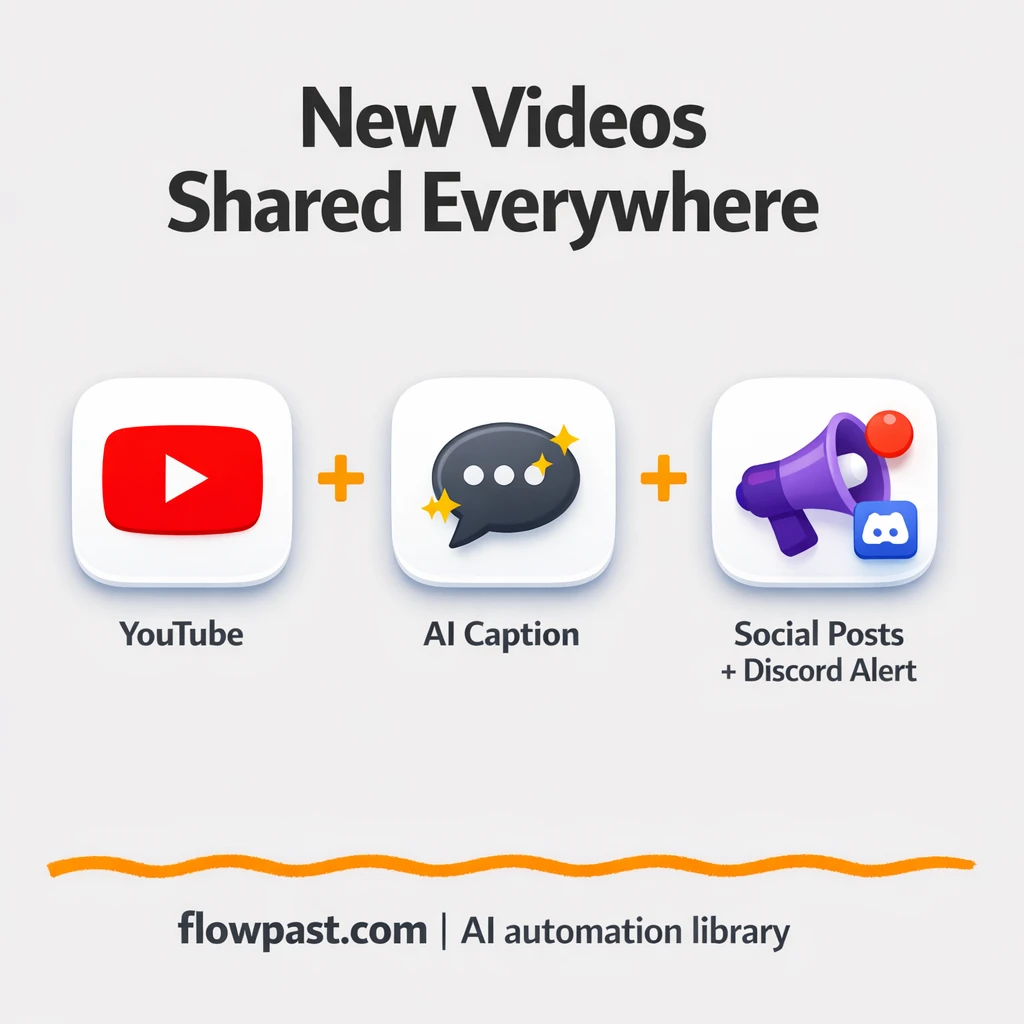

Your YouTube upload is live… and then the messy part starts. You copy the link, write a post for X, paste it into Discord, tweak hashtags, and hope you didn’t forget anything (or post the wrong URL).
This YouTube promotion automation hits marketers first because consistency is basically their job. But creators running their own channels feel it, and so do community managers trying to keep Discord from going quiet. The outcome is simple: every upload gets promoted automatically, without the repeats.
This workflow watches your YouTube channel, generates a caption with AI, posts to X, and alerts your Discord channel. You’ll see what it fixes, what you need, and how it behaves in the real world.
How This Automation Works
See how this solves the problem:
n8n Workflow Template: YouTube to X and Discord, every upload promoted
flowchart LR

    subgraph sg0["Pull Youtube Video From Channel Flow"]
        direction LR
        n0@{ icon: "mdi:robot", form: "rounded", label: "AI Agent", pos: "b", h: 48 }
        n1["<div style='background:#f5f5f5;padding:10px;border-radius:8px;display:inline-block;border:1px solid #e0e0e0'><img src='https://flowpast.com/wp-content/uploads/n8n-workflow-icons/httprequest.dark.svg' width='40' height='40' /></div><br/>Post on Facebook"]
        n2@{ icon: "mdi:play-circle", form: "rounded", label: "Pull Youtube Video From Chan..", pos: "b", h: 48 }
        n3@{ icon: "mdi:brain", form: "rounded", label: "OpenRouter Chat Model", pos: "b", h: 48 }
        n4["<div style='background:#f5f5f5;padding:10px;border-radius:8px;display:inline-block;border:1px solid #e0e0e0'><img src='https://flowpast.com/wp-content/uploads/n8n-workflow-icons/x.dark.svg' width='40' height='40' /></div><br/>Post on X"]
        n5["<div style='background:#f5f5f5;padding:10px;border-radius:8px;display:inline-block;border:1px solid #e0e0e0'><img src='https://flowpast.com/wp-content/uploads/n8n-workflow-icons/discord.svg' width='40' height='40' /></div><br/>Notify in Discord"]
        n0 --> n4
        n0 --> n1
        n4 --> n5
        n1 --> n5
        n3 -.-> n0
        n2 --> n0
    end

    %% Styling
    classDef trigger fill:#e8f5e9,stroke:#388e3c,stroke-width:2px
    classDef ai fill:#e3f2fd,stroke:#1976d2,stroke-width:2px
    classDef aiModel fill:#e8eaf6,stroke:#3f51b5,stroke-width:2px
    classDef decision fill:#fff8e1,stroke:#f9a825,stroke-width:2px
    classDef database fill:#fce4ec,stroke:#c2185b,stroke-width:2px
    classDef api fill:#fff3e0,stroke:#e65100,stroke-width:2px
    classDef code fill:#f3e5f5,stroke:#7b1fa2,stroke-width:2px
    classDef disabled stroke-dasharray: 5 5,opacity: 0.5
    class n2 trigger
    class n0 ai
    class n3 aiModel
    class n1 api
    classDef customIcon fill:none,stroke:none
    class n1,n4,n5 customIcon
The Challenge: Promoting Every Upload Without Extra Work
Publishing a YouTube video is the easy part. The annoying part is the “now go tell everyone” loop that follows, especially when you’re doing it from memory. You write one version for X, another for Discord, and you still end up with gaps: a missed announcement, an outdated link, or a lazy caption that doesn’t match the video. Over time, it creates a weird pattern where your content is consistent but your promotion isn’t. And honestly, that’s how channels stall.
It adds up fast. Here’s where it usually breaks down.
- You end up rewriting essentially the same post every time, which burns creative energy you needed for the next video.
- Links get pasted wrong or posted without context, so clicks drop and people stop paying attention.
- Discord announcements happen late (or not at all), and your community learns not to rely on updates.
- Once you’re busy, you “save it for later,” and later turns into never.
The Fix: Auto-Promote New YouTube Videos to X + Discord
This workflow turns every new YouTube upload into an automatic promotion sequence. It polls your channel’s feed on a schedule, pulls the newest video metadata (title, link, and basic details), and hands that context to an AI caption generator (via an OpenRouter chat model). The AI returns a ready-to-post message that includes the correct URL and relevant hashtags, so you’re not doing last-minute copywriting. Then n8n publishes the post to X through the X API and sends a Discord message through a webhook to the channel you choose. One upload becomes two announcements, with no copying and no tab-hopping.
The workflow starts with your YouTube feed check. From there, AI generates the social caption based on the video metadata. Finally, X gets the post and Discord gets an alert after the publish step succeeds.
What Changes: Before vs. After
| What This Eliminates | Impact You’ll See |
|---|---|
|
|
Real-World Impact
Say you publish 4 videos a week. Manually, you’ll usually spend about 10 minutes crafting an X post, then another 5 minutes writing a Discord announcement and double-checking the link, so around an hour weekly just for those two channels. With this workflow, the “work” is basically zero after setup: the feed check runs on a schedule, the AI caption is generated automatically, and both messages are sent out without you touching anything. That’s about an hour back every week, and the announcements happen on time.
Requirements
- n8n instance (try n8n Cloud free)
- Self-hosting option if you prefer (Hostinger works well)
- YouTube channel RSS feed to detect new uploads
- X (Twitter) developer access to publish posts via API
- Discord webhook URL (get it from your server’s channel integration settings)
Skill level: Intermediate. You’ll connect accounts, paste a webhook, and adjust a prompt, but you won’t be writing code.
Need help implementing this? Talk to an automation expert (free 15-minute consultation).
The Workflow Flow
A scheduled YouTube feed check runs automatically. The workflow polls your channel’s RSS feed, so it can detect a new video soon after it goes live.
The video details get packaged for the AI prompt. n8n takes the title and URL (and any other available metadata) and sends it to an LLM through OpenRouter so the caption isn’t generic filler.
The caption is posted to X. Once the AI returns a finalized message with the link and hashtags, the X node publishes it through the API.
Discord gets a clean announcement. After the publish step, the workflow sends a Discord channel alert via webhook so your community sees the update right away.
You can easily modify the caption style to match your voice, or change which channels receive alerts based on your needs. See the full implementation guide below for customization options.
Step-by-Step Implementation Guide
Step 1: Configure the RSS Trigger
Set up the trigger that watches your YouTube channel’s RSS feed for new videos.
- Add or open Retrieve YouTube Feed.
- Set Feed URL to
https://www.youtube.com/feeds/videos.xml?channel_id=[YOUR_ID]. - In Poll Times, keep Mode as
everyHourand Minute as17.
Step 2: Set Up the AI Caption Generator
Configure the AI to generate a short social caption using the video title and link.
- Open Generate Social Caption and set Prompt Type to
define. - Set Text to
=Write a short, engaging social media post about this new YouTube video with title: {{ $json.title }}

Title: {{ $json.title }}
URL: {{ $json.link }}
Hashtags: #AI #Automation #n8n

Include emojis and a call to action and above 3 predefined hashtags and 1 more hashtags which are relevant to the context. Ensure the output content is within 260 character limit and do NOT display char count in the content.
. - Ensure Has Output Parser is enabled.
- Open OpenRouter Chat Engine and set Model to
deepseek/deepseek-r1:free. - Credential Required: Connect your
openRouterApicredentials in OpenRouter Chat Engine. - Confirm OpenRouter Chat Engine is connected as the language model for Generate Social Caption (credentials should be added to OpenRouter Chat Engine, not the agent node).
Step 3: Configure Social Publishing Outputs
Post the generated caption to X and Facebook in parallel.
- Open Publish X Update and set Text to
={{ $json.output }}. - Credential Required: Connect your
twitterOAuth2Apicredentials in Publish X Update. - Open Publish Facebook Update and set URL to
=https://graph.facebook.com/v23.0/me/feed. - Set Method to
POSTand Content Type toform-urlencoded. - Add body parameters: message =
={{ $json.output }}and link =={{ $('Retrieve YouTube Feed').item.json.link }}. - Set Authentication to
genericCredentialTypeand Generic Auth Type tohttpQueryAuth. - Credential Required: Connect your
httpQueryAuthandhttpHeaderAuthcredentials in Publish Facebook Update.
Generate Social Caption outputs to both Publish X Update and Publish Facebook Update in parallel.
Step 4: Configure the Discord Notification
Send a Discord alert after posts are published to both social platforms.
- Open Discord Channel Alert and set Authentication to
webhook. - Set Content to
=🚀 🚀 The below YouTube video has been published to other social platforms🚀 🚀

**message**: {{ $('Generate Social Caption').item.json.output }}

**title**:  {{ $('Retrieve YouTube Feed').item.json.title }}
**url**: {{ $('Retrieve YouTube Feed').item.json.link }}
. - Credential Required: Connect your
discordWebhookApicredentials in Discord Channel Alert.
Publish X Update and Publish Facebook Update both route into Discord Channel Alert after completion.
Step 5: Test and Activate Your Workflow
Validate the workflow end-to-end before enabling it in production.
- Use Execute Workflow to run a manual test and confirm Retrieve YouTube Feed fetches a recent video item.
- Verify Generate Social Caption produces a short caption and that both Publish X Update and Publish Facebook Update post successfully.
- Confirm Discord Channel Alert receives the formatted message with title and URL.
- Toggle the workflow to Active to enable hourly automation.
⚠️ Common Pitfall: If Facebook posts fail, ensure the access token in Publish Facebook Update has the correct permissions and matches the me/feed endpoint.
Watch Out For
- X credentials can expire or need specific permissions. If things break, check your X developer app access level and token status first.
- If you’re relying on AI generation via OpenRouter, response speed can vary. If downstream posting nodes run before the text is ready, increase your wait/timeout settings in the AI request.
- Discord webhooks are easy to rotate by accident when channels get reorganized. If messages stop arriving, verify the webhook URL still belongs to the correct channel and hasn’t been deleted.
Common Questions
About 30 minutes if your accounts and API access are ready.
Yes, but you will need someone comfortable with API keys. The setup is mostly copy/paste credentials, plus testing one sample post end-to-end.
Yes. n8n has a free self-hosted option and a free trial on n8n Cloud. Cloud plans start at $20/month for higher volume. You’ll also need to factor in LLM usage via OpenRouter, which is usually small per caption but depends on the model you choose.
Two options: n8n Cloud (managed, easiest setup) or self-hosting on a VPS. For self-hosting, Hostinger VPS is affordable and handles n8n well. Self-hosting gives you unlimited executions but requires basic server management.
Start in the “Generate Social Caption” AI step. You can change the tone, add a fixed CTA, include your Discord @role mention text, or enforce a hashtag set you always want. If you want different wording per channel, keep one AI output for X and a second, shorter variant for Discord. You can also add a simple approval checkpoint by writing the caption to Google Sheets first, then only posting when a status column is set to “approved.”
Usually it’s an API access level problem or an expired token. Re-check your X developer app permissions, regenerate the keys if needed, then update the credentials inside n8n. Also watch for rate limits if you’re reprocessing older feed items in bulk, because that can look like a burst of posts.
For most channels, it’s effectively “as many videos as you publish.” n8n Cloud Starter typically supports a few thousand workflow executions per month, and self-hosting mainly depends on your server. Since this runs once per new video (plus a feed check schedule), the load is light unless you’re backfilling lots of old uploads.
Often, yes. n8n is better when you want control over the AI prompt, branching logic, and “only post when conditions are met” rules without paying extra for every filter. Self-hosting is also a big deal if you don’t want to think about task limits. Zapier or Make can be quicker for very simple two-step automations, but this workflow benefits from the extra flexibility. If you want help choosing, Talk to an automation expert and we’ll pressure-test the setup against your posting volume and channels.
Once this is running, new uploads market themselves while you move on to the next video. The workflow handles the repetitive stuff, and your channels stay reliably updated.
Need Help Setting This Up?
Our automation experts can build and customize this workflow for your specific needs. Free 15-minute consultation—no commitment required.
