


Google Sheets + Excel: clean rows, fewer mistakes
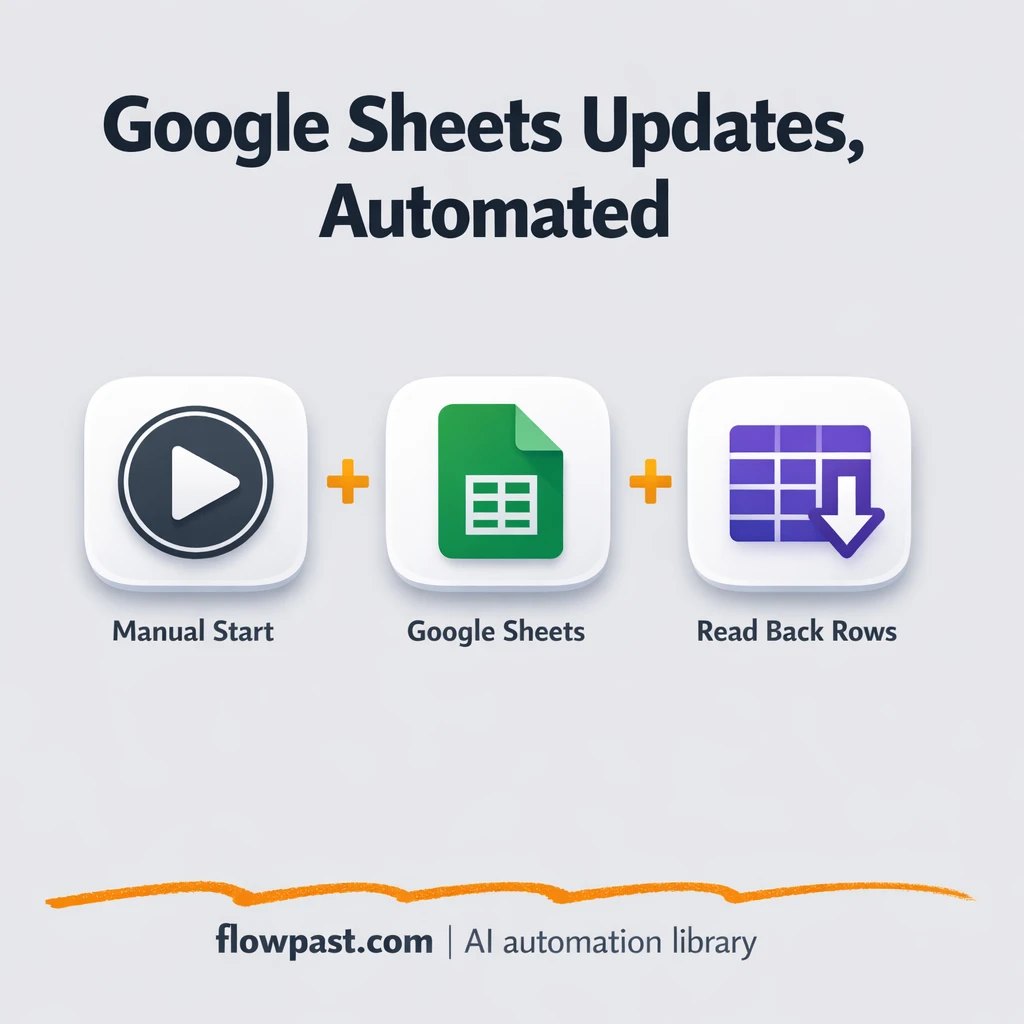

Your sheet looks “fine” until someone filters, totals, or exports it. Then you spot it. A date shifted into the wrong column, a number stored as text, or a row that never got added at all.
This Sheets row cleanup automation hits marketing ops and reporting-heavy teams first, but it’s just as painful for an agency owner trying to send accurate weekly results. You end up double-checking what should be reliable.
This workflow appends clean rows into Google Sheets and then immediately confirms the row landed correctly, so you can stop guessing and start trusting what’s in the file.
How This Automation Works
The full n8n workflow, from trigger to final output:
n8n Workflow Template: Google Sheets + Excel: clean rows, fewer mistakes
flowchart LR

    subgraph sg0["Manual Execution Start Flow"]
        direction LR
        n0@{ icon: "mdi:play-circle", form: "rounded", label: "Manual Execution Start", pos: "b", h: 48 }
        n1@{ icon: "mdi:database", form: "rounded", label: "Append Spreadsheet Rows", pos: "b", h: 48 }
        n2@{ icon: "mdi:swap-vertical", form: "rounded", label: "Assign Data Fields", pos: "b", h: 48 }
        n3@{ icon: "mdi:database", form: "rounded", label: "Fetch Sheet Rows", pos: "b", h: 48 }
        n2 --> n1
        n1 --> n3
        n0 --> n2
    end

    %% Styling
    classDef trigger fill:#e8f5e9,stroke:#388e3c,stroke-width:2px
    classDef ai fill:#e3f2fd,stroke:#1976d2,stroke-width:2px
    classDef aiModel fill:#e8eaf6,stroke:#3f51b5,stroke-width:2px
    classDef decision fill:#fff8e1,stroke:#f9a825,stroke-width:2px
    classDef database fill:#fce4ec,stroke:#c2185b,stroke-width:2px
    classDef api fill:#fff3e0,stroke:#e65100,stroke-width:2px
    classDef code fill:#f3e5f5,stroke:#7b1fa2,stroke-width:2px
    classDef disabled stroke-dasharray: 5 5,opacity: 0.5
    class n0 trigger
    class n1,n3 database
The Problem: Rows drift, columns break, and reporting turns into detective work
If you’ve ever copied data from Excel into Google Sheets (or received “final-v7.xlsx” from someone and tried to merge it), you know the real issue isn’t adding a row. It’s adding the right row, in the right shape, every time. One person pastes an extra column. Another uses commas in currency. Someone else leaves a field blank and shifts everything to the left. Now totals are wrong, dashboards look off, and you burn about 2 hours hunting the mistake instead of doing something useful with the numbers.
It adds up fast. Here’s where it breaks down in real life:
- Rows get appended with inconsistent field order, which quietly scrambles columns.
- “Quick fixes” in Excel create formatting changes that don’t survive the trip into Sheets.
- You don’t notice a missing row until a weekly report is already sent.
- People start maintaining side spreadsheets because they don’t trust the main one anymore.
The Solution: Append rows, standardize fields, then verify the write
This n8n workflow solves the boring but expensive part of spreadsheet work: keeping rows consistent and confirming they actually landed. It starts with a simple trigger (manual execution in this companion setup), assigns data into a predictable set of fields, and appends those values into a Google Sheet as a new row. Then it immediately fetches rows back from that same sheet so you can confirm the new entry exists and looks right. If you’re coming from an Excel-heavy process, this is the missing guardrail: instead of trusting a paste job or a one-off import, you get a repeatable “write + check” loop that keeps your reporting sheet stable.
The workflow begins when you run it and send a prepared set of fields into the pipeline. n8n writes those values into Google Sheets as a new row. Finally, it pulls sheet rows back so you can validate the insert and spot issues immediately, not next week.
What You Get: Automation vs. Results
| What This Workflow Automates | Results You’ll Get |
|---|---|
|
|
Example: What This Looks Like
Say you update a KPI sheet from an Excel export twice a day. Manually, you might spend about 10 minutes cleaning columns and another 10 minutes checking formulas didn’t break, so roughly 40 minutes daily. With this workflow, you run the trigger, n8n formats the fields, appends the row, then fetches rows to confirm it worked, which is more like 5 minutes of your time plus a short wait for the API. That’s about 30 minutes back per day, without the “did I paste that right?” anxiety.
What You’ll Need
- n8n instance (try n8n Cloud free)
- Self-hosting option if you prefer (Hostinger works well)
- Google Sheets for storing rows in a shared sheet
- Excel as the common source of exported updates
- Google account access (authorize in n8n credentials)
Skill level: Beginner. You will connect Google credentials and choose the target spreadsheet and sheet tab.
Don’t want to set this up yourself? Talk to an automation expert (free 15-minute consultation).
How It Works
A manual run kicks things off. In this companion workflow, you trigger it when you want to test or push an update (perfect for validating your sheet setup before you automate the source).
Fields are standardized before anything touches your sheet. The workflow assigns the data fields into a consistent structure so column order stays predictable even if your source data is messy.
The row is appended to Google Sheets. n8n adds a new row to the spreadsheet using the mapped fields, which prevents the classic “paste shifted one cell” problem.
The workflow reads the sheet back for confirmation. It fetches rows after the append so you can validate that the data landed and looks correct, which makes this a reliable pattern for later triggers (like CRM events or form submissions).
You can easily modify the assigned fields to match your real spreadsheet columns based on your needs. See the full implementation guide below for customization options.
Step-by-Step Implementation Guide
Step 1: Configure the Manual Trigger
Set up the workflow to start manually so you can test the data flow before scheduling or integrating other triggers.
- Add the Manual Execution Start node as your trigger.
- Keep default settings since this node requires no configuration.
- Optionally leave the Flowpast Branding sticky note for documentation and reference.
Step 2: Connect Google Sheets
Both spreadsheet nodes read and write data, so ensure they are connected to the same Google Sheets account.
- Open Append Spreadsheet Rows and set Authentication to
oAuth2. - Set Sheet ID to
[YOUR_ID]and Range toA:B. - Credential Required: Connect your googleSheetsOAuth2Api credentials in Append Spreadsheet Rows.
- Open Fetch Sheet Rows and set Authentication to
oAuth2. - Set Sheet ID to
[YOUR_ID]and Range toA:B. - Credential Required: Connect your googleSheetsOAuth2Api credentials in Fetch Sheet Rows.
⚠️ Common Pitfall: Using different Sheet IDs in Append Spreadsheet Rows and Fetch Sheet Rows will make it look like rows are missing. Keep both set to the same spreadsheet.
Step 3: Set Up Data Preparation
Define the fields that will be appended to your sheet.
- Open Assign Data Fields and add a number field with Name set to
id. - Add a string field with Name set to
nameand Value set ton8n. - Ensure Assign Data Fields connects to Append Spreadsheet Rows as the next node in the flow.
Tip: If you need more columns, add additional fields in Assign Data Fields and expand the Range in both Google Sheets nodes.
Step 4: Configure Spreadsheet Actions
This workflow first appends a row and then fetches the updated rows.
- In Append Spreadsheet Rows, set Operation to
append. - Verify the execution order: Manual Execution Start → Assign Data Fields → Append Spreadsheet Rows → Fetch Sheet Rows.
- Confirm Fetch Sheet Rows is connected after Append Spreadsheet Rows to read the updated data.
Step 5: Test and Activate Your Workflow
Run a manual test to confirm rows append correctly and are fetched afterward.
- Click Execute Workflow to run Manual Execution Start.
- Check Append Spreadsheet Rows for a successful append operation and verify the new row in your Google Sheet.
- Review Fetch Sheet Rows output to confirm it returns the updated sheet data.
- When satisfied, save the workflow and toggle it to Active for production use.
Common Gotchas
- Google Sheets credentials can expire or need specific permissions. If things break, check the n8n Credentials page and the Google account’s access to that spreadsheet first.
- If you’re using Wait nodes or external rendering, processing times vary. Bump up the wait duration if downstream nodes fail on empty responses.
- Default prompts in AI nodes are generic. Add your brand voice early or you’ll be editing outputs forever.
Frequently Asked Questions
About 20 minutes if your Google account is ready.
No. You’ll mostly connect Google Sheets and match your columns. If you can edit a spreadsheet, you can set this up.
Yes. n8n has a free self-hosted option and a free trial on n8n Cloud. Cloud plans start at $20/month for higher volume. You’ll also need to factor in any Google Workspace costs you already pay (the Sheets API itself is typically not an extra line item for most small teams).
Two options: n8n Cloud (managed, easiest setup) or self-hosting on a VPS. For self-hosting, Hostinger VPS is affordable and handles n8n well. Self-hosting gives you unlimited executions but requires basic server management.
Yes, and you should. Update the “Assign Data Fields” step to match your real column names and order, then point “Append Spreadsheet Rows” at the correct sheet tab. Common tweaks include forcing date formats, splitting full names into two columns, and setting defaults when a field is blank.
Usually it’s an expired Google authorization or the wrong account being used. Reconnect the Google Sheets credential in n8n, then confirm that same Google user can open and edit the target spreadsheet in a normal browser. If you’re writing to a shared drive, permissions can be stricter, so double-check access there too. It’s also worth confirming you selected the right spreadsheet and worksheet, because a changed tab name can look like a “connection” issue.
A lot, but the practical limit is your n8n plan and how fast Google Sheets responds.
Often, yes, because this pattern benefits from a “write then verify” approach and flexible data shaping. n8n makes it easier to map fields, add conditions, and extend the workflow without paying extra for every branch. You can also self-host, which is handy if you run this frequently or want more control. Zapier or Make can be quicker for a simple one-step “add row” task, frankly, but verification and consistent field mapping tend to get clunky as soon as the sheet grows. Talk to an automation expert if you want a quick recommendation based on your volume and tools.
Once you have a clean “append + verify” pattern, spreadsheets stop feeling fragile. Set it up, reuse it, and let your reports reflect reality.
Need Help Setting This Up?
Our automation experts can build and customize this workflow for your specific needs. Free 15-minute consultation—no commitment required.
