


Zoom meets WordPress, one always-working meeting link
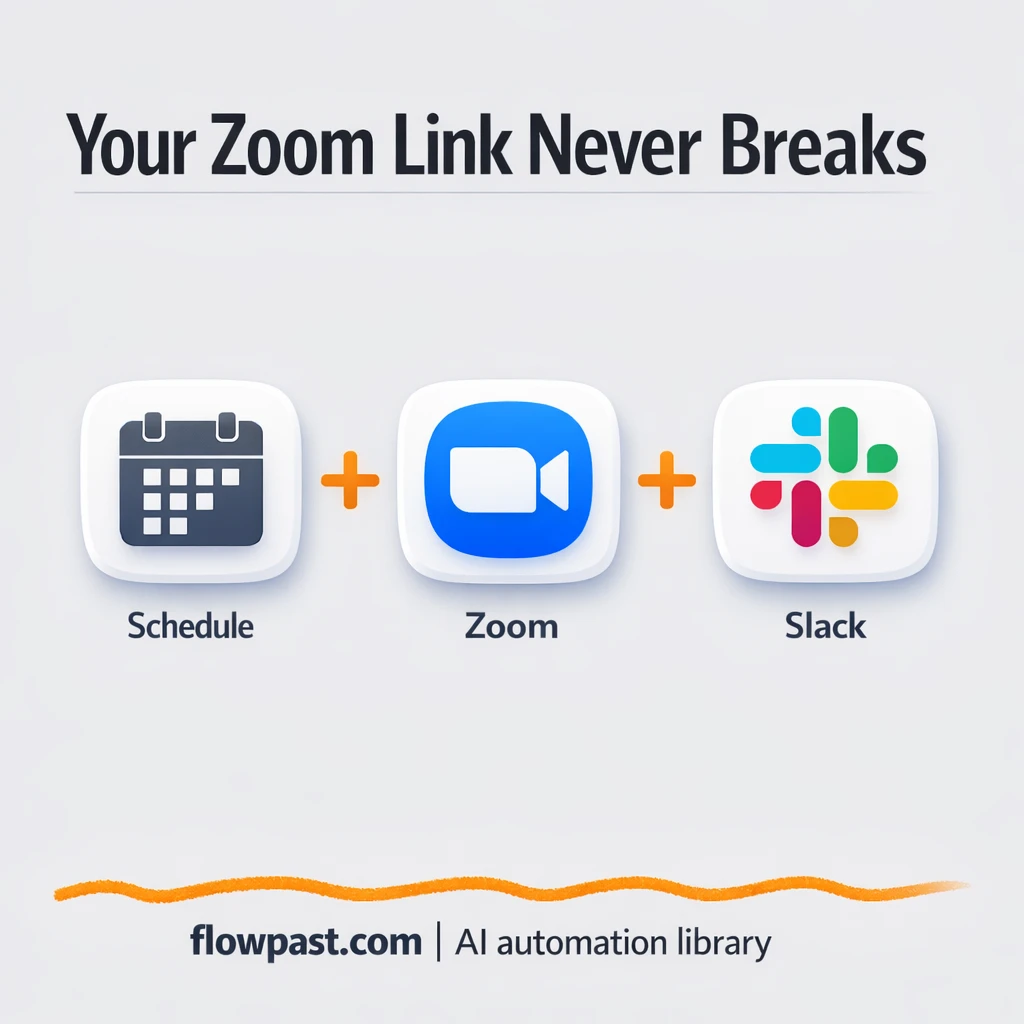

Your Zoom link changes, expires, or gets buried in a doc somewhere. Then you paste the wrong one into an email, a calendar invite, or a landing page and you get that awful “it doesn’t work” message five minutes before a call.
This Zoom WordPress automation hits coaches and consultants the hardest, honestly. But agency owners running client sessions feel it too. The outcome is simple: one clean URL on your domain that always points to your current Zoom meeting.
This workflow recreates your recurring meeting once a year, updates a WordPress page with the new link, and pings Slack so you know it worked. You will see what it does, why it matters, and what you need to run it safely.
How This Automation Works
The full n8n workflow, from trigger to final output:
n8n Workflow Template: Zoom meets WordPress, one always-working meeting link
flowchart LR

    subgraph sg0["Schedule Flow"]
        direction LR
        n0["<div style='background:#f5f5f5;padding:10px;border-radius:8px;display:inline-block;border:1px solid #e0e0e0'><img src='https://flowpast.com/wp-content/uploads/n8n-workflow-icons/zoom.svg' width='40' height='40' /></div><br/>Zoom"]
        n1@{ icon: "mdi:play-circle", form: "rounded", label: "Schedule Trigger", pos: "b", h: 48 }
        n2["<div style='background:#f5f5f5;padding:10px;border-radius:8px;display:inline-block;border:1px solid #e0e0e0'><img src='https://flowpast.com/wp-content/uploads/n8n-workflow-icons/wordpress.svg' width='40' height='40' /></div><br/>Wordpress"]
        n3["<div style='background:#f5f5f5;padding:10px;border-radius:8px;display:inline-block;border:1px solid #e0e0e0'><img src='https://flowpast.com/wp-content/uploads/n8n-workflow-icons/slack.svg' width='40' height='40' /></div><br/>Slack"]
        n0 --> n2
        n2 --> n3
        n1 --> n0
    end

    %% Styling
    classDef trigger fill:#e8f5e9,stroke:#388e3c,stroke-width:2px
    classDef ai fill:#e3f2fd,stroke:#1976d2,stroke-width:2px
    classDef aiModel fill:#e8eaf6,stroke:#3f51b5,stroke-width:2px
    classDef decision fill:#fff8e1,stroke:#f9a825,stroke-width:2px
    classDef database fill:#fce4ec,stroke:#c2185b,stroke-width:2px
    classDef api fill:#fff3e0,stroke:#e65100,stroke-width:2px
    classDef code fill:#f3e5f5,stroke:#7b1fa2,stroke-width:2px
    classDef disabled stroke-dasharray: 5 5,opacity: 0.5
    class n1 trigger
    classDef customIcon fill:none,stroke:none
    class n0,n2,n3 customIcon
The Problem: Your “Forever” Zoom Link Isn’t Forever
You set up a recurring Zoom meeting, paste the link everywhere, and move on. Months later, the link breaks because Zoom caps recurring meetings at about a year. Now you’re scrambling: updating a website button, fixing old templates, and hunting down any place that “meet link” got copied. It’s not just time. It’s trust. One broken link can turn a paid session into a no-show, or make your business look sloppy when you did everything right.
The friction compounds. One missed update is all it takes.
- You end up maintaining the same Zoom URL in too many places, and it’s always the one place you forgot that causes trouble.
- Recurring meeting policies change over time, so “set and forget” quietly turns into “set and panic later.”
- Copy-pasting links invites small mistakes that are hard to notice until someone tries to join.
- You can’t confidently share one clean URL on your domain, which means your invites look messy and inconsistent.
The Solution: Automatically Refresh Zoom and Update WordPress
This workflow runs on a schedule (once every 360 days) and rebuilds your recurring Zoom meeting before the old one becomes a problem. When it creates the fresh meeting in Zoom, it immediately updates a specific WordPress page (the one you use as your “meet me” link) so the page contains the new meeting URL or redirect script. Finally, it posts a message in Slack confirming the update, so you’re not guessing if it worked. The result is a stable, memorable link like mydomain.com/meet-me that stays valid year after year with almost no effort from you.
The workflow starts with a scheduled trigger. Zoom generates a new recurring meeting and returns the updated join link. WordPress is updated automatically, and Slack gives you the green light.
What You Get: Automation vs. Results
| What This Workflow Automates | Results You’ll Get |
|---|---|
|
|
Example: What This Looks Like
Say your Zoom link lives in 6 places: a WordPress page, your email signature, a welcome email template, a Notion doc, a calendar description, and a pinned Slack message. When it expires, updating each spot can take about 10 minutes if you do it carefully, which is roughly an hour of annoying work. With this workflow, you spend maybe 15 minutes setting it up once, then it refreshes annually in the background. Your public URL stays the same, so most of those updates disappear entirely.
What You’ll Need
- n8n instance (try n8n Cloud free)
- Self-hosting option if you prefer (Hostinger works well)
- Zoom to create a new recurring meeting.
- WordPress to host your “meet me” page.
- Slack API access (get it from your Slack app settings).
Skill level: Beginner. You’ll connect accounts, pick a WordPress page ID, and test once.
Don’t want to set this up yourself? Talk to an automation expert (free 15-minute consultation).
How It Works
Annual scheduled trigger. n8n runs this workflow once every 360 days, which is early enough to stay ahead of Zoom’s one-year cap on recurring meetings.
Zoom meeting refresh. The workflow creates a new recurring Zoom session and collects the join link that you would normally copy by hand.
WordPress page update. n8n updates your chosen WordPress page (by page ID) with the new Zoom URL. Many people use this page as a simple redirect, so visitors always end up in the right meeting.
Slack confirmation. A message is posted to your chosen Slack channel so you know the update completed and you can spot problems quickly.
You can easily modify the WordPress page content to match your preferred redirect style (button, short message, or script) based on your needs. See the full implementation guide below for customization options.
Step-by-Step Implementation Guide
Step 1: Configure the Schedule Trigger
Set the timing that kicks off the workflow using the scheduled trigger node.
- Add and open Scheduled Automation Trigger.
- Set the schedule rule to run every 360 days at hour 3 by configuring rule → interval → daysInterval to
360and triggerAtHour to3. - Connect Scheduled Automation Trigger to Configure Zoom Session to start the workflow.
Step 2: Connect Zoom
Connect your Zoom account so the workflow can create or update a recurring meeting.
- Open Configure Zoom Session.
- Credential Required: Connect your Zoom OAuth2 credentials.
- Verify the Authentication field is set to
oAuth2.
Step 3: Set Up Configure Zoom Session
Define the recurring meeting details that will be reused in the landing page and Slack alert.
- In Configure Zoom Session, set Topic to
New Meeting. - In Additional Fields, set Type to
3to create a recurring meeting. - Enable meeting settings: muteUponEntry
true, joinBeforeHosttrue, and participantVideotrue. - Set Time Zone to
America/New_York.
Step 4: Configure Output/Action Nodes
Update the WordPress landing page with the new meeting URL and notify your Slack channel.
- Open Update WP Landing and set Resource to
pageand Operation toupdate. - Set Page ID to
[YOUR_ID]. - Set Update Fields → Content to
= <meta http-equiv="refresh" content="0;{{ $json.join_url }}"> <p>Redirecting, please wait a moment. Meeting will begin shortly…</p>. - Credential Required: Connect your WordPress credentials.
- Open Slack Channel Alert and set Text to
=Zoom recurring meeting updated!
{{ $('Configure Zoom Session').item.json.join_url }}
. - Set Select to
channeland Channel ID to[YOUR_ID]. - Enable Other Options → Include Link To Workflow as
true. - Credential Required: Connect your Slack credentials.
[YOUR_ID] placeholders in WordPress and Slack, or the update and alert will fail.Step 5: Test and Activate Your Workflow
Run a manual test to confirm the Zoom meeting is created, the WordPress page updates, and Slack receives the alert.
- Click Execute Workflow to run Scheduled Automation Trigger manually.
- Verify Configure Zoom Session returns a
join_urlin its output. - Confirm Update WP Landing updated the page content with the meeting link.
- Check Slack Channel Alert for the posted message containing the Zoom URL.
- Turn on the workflow using the Activate toggle for scheduled production runs.
Common Gotchas
- WordPress credentials can expire or need specific permissions. If things break, check your WordPress Application Passwords (or REST API access) first.
- If you’re using Wait nodes or external rendering, processing times vary. Bump up the wait duration if downstream nodes fail on empty responses.
- Default prompts in AI nodes are generic. Add your brand voice early or you’ll be editing outputs forever.
Frequently Asked Questions
About 20 minutes if your accounts and API access are ready.
No. You’ll mostly paste credentials and select the right WordPress page to update. Testing matters more than coding here.
Yes. n8n has a free self-hosted option and a free trial on n8n Cloud. Cloud plans start at $20/month for higher volume. You’ll also need to factor in Zoom/WordPress/Slack API access (usually included with your accounts).
Two options: n8n Cloud (managed, easiest setup) or self-hosting on a VPS. For self-hosting, Hostinger VPS is affordable and handles n8n well. Self-hosting gives you unlimited executions but requires basic server management.
Yes, but you’ll swap the WordPress update step. In n8n, replace the “Update WP Landing” node with an HTTP Request that updates your CMS (Webflow, Ghost, custom site) or writes the new Zoom URL into whatever system generates your redirect. Common customizations include updating a shortlink service, changing the page copy around the button, or sending the refreshed URL to email/SMS instead of Slack. Do a full test run after changes because a small formatting mistake can break redirects.
Usually it’s expired or incorrect Zoom credentials in n8n. Reconnect your Zoom account, then confirm your Zoom app has the right scopes to create meetings. If it fails only on the scheduled run, check token refresh and account-level restrictions, since Zoom admin settings can block meeting creation unexpectedly.
For this specific setup, it usually creates one recurring meeting per year.
Often, yes. n8n is a better fit when you want scheduled logic, tighter control over how WordPress gets updated, and the option to self-host so you’re not paying per tiny step. Zapier or Make can still do it, but you may hit limitations around formatting the WordPress update exactly how you want, and the pricing can feel silly for something that runs once a year. Also, n8n makes it easier to expand later (for example, updating multiple pages or posting the new link to more channels). If you’re torn, Talk to an automation expert and get a quick recommendation.
Set this up once and your “meet me” URL stops being a yearly maintenance task. The workflow handles the boring updates so your next invite just works.
Need Help Setting This Up?
Our automation experts can build and customize this workflow for your specific needs. Free 15-minute consultation—no commitment required.
