


OpenAI + Google Sheets, customer success plans ready
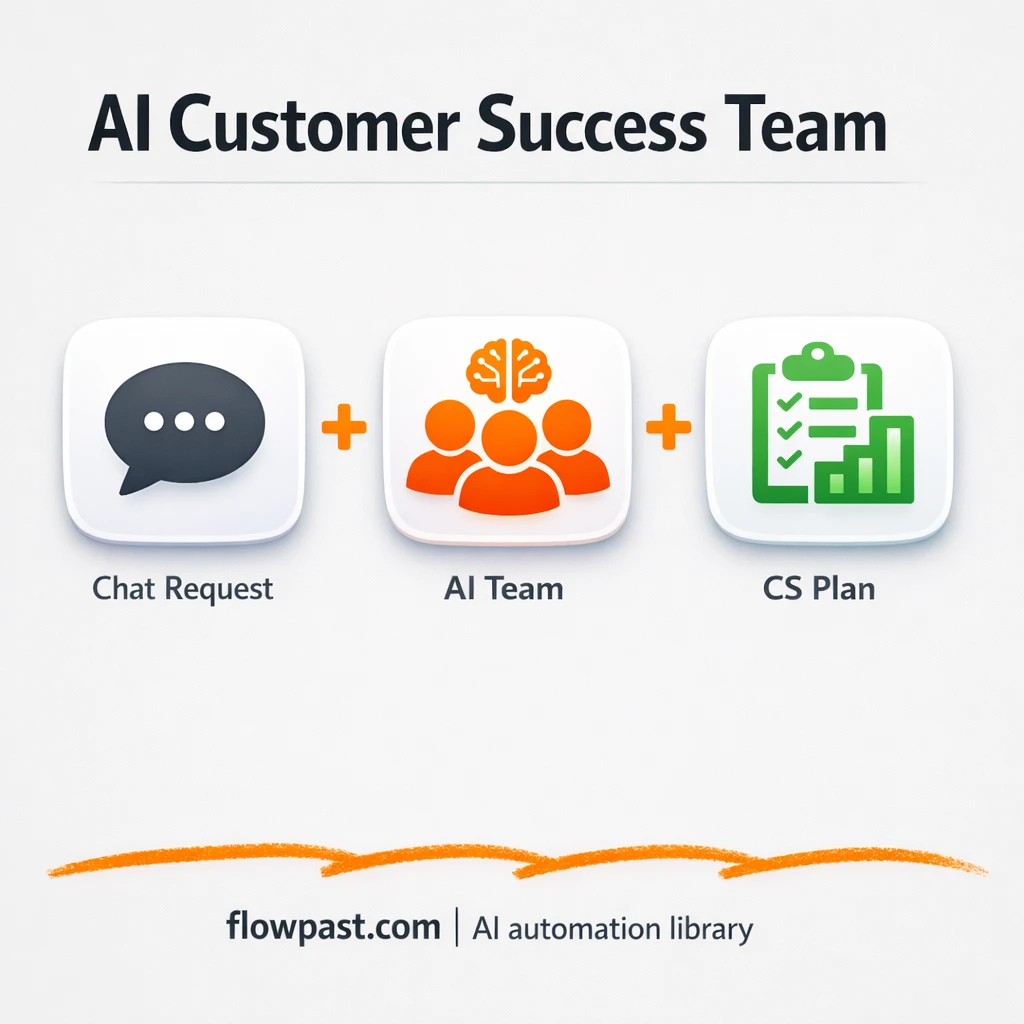

Your customer success “plan” usually lives in three places. Half in someone’s head, half in Slack threads, and the rest in a doc that hasn’t been touched since last quarter.
Customer Success Managers feel it when onboarding gets inconsistent. A Head of CS feels it when churn conversations start with “we should’ve caught this earlier.” Even a founder doing CS themselves runs into the same wall. This success plan automation turns one request into a complete, reusable playbook you can actually share.
You’ll see what the workflow generates, how it moves from chat request to structured output, and how to store it cleanly in Google Sheets so it becomes a system, not a one-off doc.
How This Automation Works
The full n8n workflow, from trigger to final output:
n8n Workflow Template: OpenAI + Google Sheets, customer success plans ready
flowchart LR

    subgraph sg0["When chat message received Flow"]
        direction LR
        n0@{ icon: "mdi:play-circle", form: "rounded", label: "When chat message received", pos: "b", h: 48 }
        n1@{ icon: "mdi:robot", form: "rounded", label: "CCO Agent", pos: "b", h: 48 }
        n2@{ icon: "mdi:wrench", form: "rounded", label: "Think", pos: "b", h: 48 }
        n3@{ icon: "mdi:wrench", form: "rounded", label: "Customer Onboarding Specialist", pos: "b", h: 48 }
        n4@{ icon: "mdi:wrench", form: "rounded", label: "Customer Support Specialist", pos: "b", h: 48 }
        n5@{ icon: "mdi:wrench", form: "rounded", label: "Customer Health Analyst", pos: "b", h: 48 }
        n6@{ icon: "mdi:wrench", form: "rounded", label: "Account Expansion Specialist", pos: "b", h: 48 }
        n7@{ icon: "mdi:wrench", form: "rounded", label: "Customer Training Specialist", pos: "b", h: 48 }
        n8@{ icon: "mdi:wrench", form: "rounded", label: "Customer Retention Specialist", pos: "b", h: 48 }
        n9@{ icon: "mdi:brain", form: "rounded", label: "OpenAI Chat Model CCO", pos: "b", h: 48 }
        n10@{ icon: "mdi:brain", form: "rounded", label: "OpenAI Chat Model1", pos: "b", h: 48 }
        n11@{ icon: "mdi:brain", form: "rounded", label: "OpenAI Chat Model2", pos: "b", h: 48 }
        n12@{ icon: "mdi:brain", form: "rounded", label: "OpenAI Chat Model3", pos: "b", h: 48 }
        n13@{ icon: "mdi:brain", form: "rounded", label: "OpenAI Chat Model4", pos: "b", h: 48 }
        n14@{ icon: "mdi:brain", form: "rounded", label: "OpenAI Chat Model5", pos: "b", h: 48 }
        n15@{ icon: "mdi:brain", form: "rounded", label: "OpenAI Chat Model6", pos: "b", h: 48 }
        n2 -.-> n1
        n10 -.-> n3
        n11 -.-> n4
        n12 -.-> n5
        n13 -.-> n6
        n14 -.-> n7
        n15 -.-> n8
        n9 -.-> n1
        n5 -.-> n1
        n0 --> n1
        n4 -.-> n1
        n6 -.-> n1
        n7 -.-> n1
        n8 -.-> n1
        n3 -.-> n1
    end

    %% Styling
    classDef trigger fill:#e8f5e9,stroke:#388e3c,stroke-width:2px
    classDef ai fill:#e3f2fd,stroke:#1976d2,stroke-width:2px
    classDef aiModel fill:#e8eaf6,stroke:#3f51b5,stroke-width:2px
    classDef decision fill:#fff8e1,stroke:#f9a825,stroke-width:2px
    classDef database fill:#fce4ec,stroke:#c2185b,stroke-width:2px
    classDef api fill:#fff3e0,stroke:#e65100,stroke-width:2px
    classDef code fill:#f3e5f5,stroke:#7b1fa2,stroke-width:2px
    classDef disabled stroke-dasharray: 5 5,opacity: 0.5
    class n0 trigger
    class n1 ai
    class n9,n10,n11,n12,n13,n14,n15 aiModel
    class n2,n3,n4,n5,n6,n7,n8 ai
The Problem: Customer Success Plans Are Rebuilt From Scratch
Every time you onboard a new segment, launch a new product tier, or notice a churn pattern, you end up recreating the same “customer success plan” from a blank page. Someone collects notes. Someone else copies an old template. Then it turns into a long document that looks impressive but doesn’t translate into daily actions. And because it’s manual, it happens late. By the time the plan is “done,” the account is already at risk, or the onboarding window has passed.
It adds up fast. The mess isn’t one big failure, it’s the constant small frictions that drain your team.
- You spend about 2 hours assembling a plan, and it still misses key pieces like training, support workflows, and expansion plays.
- Different CSMs build different versions of “best practice,” which means customers get uneven onboarding and uneven outcomes.
- Stakeholders can’t find the latest plan, so they create their own, and now you have five competing documents.
- When you try to scale, your process turns into meetings instead of repeatable playbooks.
The Solution: Multi-Agent CS Playbooks Generated and Stored Automatically
This n8n workflow starts with a simple chat request, like “Create a comprehensive onboarding program for enterprise customers.” From there, a “Chief Customer Officer” style AI agent performs the strategic pass: it interprets what you’re asking for across the full lifecycle, not just onboarding. Then it delegates the work to specialized agents, each focused on one area of customer success (onboarding, support, health scoring, expansion, training, retention). Each agent produces a usable deliverable, and the outputs are merged into a cohesive playbook. Finally, the workflow formats the content and writes it into Google Sheets so it’s easy to copy, share, and reuse across accounts or segments.
The workflow begins in a chat interface and routes your request to the orchestrator agent. Specialists run in parallel so you don’t wait for one long response. When everything is ready, the combined plan is saved into Google Sheets as a structured artifact your team can actually work from.
What You Get: Automation vs. Results
| What This Workflow Automates | Results You’ll Get |
|---|---|
|
|
Example: What This Looks Like
Say you manage 10 mid-market accounts and you want a fresh onboarding + adoption plan for a new feature. Manually, you might spend about 2 hours pulling together onboarding steps, training materials, a support workflow, health signals, and a retention plan, then another 30 minutes formatting it into something shareable. With this workflow, you send one request in the chat (2 minutes), let the agents generate the sections (about 10 minutes of processing), and the full playbook lands in Google Sheets ready to review. That’s roughly 2 hours back each time you spin up a plan.
What You’ll Need
- n8n instance (try n8n Cloud free)
- Self-hosting option if you prefer (Hostinger works well)
- OpenAI for the chat models powering agents
- Google Sheets to store and reuse playbooks
- OpenAI API key (get it from the OpenAI API dashboard)
Skill level: Intermediate. You’ll connect accounts, adjust prompts, and map a few fields into the Sheet.
Don’t want to set this up yourself? Talk to an automation expert (free 15-minute consultation).
How It Works
A chat request kicks everything off. Someone on your team asks for a deliverable in plain English, like an enterprise onboarding program or a churn reduction plan for a segment.
The orchestrator sets the strategy. The “Chief Success Orchestrator” reads the request, thinks through what a strong lifecycle plan should include, and decides what to delegate so the output isn’t lopsided.
Specialists create the real assets. Dedicated agents generate the onboarding flow, support resolution guidance, customer health scoring ideas, expansion plays, training curriculum, and retention campaigns using OpenAI chat models.
Google Sheets becomes your playbook library. The workflow merges the sections and writes them into a Sheet so the plan is easy to review, edit, copy into a customer-facing doc, or reuse for the next segment.
You can easily modify the prompts and the Sheet structure to match your CS methodology, KPIs, and customer segments. See the full implementation guide below for customization options.
Step-by-Step Implementation Guide
Step 1: Configure the Chat Trigger
Set up the inbound chat entry point that starts the workflow when a user sends a message.
- Add and open Inbound Chat Trigger.
- Keep the default Options as configured unless you need custom session behavior.
- Connect Inbound Chat Trigger to Chief Success Orchestrator as the main flow.
Step 2: Connect OpenAI Models
Attach the OpenAI chat models used by the orchestrator and specialist tools.
- Open Primary Chat Model and set Model to
o3. Credential Required: Connect your openAiApi credentials. - Open Onboarding Model and set Model to
gpt-4.1-mini. Credential Required: Connect your openAiApi credentials. - Open Support Model and set Model to
gpt-4.1-mini. Credential Required: Connect your openAiApi credentials. - Open Health Model, Expansion Model, Training Model, and Retention Model, each with Model set to
gpt-4.1-mini. Credential Required: Connect your openAiApi credentials to each model. - Ensure Primary Chat Model is connected to Chief Success Orchestrator via the ai_languageModel connection.
Step 3: Set Up the Chief Success Orchestrator
Configure the central agent that receives chat input and delegates to specialist tools.
- Open Chief Success Orchestrator and confirm it is linked to Primary Chat Model as its language model.
- Verify the tool connections from Chief Success Orchestrator to Reasoning Step and all specialist agent tools.
- Keep default Options unless you have custom agent instructions to add.
Step 4: Configure Specialist Agent Tools
Each specialist tool uses the same user message input and routes to its own model.
- Open Onboarding Advisor and set Text to
={{ $fromAI('Prompt__User_Message_', ``, 'string') }}, and confirm Tool Description describes onboarding help. - Repeat the same Text expression for Support Resolution Guide, Health Insights Analyst, Growth Expansion Lead, Training Enablement Coach, and Retention Strategy Lead.
- Ensure each tool is connected to its model: Onboarding Model, Support Model, Health Model, Expansion Model, Training Model, and Retention Model.
- Remember: these agent tools do not take credentials directly; credentials must be added to their linked model nodes.
Step 5: Review Branding and Notes
This workflow includes a non-functional note for attribution and documentation.
- Open Flowpast Branding and keep the content as-is or replace with your internal documentation.
- Leave size and color settings unchanged unless you want to reorganize the canvas.
Step 6: Test and Activate Your Workflow
Validate the end-to-end conversation flow and then enable the workflow for production.
- Click Execute Workflow and send a test chat message through Inbound Chat Trigger.
- Confirm Chief Success Orchestrator returns a response and that it can call specialist tools when appropriate.
- Look for successful responses from the relevant specialist (e.g., onboarding, support, retention) based on your test prompt.
- Once validated, toggle the workflow Active to enable it for live use.
Common Gotchas
- Google Sheets permissions are the quiet killer here. If the workflow can’t write rows, check the connected Google account, sharing settings on the target Sheet, and the selected drive/location in n8n.
- If you’re using Wait nodes or external processing, timing can drift. When downstream steps run before the AI output is ready, increase the wait time so you don’t end up saving blank cells.
- OpenAI prompts that sound “fine” often produce generic plans. Bake in your brand voice, segments, and your definition of activation early, honestly, or you will spend your time rewriting everything.
Frequently Asked Questions
Plan on about an hour if your OpenAI and Google accounts are ready.
No. You’ll mostly paste prompts, connect accounts, and map fields into Google Sheets.
Yes. n8n has a free self-hosted option and a free trial on n8n Cloud. Cloud plans start at $20/month for higher volume. You’ll also need to factor in OpenAI API usage, which is usually a few cents per plan depending on length and model.
Two options: n8n Cloud (managed, easiest setup) or self-hosting on a VPS. For self-hosting, Hostinger VPS is affordable and handles n8n well. Self-hosting gives you unlimited executions but requires basic server management.
Yes, and you should. Most teams start by editing the “Chief Success Orchestrator” prompt to match their lifecycle stages and KPIs, then refine each specialist prompt (Onboarding Advisor, Health Insights Analyst, Growth Expansion Lead, and Retention Strategy Lead) to reflect real deliverables you already use. Common tweaks include changing activation milestones, adding your support channels and SLAs, and forcing outputs into a fixed template so Sheets stays consistent. If you want it to feel like “your playbook,” add examples of great past plans into the agent memory.
Most of the time it’s a permissions issue or an expired Google login. Reconnect Google Sheets in n8n, then confirm the target spreadsheet is shared with that same Google account and that the sheet tab name matches what the workflow expects. If you’re writing lots of content into a single cell, you can also hit size limits, so splitting sections across columns helps. Finally, check n8n’s execution log to see the exact error coming back from Google.
A lot.
Often, yes, because this workflow benefits from multi-step logic and multiple AI agents working together. Zapier and Make can do AI calls, but complex branching and orchestration tends to get messy fast, and pricing can jump when you run lots of steps. n8n is also easier to self-host, which matters when you want high volume without worrying about task limits. The tradeoff is setup: you’ll spend a bit more time getting it right the first time. If you want help choosing, Talk to an automation expert and we’ll sanity-check your use case.
Once this is running, you stop rebuilding “the plan” from scratch. You get a repeatable system in Google Sheets, and your team can focus on the parts that actually require judgment.
Need Help Setting This Up?
Our automation experts can build and customize this workflow for your specific needs. Free 15-minute consultation—no commitment required.
