


Telegram to Google Sheets, clean Maps leads fast
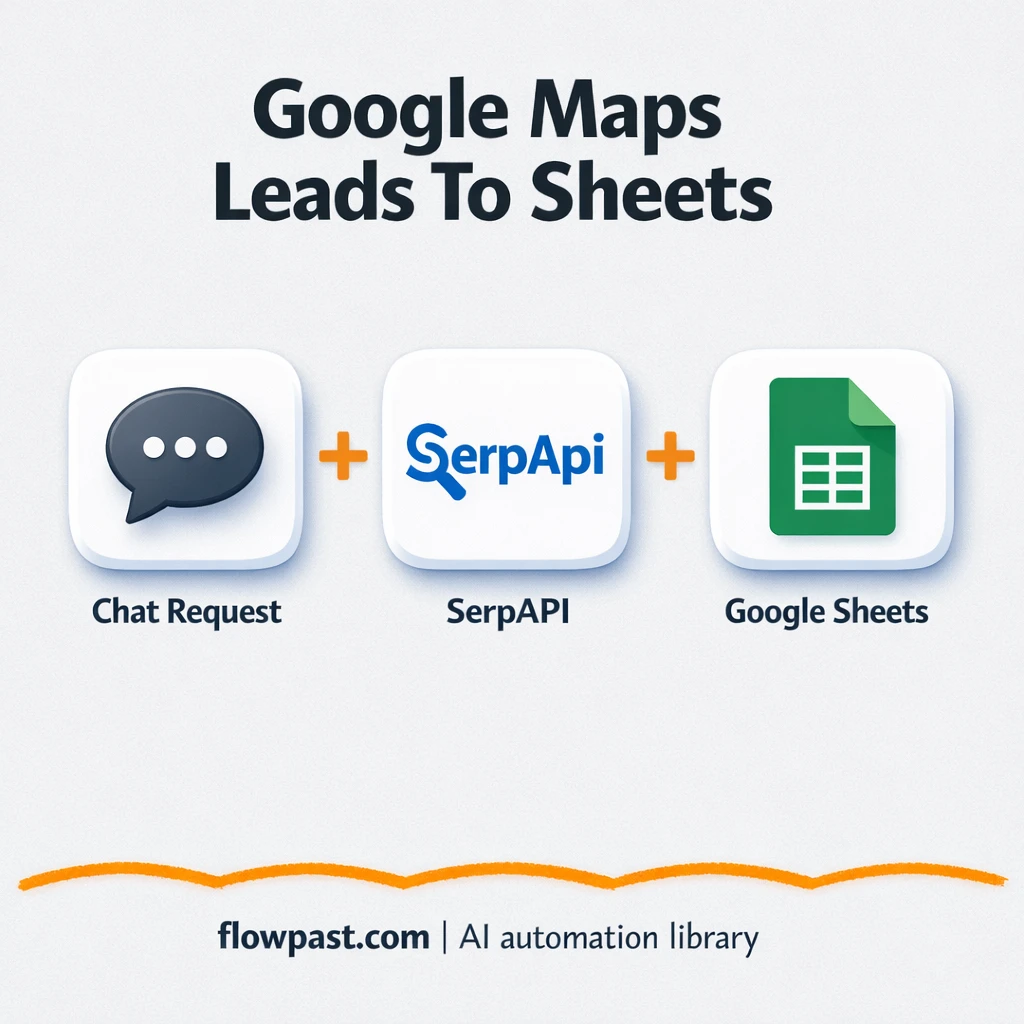

You find a great niche on Google Maps, then lose an hour copying names, phones, and addresses into a sheet. Halfway through, you hit duplicates, missing websites, weird formatting, and you’re not even sure the list is complete.
This Telegram Sheets leads setup hits marketers building outreach lists first. But researchers doing competitor scans and small business owners looking for partners feel the same drag. You send one search message, and you get a clean lead list in Google Sheets plus a ready-to-download Excel file.
Below, you’ll see how the workflow runs, what you get at the end, and the small things that usually trip people up when they try to automate Google Maps leads.
How This Automation Works
The full n8n workflow, from trigger to final output:
n8n Workflow Template: Telegram to Google Sheets, clean Maps leads fast
flowchart LR

    subgraph sg0["When chat message received Flow"]
        direction LR
        n0@{ icon: "mdi:swap-vertical", form: "rounded", label: "Split Out SerpAPI", pos: "b", h: 48 }
        n1@{ icon: "mdi:web", form: "rounded", label: "Extract SerpAPI Map", pos: "b", h: 48 }
        n2@{ icon: "mdi:swap-vertical", form: "rounded", label: "Prepare Data", pos: "b", h: 48 }
        n3@{ icon: "mdi:swap-vertical", form: "rounded", label: "Extract Data  ", pos: "b", h: 48 }
        n4@{ icon: "mdi:play-circle", form: "rounded", label: "When chat message received", pos: "b", h: 48 }
        n5@{ icon: "mdi:swap-vertical", form: "rounded", label: "Initialization", pos: "b", h: 48 }
        n6@{ icon: "mdi:swap-vertical", form: "rounded", label: "Variables Chat", pos: "b", h: 48 }
        n7@{ icon: "mdi:cog", form: "rounded", label: "Get Data in XLSX", pos: "b", h: 48 }
        n2 --> n7
        n3 --> n2
        n5 --> n1
        n6 --> n5
        n0 --> n3
        n1 --> n0
        n4 --> n6
    end

    subgraph sg1["Flow 2"]
        direction LR
        n8@{ icon: "mdi:database", form: "rounded", label: "Upsert Data in Sheets", pos: "b", h: 48 }
    end

    %% Styling
    classDef trigger fill:#e8f5e9,stroke:#388e3c,stroke-width:2px
    classDef ai fill:#e3f2fd,stroke:#1976d2,stroke-width:2px
    classDef aiModel fill:#e8eaf6,stroke:#3f51b5,stroke-width:2px
    classDef decision fill:#fff8e1,stroke:#f9a825,stroke-width:2px
    classDef database fill:#fce4ec,stroke:#c2185b,stroke-width:2px
    classDef api fill:#fff3e0,stroke:#e65100,stroke-width:2px
    classDef code fill:#f3e5f5,stroke:#7b1fa2,stroke-width:2px
    classDef disabled stroke-dasharray: 5 5,opacity: 0.5
    class n4 trigger
    class n8 database
    class n1 api
The Problem: Google Maps leads are messy to collect manually
Google Maps is an amazing source of local leads, but building a usable list from it is pure friction. You search, open listings one by one, copy fields into a spreadsheet, then reformat everything so it doesn’t look like a ransom note. Even when you’re careful, mistakes sneak in: a phone number pasted into the wrong column, a missing website, or the same business added twice because the map results reshuffled. And after all that, you still have to turn your raw sheet into something you can share with a client or export to Excel.
The time cost isn’t just “data entry.” It’s the constant context switching and cleanup.
- You end up spending about 2 hours just to build a list you can actually use.
- Copy-paste errors create bad outreach, which is embarrassing and expensive.
- Different people collect leads differently, so lists are inconsistent across campaigns.
- You can’t move fast when every new niche means starting the whole manual process again.
The Solution: Send a Telegram search, get clean leads in Sheets + Excel
This workflow turns lead collection into a simple chat interaction. You message the bot in Telegram with a search query (for example, “coffee shops in Berlin”). n8n picks up that message, prepares the query, and sends it to SerpAPI to retrieve Google Maps results. Then it breaks the results into items, extracts the fields you actually care about (like business name, address, phone, website, category, and more), and standardizes them into a consistent structure. Finally, you get two outputs automatically: a Google Sheet that stays updated and shareable, plus an XLSX file you can download and send to anyone who wants “an Excel.”
The workflow starts with a Telegram chat message trigger. From there, SerpAPI pulls the Google Maps listings for your search and n8n cleans the data. At the end, it writes rows into Google Sheets and generates an Excel file from the same tidy dataset.
What You Get: Automation vs. Results
| What This Workflow Automates | Results You’ll Get |
|---|---|
|
|
Example: What This Looks Like
Say you collect leads for 3 niches each week, and each niche needs about 60 listings. Manually, you might spend 2 minutes per listing to open, copy fields, and clean the row, which is roughly 2 hours per niche. That’s about 6 hours a week just on collection. With this workflow, you send 3 Telegram messages, wait a few minutes for the results to come back, then share the Google Sheet or download the XLSX. The “work” becomes review, not data entry.
What You’ll Need
- n8n instance (try n8n Cloud free)
- Self-hosting option if you prefer (Hostinger works well)
- Telegram to send searches and receive files
- Google Sheets to store and share lead lists
- SerpAPI key (get it from your SerpAPI dashboard)
Skill level: Intermediate. You’ll connect credentials and may need self-hosting because this workflow uses community nodes.
Don’t want to set this up yourself? Talk to an automation expert (free 15-minute consultation).
How It Works
A Telegram message kicks it off. You type a Google Maps style search (category + location works well). The workflow reads that message and stores it as variables it can reuse downstream.
The search runs through SerpAPI. n8n sends your query to SerpAPI’s Google Maps results, then receives a structured response instead of you scraping a browser tab.
The results get cleaned into a consistent lead format. The workflow splits the results into individual items, extracts the key fields, and formats them so every row matches the same column layout.
You get a Sheet and an Excel file. It updates a connected Google Sheets document for easy sharing, and also generates an XLSX you can download right away in Telegram.
You can easily modify the columns you save to match your CRM import format or outreach needs. See the full implementation guide below for customization options.
Step-by-Step Implementation Guide
Step 1: Configure the Chat Message Trigger
This workflow starts when a chat message is received, then immediately sets internal variables for the run.
- Add the Chat Message Trigger node as the trigger for the workflow.
- Connect Chat Message Trigger to Set Chat Variables to ensure the incoming chat payload is prepared for downstream nodes.
- Keep the trigger’s default settings unless you need to customize the chat interface behavior.
Step 2: Connect SerpAPI
The workflow relies on SerpAPI to retrieve map data based on the chat input.
- Open Retrieve SerpAPI Map and configure the query fields you want to send to SerpAPI (based on values from Initialize Workflow if needed).
- Credential Required: Connect your SerpAPI credentials in Retrieve SerpAPI Map.
- Ensure Set Chat Variables connects to Initialize Workflow, then to Retrieve SerpAPI Map to preserve the execution chain.
Step 3: Set Up Parsing and Formatting
After SerpAPI returns results, the workflow splits items and maps the fields into a structured format.
- Connect Retrieve SerpAPI Map to Divide SerpAPI Items to split the results into individual items.
- In Parse Result Fields, map the specific fields you want to extract from each item.
- In Format Output Data, arrange the output structure that will be used to generate the final file.
Step 4: Configure Output and File Generation
The parsed data is converted into an XLSX file and can be written to Google Sheets.
- Connect Format Output Data to Generate XLSX File to create the spreadsheet file.
- Open Utility: Update Sheet Records and configure the target Google Sheet and range you want to update.
- Credential Required: Connect your Google Sheets credentials in Utility: Update Sheet Records.
Step 5: Test and Activate Your Workflow
Run a full test to confirm the map data is retrieved, parsed, and exported correctly.
- Click Execute Workflow and send a sample message to Chat Message Trigger.
- Verify that Retrieve SerpAPI Map returns results and that Divide SerpAPI Items splits them into individual records.
- Confirm Generate XLSX File produces a file and Utility: Update Sheet Records writes data to Google Sheets.
- Once successful, toggle the workflow to Active for production use.
Common Gotchas
- Google Sheets credentials can expire or need specific permissions. If things break, check the n8n Credentials screen and the target spreadsheet sharing permissions first.
- If you’re using Wait nodes or external rendering, processing times vary. Bump up the wait duration if downstream nodes fail on empty responses.
- SerpAPI accounts can hit rate limits on busy days, especially when you pull lots of results per search. If your Google Maps results suddenly come back thin, check your SerpAPI usage and slow the batch size.
Frequently Asked Questions
About 30 minutes if your accounts and keys are ready.
No. You’ll mainly connect accounts and paste in your SerpAPI key.
Yes. n8n has a free self-hosted option and a free trial on n8n Cloud. Cloud plans start at $20/month for higher volume. You’ll also need to factor in SerpAPI costs based on your usage.
Two options: n8n Cloud (managed, easiest setup) or self-hosting on a VPS. For self-hosting, Hostinger VPS is affordable and handles n8n well. Self-hosting gives you unlimited executions but requires basic server management.
Yes, and you should, honestly. Adjust the field mapping in the “Parse Result Fields” and “Format Output Data” steps so the column names match your CRM import template. Common tweaks include splitting city/state, adding a “source query” column, and keeping only listings with a website or phone number. If you want a different file type, swap the XLSX generation for CSV while keeping the Google Sheets update the same.
Usually it’s expired Google OAuth access or the spreadsheet permissions changed. Reconnect the Google Sheets credential inside n8n, then confirm the target sheet is shared with the same Google account. If you duplicated the workflow, double-check the spreadsheet ID in the Google Sheets node too. And if you’re self-hosting, make sure your n8n instance URL matches what Google expects for OAuth callbacks.
It depends on your SerpAPI plan and your n8n execution limits. On n8n Cloud Starter, you can run a healthy number of workflows each month for small-team lead gen, and higher tiers support more volume. If you self-host, executions aren’t capped by n8n, but your server resources still matter. Practically, most teams run searches in batches (tens to a few hundred listings at a time) to keep things stable and avoid API throttling.
For this use case, usually yes, because you’re doing more than a simple “send data from A to B.” n8n handles item-by-item parsing, merging, and formatting without forcing you into paid “premium steps” for every little transformation. Self-hosting is also a big deal here, since this workflow uses community nodes that are only compatible with self-hosted n8n. Zapier or Make can still work if you keep it extremely basic, but the moment you care about clean columns and reliable exports, you’ll feel the limits. Talk to an automation expert if you want a quick recommendation for your exact setup.
Once this is running, lead collection stops being a task you dread. You send a message, you get a clean list, and you move on to the work that actually grows revenue.
Need Help Setting This Up?
Our automation experts can build and customize this workflow for your specific needs. Free 15-minute consultation—no commitment required.
