


Google Meet to Slack, meeting recaps everyone reads
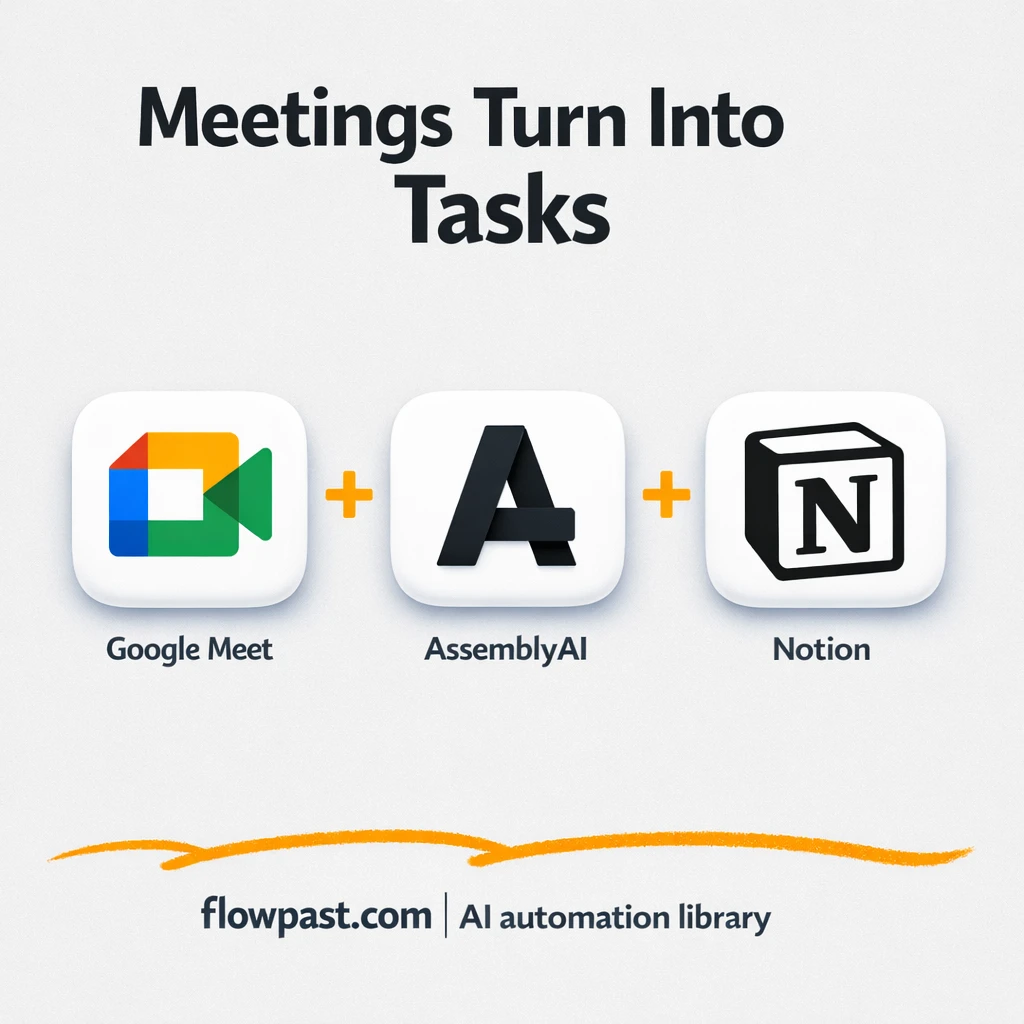

You leave a meeting thinking “we’re aligned,” then two days later nobody remembers what was decided. The recording exists, sure, but it’s buried in Drive and no one has time to rewatch an hour just to find one key detail.
This Google Meet recap automation hits project managers hardest. But marketing leads chasing approvals and agency owners juggling multiple client calls feel the same drag. The goal is simple: summaries everyone will actually read, plus action items that don’t vanish.
This workflow pulls your recent Google Meet calls, transcribes them, summarizes them with AI, posts the recap in Slack, and creates Notion tasks for follow-up. You’ll see where the time goes, what gets fixed, and what you need to run it.
How This Automation Works
See how this solves the problem:
n8n Workflow Template: Google Meet to Slack, meeting recaps everyone reads
flowchart LR

    subgraph sg0["whenClickingTestWorkflow Flow"]
        direction LR
        n0@{ icon: "mdi:play-circle", form: "rounded", label: "whenClickingTestWorkflow", pos: "b", h: 48 }
        n1@{ icon: "mdi:location-exit", form: "rounded", label: "getRecentMeetings", pos: "b", h: 48 }
        n2@{ icon: "mdi:swap-horizontal", form: "rounded", label: "filterGoogleMeetEvents", pos: "b", h: 48 }
        n3@{ icon: "mdi:swap-vertical", form: "rounded", label: "extractMeetingData", pos: "b", h: 48 }
        n4@{ icon: "mdi:cog", form: "rounded", label: "findRecordingInDrive", pos: "b", h: 48 }
        n5@{ icon: "mdi:swap-horizontal", form: "rounded", label: "hasRecording", pos: "b", h: 48 }
        n6@{ icon: "mdi:location-exit", form: "rounded", label: "noRecordingError", pos: "b", h: 48 }
        n7@{ icon: "mdi:cog", form: "rounded", label: "downloadRecording", pos: "b", h: 48 }
        n8["<div style='background:#f5f5f5;padding:10px;border-radius:8px;display:inline-block;border:1px solid #e0e0e0'><img src='https://flowpast.com/wp-content/uploads/n8n-workflow-icons/httprequest.dark.svg' width='40' height='40' /></div><br/>uploadToAssemblyAI"]
        n9["<div style='background:#f5f5f5;padding:10px;border-radius:8px;display:inline-block;border:1px solid #e0e0e0'><img src='https://flowpast.com/wp-content/uploads/n8n-workflow-icons/httprequest.dark.svg' width='40' height='40' /></div><br/>requestTranscription"]
        n10["<div style='background:#f5f5f5;padding:10px;border-radius:8px;display:inline-block;border:1px solid #e0e0e0'><img src='https://flowpast.com/wp-content/uploads/n8n-workflow-icons/httprequest.dark.svg' width='40' height='40' /></div><br/>pollTranscriptionStatus"]
        n11@{ icon: "mdi:swap-vertical", form: "rounded", label: "formatTranscript", pos: "b", h: 48 }
        n12@{ icon: "mdi:brain", form: "rounded", label: "claudeChatModel", pos: "b", h: 48 }
        n13@{ icon: "mdi:robot", form: "rounded", label: "analyzeMeetingWithAI", pos: "b", h: 48 }
        n14["<div style='background:#f5f5f5;padding:10px;border-radius:8px;display:inline-block;border:1px solid #e0e0e0'><img src='https://flowpast.com/wp-content/uploads/n8n-workflow-icons/code.svg' width='40' height='40' /></div><br/>parseAIOutput"]
        n15["<div style='background:#f5f5f5;padding:10px;border-radius:8px;display:inline-block;border:1px solid #e0e0e0'><img src='https://flowpast.com/wp-content/uploads/n8n-workflow-icons/slack.svg' width='40' height='40' /></div><br/>postToSlack"]
        n16@{ icon: "mdi:swap-vertical", form: "rounded", label: "splitActionItems", pos: "b", h: 48 }
        n17@{ icon: "mdi:swap-horizontal", form: "rounded", label: "hasActionItems", pos: "b", h: 48 }
        n18["<div style='background:#f5f5f5;padding:10px;border-radius:8px;display:inline-block;border:1px solid #e0e0e0'><img src='https://flowpast.com/wp-content/uploads/n8n-workflow-icons/notion.dark.svg' width='40' height='40' /></div><br/>createNotionTask"]
        n5 --> n7
        n5 --> n6
        n14 --> n15
        n14 --> n17
        n17 --> n16
        n12 -.-> n13
        n11 --> n13
        n16 --> n18
        n7 --> n8
        n1 --> n2
        n3 --> n4
        n8 --> n9
        n13 --> n14
        n4 --> n5
        n9 --> n10
        n2 --> n3
        n10 --> n11
        n0 --> n1
    end

    %% Styling
    classDef trigger fill:#e8f5e9,stroke:#388e3c,stroke-width:2px
    classDef ai fill:#e3f2fd,stroke:#1976d2,stroke-width:2px
    classDef aiModel fill:#e8eaf6,stroke:#3f51b5,stroke-width:2px
    classDef decision fill:#fff8e1,stroke:#f9a825,stroke-width:2px
    classDef database fill:#fce4ec,stroke:#c2185b,stroke-width:2px
    classDef api fill:#fff3e0,stroke:#e65100,stroke-width:2px
    classDef code fill:#f3e5f5,stroke:#7b1fa2,stroke-width:2px
    classDef disabled stroke-dasharray: 5 5,opacity: 0.5
    class n0 trigger
    class n13 ai
    class n12 aiModel
    class n2,n5,n17 decision
    class n18 database
    class n8,n9,n10 api
    class n14 code
    classDef customIcon fill:none,stroke:none
    class n8,n9,n10,n14,n15,n18 customIcon
The Challenge: Meeting recordings that nobody uses
Meeting recordings sound like accountability, but in practice they turn into a graveyard of “we’ll watch it later.” You end up with Slack threads full of follow-up questions, people guessing what the decision was, and quiet errors that only show up when a deadline slips. Someone tries to write notes from memory, misses a nuance, and suddenly the whole team is working from a slightly different version of reality. The mental load is the worst part. You’re constantly re-litigating decisions instead of moving forward.
It adds up fast. Here’s where it breaks down in real teams.
- Important decisions get trapped in a recording link that few people click.
- Action items get mentioned once, then disappear because nobody captured owners and due dates.
- Writing recaps takes about 20 minutes per meeting, so it gets skipped when the calendar is packed.
- When notes do exist, they’re inconsistent, so teams stop trusting them and go back to asking in chat.
The Fix: AI meeting recaps pushed to Slack (with Notion tasks)
This workflow turns your last day of Google Meet calls into a clean, structured follow-up without anyone chasing a doc. It starts by pulling confirmed meetings from Google Calendar, then looks in Google Drive for the matching recording file. If the recording exists, it downloads the audio and sends it to AssemblyAI for transcription with speaker labels, highlights, and sentiment. Next, an AI agent (using Anthropic Claude in this build) reads the transcript and produces a human-style recap plus action items tied to specific people, along with dates and deadlines mentioned in the conversation. Finally, the summary goes straight to Slack, and the action items become Notion tasks so they don’t get lost in chat history.
The workflow begins with a “last 24 hours” calendar sweep. Then it verifies the recording, transcribes it, and generates a summary you can skim in under a minute. Slack gets the narrative recap, while Notion becomes the system of record for who’s doing what.
What Changes: Before vs. After
| What This Eliminates | Impact You’ll See |
|---|---|
|
|
Real-World Impact
Say your team runs 10 Google Meet calls a week. If writing a recap and assigning tasks takes about 20 minutes per meeting, that’s roughly 3 hours of admin work, and it usually falls on one unlucky person. With this workflow, the “human time” becomes close to zero: you just let it run after meetings, then skim the Slack summary in about a minute and tweak any odd action item titles in Notion. You still spend time doing the work, obviously. You stop spending time reconstructing the work.
Requirements
- n8n instance (try n8n Cloud free)
- Self-hosting option if you prefer (Hostinger works well)
- Google Calendar to pull recent Meet events.
- Google Drive for the meeting recording file.
- AssemblyAI API key (get it from your AssemblyAI dashboard).
- Anthropic (Claude) API key (get it from the Anthropic console).
- Slack to publish recaps to a channel.
- Notion to create tasks for action items.
Skill level: Intermediate. You’ll connect accounts, add API keys, and adjust a few fields to match your Slack channel and Notion database.
Need help implementing this? Talk to an automation expert (free 15-minute consultation).
The Workflow Flow
Calendar-triggered meeting pickup. The workflow starts by retrieving Google Calendar events from the last 24 hours, then filters for confirmed meetings that include Google Meet conference links.
Recording discovery in Drive. It maps meeting details (title, time, attendees) and searches Google Drive for the matching recording. If none is found, it stops immediately and returns a clear error so you’re not wondering why nothing posted.
Transcription and AI analysis. Once the file is downloaded, HTTP requests send the audio to AssemblyAI and poll for completion. The transcript data is formatted, then passed to an AI agent powered by Claude to produce a 2–3 paragraph summary, action items with owners, dates, and sentiment.
Slack recap plus Notion follow-through. The parsed summary is posted to Slack. If action items exist, they’re validated, expanded into individual items, and created as tasks in Notion.
You can easily modify the Slack formatting and the Notion task fields to match your team’s process. See the full implementation guide below for customization options.
Step-by-Step Implementation Guide
Step 1: Configure the Manual Trigger
Set the workflow entry point so you can manually run and validate the meeting analysis process before enabling automation.
- Add and place Manual Run Trigger as the first node in the workflow.
- Leave Manual Run Trigger with default settings (no parameters required).
- Connect Manual Run Trigger to Retrieve Recent Meetings.
Step 2: Connect Google Calendar and map meeting data
This section collects recent calendar events, filters for Google Meet sessions, and maps structured meeting fields.
- Configure Retrieve Recent Meetings with Operation set to
getAlland Limit set to10. - Set Options → timeMax to
={{ $now.toISO() }}and Options → timeMin to={{ $now.minus({ hours: 24 }).toISO() }}. - Credential Required: Connect your Google Calendar credentials in Retrieve Recent Meetings.
- In Filter Meet Sessions, set conditions to match: conferenceData exists with
={{ $json.conferenceData }}, conferenceSolution.name equalsGoogle Meet, and status equalsconfirmed. - Configure Map Meeting Details assignments: meetingId =
={{ $json.id }}, meetingTitle =={{ $json.summary }}, meetingStart =={{ $json.start.dateTime }}, participants =={{ $json.attendees ? $json.attendees.map(a => a.email).join(', ') : 'No attendees' }}, recordingUrl =={{ $json.conferenceData?.entryPoints?.[0]?.uri || '' }}. - Connect Retrieve Recent Meetings → Filter Meet Sessions → Map Meeting Details.
Step 3: Locate and download the Google Drive recording
This step searches for the meeting recording in Drive, verifies it exists, and downloads the audio file.
- Set Locate Drive Recording to Operation
search. - Credential Required: Connect your Google Drive credentials in Locate Drive Recording.
- In Recording Present Check, keep the condition to check id exists with
={{ $json.id }}. - Configure Download Drive File with Operation
downloadand File ID set to={{ $json.id }}. - Credential Required: Connect your Google Drive credentials in Download Drive File.
- Connect Map Meeting Details → Locate Drive Recording → Recording Present Check → Download Drive File.
Step 4: Configure transcription via AssemblyAI
These nodes upload the audio file and request a transcription job, then poll for results and format the transcript.
- Configure Upload Audio to ASR to upload the downloaded file to your ASR provider endpoint.
- Credential Required: Add your AssemblyAI API key header in Upload Audio to ASR (HTTP Request credentials or headers).
- In Request Transcript Job, set URL to
https://api.assemblyai.com/v2/transcript, Method toPOST, and JSON Body to={ "audio_url": "{{ $json.upload_url }}", "speaker_labels": true, "auto_highlights": true, "sentiment_analysis": true }. - Set Check Transcript Status URL to
=https://api.assemblyai.com/v2/transcript/{{ $json.id }}and keep Timeout at300000. - In Format Transcript Data, map transcript to
={{ $json.text }}, speakers to={{ $json.utterances ? $json.utterances.map(u => `Speaker ${u.speaker}: ${u.text}`).join('\n') : $json.text }}, and highlights to={{ $json.auto_highlights_result ? $json.auto_highlights_result.results.map(h => h.text).join(', ') : '' }}. - Connect Download Drive File → Upload Audio to ASR → Request Transcript Job → Check Transcript Status → Format Transcript Data.
Step 5: Set Up AI Analysis and parsing
Generate a structured meeting summary using Claude, then parse the response into actionable fields.
- In Claude Chat Engine, set Model to
claude-3-5-sonnet-20241022. - Credential Required: Connect your Anthropic credentials in Claude Chat Engine. This is the language model used by AI Meeting Analyzer.
- Configure AI Meeting Analyzer with Prompt Type set to
defineand paste the full prompt in Text (including the meeting details and transcript blocks). - Ensure AI Meeting Analyzer references Map Meeting Details in the prompt using expressions like
{{ $('Map Meeting Details').item.json.meetingTitle }}. - Connect Format Transcript Data → AI Meeting Analyzer → Parse AI Summary.
Step 6: Configure Slack and Notion outputs (parallel execution)
This workflow posts the summary to Slack and creates Notion tasks for action items. These actions run in parallel after parsing.
- Configure Post Slack Summary with Select set to
channeland choose the target Channel ID. - Credential Required: Connect your Slack credentials in Post Slack Summary.
- In Validate Action Items, keep the condition actionItems notEmpty with
={{ $json.actionItems }}. - Set Expand Action Items to split the actionItems array (field is
actionItems). - In Create Notion Tasks, set Title to
={{ $json.task }}and select your Page ID (database or page URL). - Credential Required: Connect your Notion API credentials in Create Notion Tasks.
- Parse AI Summary outputs to both Post Slack Summary and Validate Action Items in parallel.
- Connect Validate Action Items → Expand Action Items → Create Notion Tasks.
Step 7: Add Error Handling
Stop the workflow if no recording exists to prevent failed downstream processing.
- Keep the Recording Present Check condition set to
={{ $json.id }}with exists. - Ensure the false branch from Recording Present Check goes to Stop If Missing Recording.
- Set Stop If Missing Recording Error Message to
No recording found for this meeting. Please ensure the meeting was recorded and saved to Google Drive..
Step 8: Test and Activate Your Workflow
Validate the end-to-end flow before turning it on for production use.
- Click Execute Workflow to run Manual Run Trigger and monitor each node’s output.
- Confirm a successful run: Retrieve Recent Meetings returns events, Download Drive File receives a file, Check Transcript Status returns text, and Parse AI Summary outputs structured fields.
- Verify parallel outputs: a Slack post is created by Post Slack Summary and tasks are created by Create Notion Tasks when action items exist.
- Once validated, toggle the workflow to Active for production use.
Watch Out For
- Google Drive access is the usual culprit when the workflow can’t find recordings. If it fails, check the connected Google account in n8n credentials and confirm it can see the Drive folder where Meet saves recordings.
- If AssemblyAI transcription is slow, the status-check loop may need more time. Processing times vary with long meetings, so increase the wait/polling window if you see empty transcript responses downstream.
- The default AI prompt will be “fine,” not great. Add your desired recap structure (bullets vs. narrative, how strict owners must be, what counts as an action item) early, or you will be cleaning up summaries every week.
Common Questions
Usually in about an hour once your accounts and API keys are ready.
Yes, but you will want someone comfortable with connecting apps and testing runs. There’s no “real coding,” though you may tweak a prompt and map a few Notion fields.
Yes. n8n has a free self-hosted option and a free trial on n8n Cloud. Cloud plans start at $20/month for higher volume. You’ll also need to factor in AssemblyAI and Anthropic API usage, which depends on how many meetings you process.
Two options: n8n Cloud (managed, easiest setup) or self-hosting on a VPS. For self-hosting, Hostinger VPS is affordable and handles n8n well. Self-hosting gives you unlimited executions but requires basic server management.
Yes, you can tailor it a lot without changing the core structure. Most teams start by editing the AI Meeting Analyzer prompt to match their recap style (short bullets, “Decisions / Risks / Next steps,” or client-facing language). You can also swap the Notion task mapping inside the Create Notion Tasks step to match your database properties, like Priority, Due date, or Project. If you want a different summary destination, replace Post Slack Summary with email or Microsoft Teams and keep everything else the same.
Usually it’s permissions or the token scope. Reconnect Slack in n8n credentials, make sure the app can post to the target channel, and confirm the channel still exists (or wasn’t renamed). If you run this across many meetings at once, Slack rate limits can also cause intermittent failures, so spacing out posts helps.
On a typical n8n Cloud plan you can handle plenty of weekly meetings, and self-hosting removes execution limits (your server becomes the constraint). The heavier limit is usually transcription time and API quotas, so very long meetings or high volume may need queueing and longer polling windows.
Often, yes. This workflow has conditional logic (stop when no recording exists), transcript polling, and multi-item task creation, which is where Zapier and Make setups can get brittle or expensive. n8n also gives you the option to self-host, which matters when you’re processing lots of meetings every month. That said, if you only want “when meeting ends, send a message,” those tools can be quicker to set up. If you’re unsure, Talk to an automation expert and you’ll get a straight recommendation. Honestly, the best tool is the one you’ll maintain.
The workflow handles the boring parts: finding recordings, transcribing, summarizing, and turning talk into tasks. You get cleaner follow-through, and your team stops living inside meeting replays.
Need Help Setting This Up?
Our automation experts can build and customize this workflow for your specific needs. Free 15-minute consultation—no commitment required.
