


Hacker News to Gmail, AI digest in your inbox
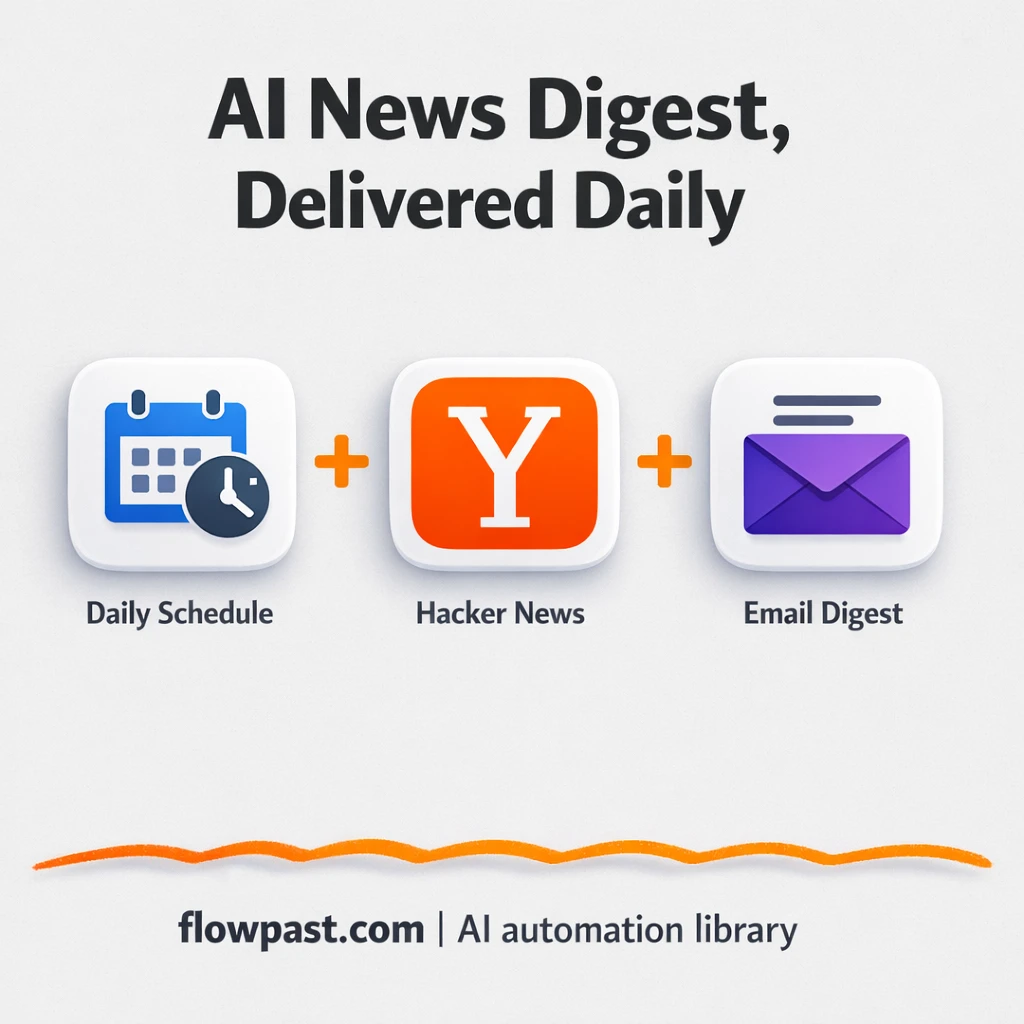

Keeping up with AI news sounds simple until you realize you’ve got 12 tabs open, half-read threads, and zero confidence you didn’t miss the one story everyone will mention tomorrow morning.
This HN AI digest automation hits marketers and founders first, honestly. But consultants and small teams feel it too when “staying current” becomes a daily time sink. You get one clean email that’s easy to skim and easier to forward.
Below, you’ll see exactly how the workflow pulls Hacker News AI posts, summarizes them with GPT, and sends a polished HTML digest to Gmail (or any inbox you want).
How This Automation Works
The full n8n workflow, from trigger to final output:
n8n Workflow Template: Hacker News to Gmail, AI digest in your inbox
flowchart LR

    subgraph sg0["Daily Schedule Flow"]
        direction LR
        n0["<div style='background:#f5f5f5;padding:10px;border-radius:8px;display:inline-block;border:1px solid #e0e0e0'><img src='https://flowpast.com/wp-content/uploads/n8n-workflow-icons/hackernews.png' width='40' height='40' /></div><br/>Fetch HN AI Stories"]
        n1@{ icon: "mdi:swap-horizontal", form: "rounded", label: "Filter Last 24 Hours", pos: "b", h: 48 }
        n2@{ icon: "mdi:swap-vertical", form: "rounded", label: "Loop Over Items", pos: "b", h: 48 }
        n3["<div style='background:#f5f5f5;padding:10px;border-radius:8px;display:inline-block;border:1px solid #e0e0e0'><img src='https://flowpast.com/wp-content/uploads/n8n-workflow-icons/httprequest.dark.svg' width='40' height='40' /></div><br/>Scrape Article URL"]
        n4["<div style='background:#f5f5f5;padding:10px;border-radius:8px;display:inline-block;border:1px solid #e0e0e0'><img src='https://flowpast.com/wp-content/uploads/n8n-workflow-icons/markdown.dark.svg' width='40' height='40' /></div><br/>Convert to Markdown"]
        n5@{ icon: "mdi:robot", form: "rounded", label: "GPT Summarize Article", pos: "b", h: 48 }
        n6@{ icon: "mdi:swap-vertical", form: "rounded", label: "Format News Item", pos: "b", h: 48 }
        n7@{ icon: "mdi:cog", form: "rounded", label: "Combine All Summaries", pos: "b", h: 48 }
        n8@{ icon: "mdi:message-outline", form: "rounded", label: "Send Email Digest", pos: "b", h: 48 }
        n9@{ icon: "mdi:play-circle", form: "rounded", label: "Daily Schedule Trigger", pos: "b", h: 48 }
        n10@{ icon: "mdi:brain", form: "rounded", label: "GPT 5 pro", pos: "b", h: 48 }
        n10 -.-> n5
        n2 --> n7
        n2 --> n3
        n6 --> n2
        n3 --> n4
        n4 --> n5
        n0 --> n1
        n1 --> n2
        n7 --> n8
        n5 --> n6
        n9 --> n0
    end

    %% Styling
    classDef trigger fill:#e8f5e9,stroke:#388e3c,stroke-width:2px
    classDef ai fill:#e3f2fd,stroke:#1976d2,stroke-width:2px
    classDef aiModel fill:#e8eaf6,stroke:#3f51b5,stroke-width:2px
    classDef decision fill:#fff8e1,stroke:#f9a825,stroke-width:2px
    classDef database fill:#fce4ec,stroke:#c2185b,stroke-width:2px
    classDef api fill:#fff3e0,stroke:#e65100,stroke-width:2px
    classDef code fill:#f3e5f5,stroke:#7b1fa2,stroke-width:2px
    classDef disabled stroke-dasharray: 5 5,opacity: 0.5
    class n9 trigger
    class n5 ai
    class n10 aiModel
    class n1 decision
    class n3 api
    classDef customIcon fill:none,stroke:none
    class n0,n3,n4 customIcon
The Problem: AI news becomes tab chaos
Hacker News is great, but it’s not built for “give me the important AI stories from the last day, plus a quick summary I can trust.” So you scroll, open promising links, get paywalled, lose your place, and tell yourself you’ll come back later. Later rarely happens. Even when you do read, you still have to explain the story to your team or save it somewhere, which turns a 10-minute check-in into a recurring daily chore. The mental load is the real cost.
It adds up fast. Here’s where it breaks down in real life.
- Skimming the HN front page doesn’t guarantee you saw the best AI-tagged posts from the last 24 hours.
- Opening and reading even 10 links can burn about an hour, especially when a few pages are long or messy.
- Manual recaps are inconsistent, so sharing internally becomes “read this thread” instead of “here’s the takeaway.”
- When you miss a day, catching up feels annoying enough that you stop trying.
The Solution: A daily Hacker News digest email, summarized by GPT
This workflow runs on a schedule and does the curation for you. It fetches up to 1000 Hacker News stories tagged “AI,” then filters them down to only the ones posted in the last 24 hours. For each story, it visits the source URL, converts the page into clean markdown (so an AI model can read it reliably), and generates a concise summary with OpenAI. Those summaries get formatted into a single, mobile-friendly HTML email, then delivered to your inbox. No bookmarking spree. No copy-paste. Just one digest you can skim in minutes and forward to a client or team channel when something matters.
The workflow starts with a daily trigger, then pulls and filters the HN list. Next, it processes stories one-by-one in batches to avoid timeouts and flaky scraping. Finally, it aggregates every summary into a single email and sends it through your chosen email connection.
What You Get: Automation vs. Results
| What This Workflow Automates | Results You’ll Get |
|---|---|
|
|
Example: What This Looks Like
Say you want to stay on top of AI news five days a week and you usually open about 12 promising links from Hacker News. If it’s roughly 5 minutes per link to load, skim, and decide if it’s worth saving, that’s about an hour a day. With this automation, you spend maybe 2 minutes to scan the subject line and sections, then about 10 minutes reading the summaries you care about. The scraping and GPT processing runs in the background (often 2–10 minutes), and you only touch the finished digest.
What You’ll Need
- n8n instance (try n8n Cloud free)
- Self-hosting option if you prefer (Hostinger works well)
- OpenAI for GPT summaries of each article.
- Gmail or SMTP email to deliver the digest to an inbox.
- OpenAI API Key (get it from platform.openai.com/api-keys)
Skill level: Intermediate. You’ll connect credentials, tweak a prompt, and adjust a few fields like sender and recipient.
Don’t want to set this up yourself? Talk to an automation expert (free 15-minute consultation).
How It Works
A daily schedule kicks things off. The workflow runs at whatever time you choose (daily by default), so the digest arrives like a newsletter you actually asked for.
Hacker News is queried, then narrowed down. It retrieves up to 1000 stories tagged “AI,” then filters to only those published in the last 24 hours. That filter is what makes it feel current instead of noisy.
Each story is scraped and summarized. n8n loops through items in batches, requests the article page, converts HTML into markdown, and hands the cleaned text to an AI Agent powered by an OpenAI Chat Model to generate a heading plus a tight two-sentence summary with the link.
Everything is assembled into one email. The snippets are aggregated into a mobile-friendly HTML template and sent via the Send Email node (Gmail/SMTP), so you end up with a single digest instead of 20 alerts.
You can easily modify the keyword filter to track a different topic (or multiple topics) based on your needs. See the full implementation guide below for customization options.
Step-by-Step Implementation Guide
Step 1: Configure the Scheduled Daily Trigger
Set the workflow to run on a daily schedule using the trigger node.
- Add or open Scheduled Daily Trigger.
- Keep the default Rule configuration unless you need a different interval.
- Connect Scheduled Daily Trigger to Retrieve HN AI Articles.
Step 2: Connect Hacker News Source
Pull AI-related stories from Hacker News and filter to the last 24 hours.
- Open Retrieve HN AI Articles and set Limit to
1000. - Set Resource to
alland Keyword toAI. - Open Filter Recent 24h and set the date condition: Left Value to
{{ $json.created_at }}and Right Value to{{ $now.minus({ days: 1 }).toFormat('yyyy-MM-dd') }}. - Connect Retrieve HN AI Articles → Filter Recent 24h → Iterate Story Batch.
Step 3: Set Up Batch Processing and Page Retrieval
Process each story one-by-one, fetch the article content, and convert it to Markdown.
- Open Iterate Story Batch and keep default batch settings unless you want to limit throughput.
- Note the parallel flow: Iterate Story Batch outputs to both Request Article Page and Aggregate All Snippets in parallel.
- In Request Article Page, set URL to
{{ $json.url }}. - In HTML to Markdown, set HTML to
{{ $json.data }}. - Connect Request Article Page → HTML to Markdown → LLM Summarize Story.
Step 4: Set Up the AI Summarization Chain
Summarize each article and format it into a news snippet.
- Open OpenAI Chat Model and set the Model to
gpt-5-pro. - Credential Required: Connect your openAiApi credentials in OpenAI Chat Model.
- Open LLM Summarize Story and set Text to the full prompt:
Summarize the info below so that I can get a quick news snippet of what this is about in the area of AI. Simply output the main point as the heading and then 2 sentences of the summary (maybe with a link) --- Scraped info below: {{ $json.markdown }}. - Confirm OpenAI Chat Model is connected as the language model for LLM Summarize Story (credentials should be added to OpenAI Chat Model, not the chain node).
- Open Compose News Snippet and set news to
{{ $('LLM Summarize Story').item.json.output }}. - Connect LLM Summarize Story → Compose News Snippet → Iterate Story Batch to continue the loop.
Step 5: Configure Aggregation and Email Delivery
Collect all snippets and send the final digest email.
- Open Aggregate All Snippets and set Fields to Aggregate to include
news. - Open Dispatch Email Digest and set HTML to the full template provided in the node (keep the dynamic sections like
{{ $json.news.join('') }}and{{ $now.format('MMMM d, yyyy') }}). - Set Subject to
Daily AI Digest - {{ $now.format('MMMM d, yyyy') }}. - Set To Email to
[YOUR_EMAIL]and From Email toAI News <[YOUR_EMAIL]>. - Credential Required: Connect your smtp credentials in Dispatch Email Digest.
- Connect Aggregate All Snippets → Dispatch Email Digest.
[YOUR_EMAIL] in Dispatch Email Digest will cause delivery failures—replace both to and from values before testing.Step 6: Test and Activate Your Workflow
Validate the end-to-end flow and enable the schedule.
- Click Execute Workflow to run a manual test.
- Verify that Dispatch Email Digest sends an email containing multiple snippets formatted in the HTML template.
- If the email has empty content, check that Compose News Snippet is producing a
newsfield and that Aggregate All Snippets is aggregating it. - Once confirmed, toggle the workflow to Active so Scheduled Daily Trigger runs daily.
Common Gotchas
- OpenAI credentials can expire or be pasted incorrectly. If things break, check your n8n Credentials tab and confirm the API key is active in your OpenAI dashboard.
- If you’re using Wait nodes or external rendering, processing times vary. Bump up the wait duration if downstream nodes fail on empty responses.
- Default prompts in AI nodes are generic. Add your brand voice early or you’ll be editing outputs forever.
Frequently Asked Questions
About 30 minutes if you already have your email and OpenAI credentials ready.
No. You’ll mostly paste API keys, connect email, and tweak a couple of fields. The workflow logic is already built.
Yes. n8n has a free self-hosted option and a free trial on n8n Cloud. Cloud plans start at $20/month for higher volume. You’ll also need to factor in OpenAI API costs, which are usually a few dollars a month for a personal digest.
Two options: n8n Cloud (managed, easiest setup) or self-hosting on a VPS. For self-hosting, Hostinger VPS is affordable and handles n8n well. Self-hosting gives you unlimited executions but requires basic server management.
Yes, and it’s one of the best tweaks to make. You can change the keyword filter in the “Retrieve HN AI Articles” step so it pulls a different tag or query. Common customizations include tracking “security” or “startups,” changing the “last 24 hours” window, and rewriting the AI prompt so summaries match your brand voice.
Most of the time it’s auth or permissions. Reconnect your Gmail/SMTP credential in n8n, confirm the sending address matches the credential, and double-check any “less secure app” or app-password requirements if you’re using SMTP. If it fails only on bigger runs, you may be hitting provider sending limits, so reduce story count or send to fewer recipients.
Plenty for a daily digest.
Usually, yes, because this is more than a simple two-step zap. You’re scraping pages, converting formats, looping through batches, and aggregating output into a single HTML email, which is where n8n tends to be more flexible. Self-hosting also matters if you don’t want to pay per task when story counts spike. Zapier or Make can still work if you simplify the workflow and summarize fewer items, but you’ll often end up fighting limits or adding paid steps. If you want help picking the cleanest approach for your setup, Talk to an automation expert.
Once this is running, your “AI news habit” becomes an email you can skim and forward in minutes. The workflow handles the repetitive stuff, so you can focus on what to do with the info.
Need Help Setting This Up?
Our automation experts can build and customize this workflow for your specific needs. Free 15-minute consultation—no commitment required.
