


Google Maps to Google Sheets, leads with emails
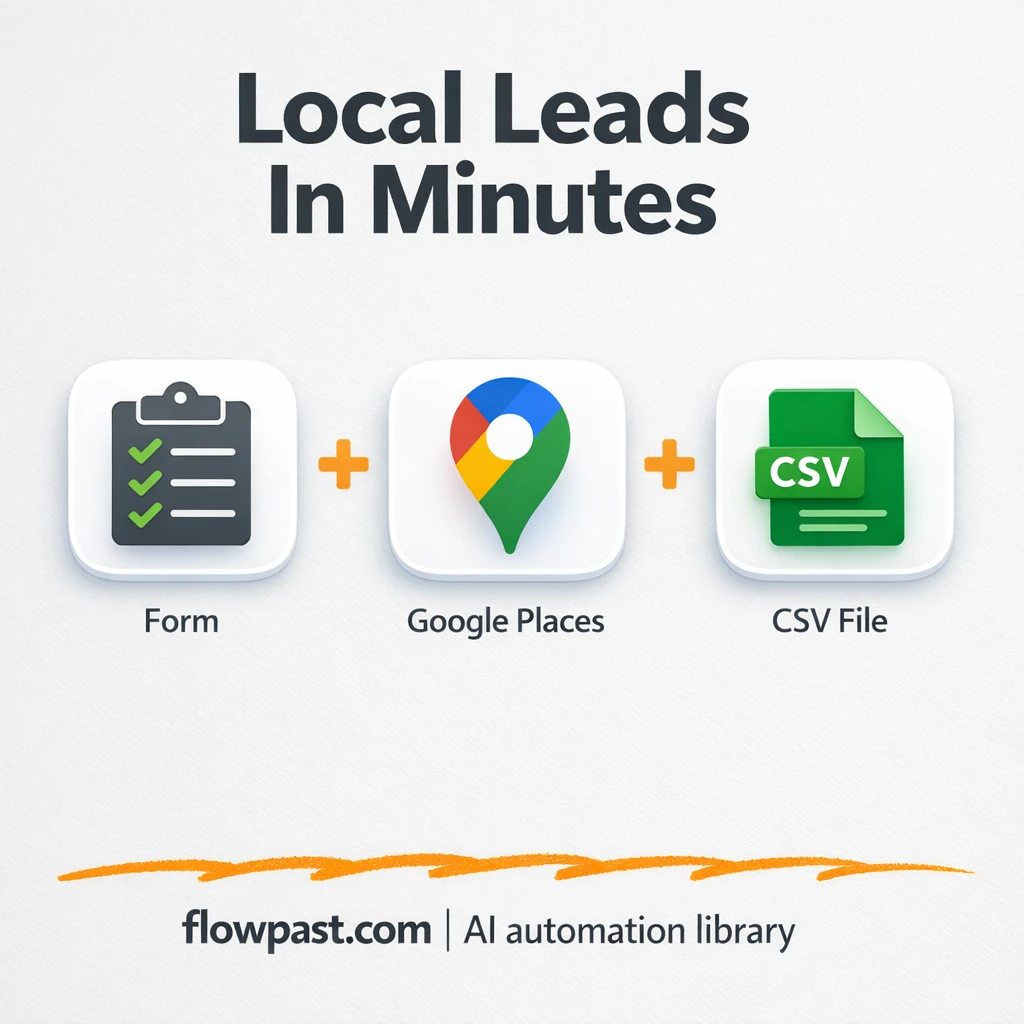

Prospecting shouldn’t feel like detective work, but it usually does. You open Google Maps, click 30 listings, copy phone numbers, hunt for a website, then dig around for an email that may not even exist.
Agency owners feel it when they need fresh lists every week. A sales rep feels it when their pipeline depends on “just one more city.” And consultants doing local outreach get stuck in the same loop. This Google Maps leads automation turns that mess into a clean Google Sheet with emails you can actually use.
You’ll see how the workflow pulls businesses by category and location, enriches each record, scrapes sites for emails, and exports a CSV that’s ready for outreach.
How This Automation Works
The full n8n workflow, from trigger to final output:
n8n Workflow Template: Google Maps to Google Sheets, leads with emails
flowchart LR

    subgraph sg0["Form Flow"]
        direction LR
        n0["<div style='background:#f5f5f5;padding:10px;border-radius:8px;display:inline-block;border:1px solid #e0e0e0'><img src='https://flowpast.com/wp-content/uploads/n8n-workflow-icons/form.svg' width='40' height='40' /></div><br/>Form Trigger"]
        n1@{ icon: "mdi:swap-vertical", form: "rounded", label: "Parse Form Data", pos: "b", h: 48 }
        n2@{ icon: "mdi:swap-vertical", form: "rounded", label: "Create Search Combinations", pos: "b", h: 48 }
        n3@{ icon: "mdi:swap-vertical", form: "rounded", label: "Split Into Searches", pos: "b", h: 48 }
        n4["<div style='background:#f5f5f5;padding:10px;border-radius:8px;display:inline-block;border:1px solid #e0e0e0'><img src='https://flowpast.com/wp-content/uploads/n8n-workflow-icons/code.svg' width='40' height='40' /></div><br/>Extract Place Info"]
        n5@{ icon: "mdi:cog", form: "rounded", label: "Wait (Rate Limit)", pos: "b", h: 48 }
        n6["<div style='background:#f5f5f5;padding:10px;border-radius:8px;display:inline-block;border:1px solid #e0e0e0'><img src='https://flowpast.com/wp-content/uploads/n8n-workflow-icons/httprequest.dark.svg' width='40' height='40' /></div><br/>Get Business Details"]
        n7@{ icon: "mdi:swap-vertical", form: "rounded", label: "Merge Details", pos: "b", h: 48 }
        n8@{ icon: "mdi:swap-horizontal", form: "rounded", label: "Has Website?", pos: "b", h: 48 }
        n9["<div style='background:#f5f5f5;padding:10px;border-radius:8px;display:inline-block;border:1px solid #e0e0e0'><img src='https://flowpast.com/wp-content/uploads/n8n-workflow-icons/code.svg' width='40' height='40' /></div><br/>Extract Emails & Clean"]
        n10@{ icon: "mdi:swap-vertical", form: "rounded", label: "No Website Fallback", pos: "b", h: 48 }
        n11@{ icon: "mdi:cog", form: "rounded", label: "Convert to CSV", pos: "b", h: 48 }
        n12["<div style='background:#f5f5f5;padding:10px;border-radius:8px;display:inline-block;border:1px solid #e0e0e0'><img src='https://flowpast.com/wp-content/uploads/n8n-workflow-icons/httprequest.dark.svg' width='40' height='40' /></div><br/>Google Places Search1"]
        n13["<div style='background:#f5f5f5;padding:10px;border-radius:8px;display:inline-block;border:1px solid #e0e0e0'><img src='https://flowpast.com/wp-content/uploads/n8n-workflow-icons/httprequest.dark.svg' width='40' height='40' /></div><br/>Scrape Website1"]
        n14["<div style='background:#f5f5f5;padding:10px;border-radius:8px;display:inline-block;border:1px solid #e0e0e0'><img src='https://flowpast.com/wp-content/uploads/n8n-workflow-icons/merge.svg' width='40' height='40' /></div><br/>Merge"]
        n15@{ icon: "mdi:swap-vertical", form: "rounded", label: "Final Data", pos: "b", h: 48 }
        n16@{ icon: "mdi:swap-vertical", form: "rounded", label: "Loop Over Items", pos: "b", h: 48 }
        n17@{ icon: "mdi:swap-vertical", form: "rounded", label: "Loop Over Items1", pos: "b", h: 48 }
        n18@{ icon: "mdi:cog", form: "rounded", label: "Wait", pos: "b", h: 48 }
        n18 --> n17
        n14 --> n15
        n15 --> n11
        n0 --> n1
        n8 --> n17
        n8 --> n10
        n7 --> n8
        n16 --> n5
        n16 --> n4
        n1 --> n2
        n13 --> n18
        n17 --> n9
        n17 --> n13
        n5 --> n6
        n4 --> n16
        n10 --> n14
        n3 --> n12
        n6 --> n7
        n12 --> n16
        n9 --> n14
        n2 --> n3
    end

    %% Styling
    classDef trigger fill:#e8f5e9,stroke:#388e3c,stroke-width:2px
    classDef ai fill:#e3f2fd,stroke:#1976d2,stroke-width:2px
    classDef aiModel fill:#e8eaf6,stroke:#3f51b5,stroke-width:2px
    classDef decision fill:#fff8e1,stroke:#f9a825,stroke-width:2px
    classDef database fill:#fce4ec,stroke:#c2185b,stroke-width:2px
    classDef api fill:#fff3e0,stroke:#e65100,stroke-width:2px
    classDef code fill:#f3e5f5,stroke:#7b1fa2,stroke-width:2px
    classDef disabled stroke-dasharray: 5 5,opacity: 0.5
    class n0 trigger
    class n8 decision
    class n6,n12,n13 api
    class n4,n9 code
    classDef customIcon fill:none,stroke:none
    class n0,n4,n6,n9,n12,n13,n14 customIcon
The Problem: Lead research is slow, inconsistent, and hard to scale
Manual Google Maps research is deceptively expensive. One person can spend an afternoon building a list that looks “done,” only to realize half the entries are missing websites, emails are buried on a contact page, and duplicates slipped in during copy-paste. Then comes the cleanup. Sorting columns, fixing formatting, and trying to remember which businesses were already contacted last month. The worst part is the mental load: every listing is a micro-decision, and the work never really gets faster.
It adds up fast. Here’s where it usually breaks down.
- You lose about 2 hours per city just clicking listings, copying fields, and double-checking details.
- Email discovery is inconsistent because some sites hide contact info on subpages or use odd formatting.
- Free “scrapers” tend to be brittle, so one blocked request can ruin the whole run.
- Your final list often isn’t CRM-ready, which means more cleanup before outreach starts.
The Solution: Pull Google Maps leads into Google Sheets and auto-find emails
This workflow takes a simple form entry (business type + city/region) and turns it into a structured lead list in Google Sheets, complete with contact details and discovered emails. It searches Google Places, paginates through results to collect up to 60 businesses per search, then enriches each place with full business info like phone, website, rating, address, and a short description. If a website exists, it automatically visits the site and scrapes for email addresses, filtering obvious false positives. If no website exists (or the scrape fails), it still keeps the business record so your list stays complete. Finally, it prepares a clean dataset and exports a CSV you can download and use immediately.
The workflow starts when you submit the intake form in n8n. From there, HTTP requests query Google Places and fetch detailed business profiles in batches with built-in delays to respect quotas. Then the workflow scrapes each website for emails and merges everything into one final sheet and CSV.
What You Get: Automation vs. Results
| What This Workflow Automates | Results You’ll Get |
|---|---|
|
|
Example: What This Looks Like
Say you want “dentists in Austin” and you need a list you can email this afternoon. Manually, pulling 60 listings at about 2 minutes each (open, copy, paste, sanity-check) is roughly 2 hours, and that’s before you hunt for emails. With this workflow, you submit the form in about a minute, then let it run for about 10 minutes while it collects details and scrapes sites. You get a downloadable CSV plus a Google Sheet, ready to start outreach.
What You’ll Need
- n8n instance (try n8n Cloud free)
- Self-hosting option if you prefer (Hostinger works well)
- Google Sheets for storing and sharing your lead list
- Google Places API to search and retrieve business details
- Places API key (get it from Google Cloud Console)
Skill level: Intermediate. You’ll connect accounts, add API keys, and edit a couple of inputs like location and business type.
Don’t want to set this up yourself? Talk to an automation expert (free 15-minute consultation).
How It Works
You submit a simple intake form. Enter the business category (like “gyms”) and the city or region you want to target. That form submission triggers the whole run.
The workflow generates search sets and pulls listings. n8n builds the search queries, then uses HTTP requests to Google Places. It paginates across three pages so you can reach up to 60 results without manually clicking “next.”
Each business is enriched and checked for a website. The workflow retrieves full place details, assembles a clean record, then routes businesses with websites into a batch scrape. No site? It still keeps the lead, it just skips the email hunt.
Emails are extracted and everything is exported. Website pages are fetched with rate limiting, emails are pulled out (with basic filtering), and results are merged into one final dataset. The output is a Google Sheets-friendly table plus a downloadable CSV.
You can easily modify the search niches and locations to generate multi-city lists based on your needs. See the full implementation guide below for customization options.
Step-by-Step Implementation Guide
Step 1: Configure the Form Trigger
Set up the workflow entry point so users can submit criteria for prospect extraction.
- Add the Intake Form Trigger node as the start of the workflow.
- Open Intake Form Trigger and publish the form URL you want users to access.
- Connect Intake Form Trigger to Parse Form Inputs to pass submitted fields into the workflow.
Step 2: Transform Input Data into Search Queries
Convert raw form inputs into structured search criteria and split them into individual queries.
- In Parse Form Inputs, map incoming form fields to clean, structured keys your search logic uses.
- In Generate Search Sets, build search phrases or query objects for your business lookup.
- Send the array of queries into Split Search List to process each search term separately.
Step 3: Configure External Lookup and Batch Processing
Fetch search results, batch the lookup flow, and control request rate to external services.
- In Places Lookup Request, configure the HTTP request to your places or business search API.
- Route results into Batch Through Queries to iterate through lookup items in controlled batches.
- Batch Through Queries outputs to both Throttle Delay and Derive Place Details in parallel.
- In Throttle Delay, set the wait duration needed to avoid API rate limits before Retrieve Business Info.
- In Retrieve Business Info, configure the HTTP request to fetch detailed business data for each place.
Step 4: Enrich Business Details and Branch on Website Availability
Assemble a consistent business record and decide whether to scrape a website for emails.
- In Assemble Detail Record, map the business info response to a standardized schema.
- Use Website Present Check to route records with or without a website.
- Send “no website” records into Fallback Without Site to preserve the record and connect to Combine Results.
- Send “website present” records into Iterate Website Batch for scraping.
Step 5: Scrape Websites and Extract Emails
Iterate through website URLs, scrape content, and parse emails for lead enrichment.
- In Iterate Website Batch, set batch size appropriate for your scrape rate and hosting limits.
- Iterate Website Batch outputs to both Extract Email Addresses and Website Scrape Call in parallel.
- In Website Scrape Call, configure the HTTP request to fetch the website content (ensure retries are enabled if needed).
- Add a delay in Pause Between Scrapes to avoid aggressive crawling and avoid IP throttling.
- In Extract Email Addresses, parse the scraped HTML to identify email addresses and output them for merging.
Step 6: Merge Records and Export a CSV
Combine scraped and non-scraped records, format the final dataset, and export it to a downloadable file.
- Connect Extract Email Addresses and Fallback Without Site into Combine Results to unify both paths.
- Use Prepare Final Dataset to align columns and normalize output fields for export.
- In Export CSV File, set the output to convert the structured data into a CSV file.
Step 7: Test and Activate Your Workflow
Validate the workflow end-to-end and then enable it for production use.
- Click Execute Workflow and submit a sample form through Intake Form Trigger.
- Confirm that Places Lookup Request and Retrieve Business Info return results and that Combine Results receives merged records.
- Verify that Export CSV File outputs a CSV file containing expected business fields and email data.
- When satisfied, toggle the workflow to Active to accept live form submissions.
Common Gotchas
- Google Places API credentials can expire or be blocked by missing billing/permissions. If things break, check your Google Cloud Console API key restrictions and enabled APIs first.
- If you’re using Wait nodes or external rendering, processing times vary. Bump up the wait duration if downstream nodes fail on empty responses.
- Default prompts in AI nodes are generic. Add your brand voice early or you’ll be editing outputs forever.
Frequently Asked Questions
About 30 minutes if you already have your API key and Sheet ready.
No. You will mostly paste API keys and adjust a few inputs. The workflow already handles pagination, batching, and formatting.
Yes. n8n has a free self-hosted option and a free trial on n8n Cloud. Cloud plans start at $20/month for higher volume. You’ll also need to factor in Google Places API usage, which is designed here to stay within free-tier quotas when you keep daily volume modest.
Two options: n8n Cloud (managed, easiest setup) or self-hosting on a VPS. For self-hosting, Hostinger VPS is affordable and handles n8n well. Self-hosting gives you unlimited executions but requires basic server management.
Yes, and it’s one of the best tweaks to make. You can expand the “Generate Search Sets” input to include a list of cities or regions, then let “Split Search List” loop through them automatically. Common customizations include swapping “restaurants” for your niche, running the same niche across 10 cities overnight, and adding extra columns like “industry tag” or “assigned rep” in the final dataset.
Usually it’s an API key restriction or billing issue in Google Cloud Console, honestly. Regenerate the key (or loosen restrictions), confirm the Places APIs are enabled, then update the credential in n8n. If it fails only after a few batches, you may be hitting a quota or sending requests too quickly, so increase the wait time between requests.
Up to 60 businesses per city/search.
For this use case, n8n is usually the more practical choice because it handles batching, looping, and conditional paths without turning into a pricing puzzle. It also lets you self-host, so you’re not paying per task when you run bigger lists. Zapier or Make can still work, but you’ll often need extra paid steps for iterating through results, rate limiting, and scraping. And scraping itself is where simple automations tend to fall apart. Talk to an automation expert if you want help choosing the cleanest setup for your volume.
Once this is running, list building stops being a weekly grind. You get consistent Google Sheets output, usable emails, and time back to actually do the outreach.
Need Help Setting This Up?
Our automation experts can build and customize this workflow for your specific needs. Free 15-minute consultation—no commitment required.
