


Bright Data + Google Sheets for clean SERP insights
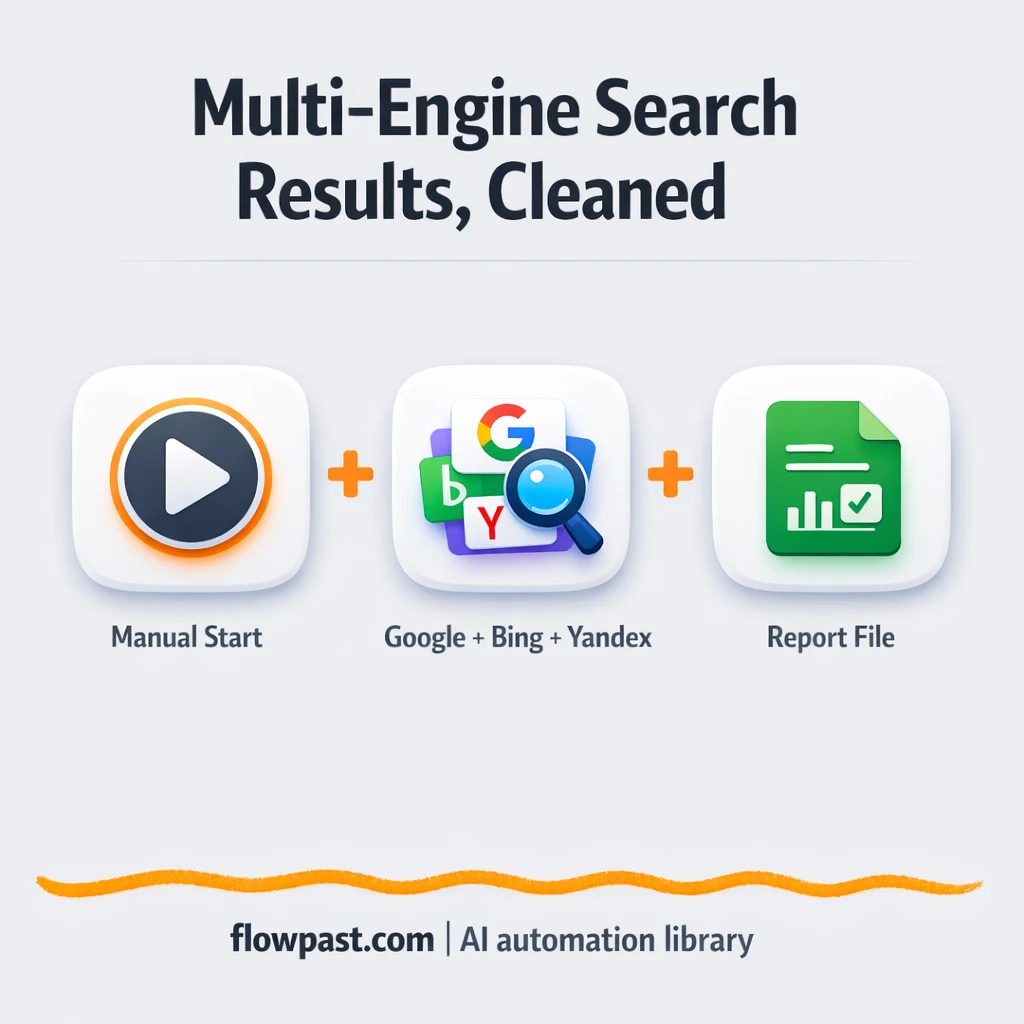

Copying search results into a spreadsheet sounds simple until you do it for the tenth keyword and realize you’ve burned your morning on tabs, ads, and messy formatting.
SEO analysts feel this immediately. But so do content leads building briefs, and consultants who need clean evidence fast. This SERP insights automation turns multi-engine search results into structured notes you can actually use.
Below you’ll see how the workflow runs, what it replaces, and what you need to get it working inside n8n without living in spreadsheets all day.
How This Automation Works
See how this solves the problem:
n8n Workflow Template: Bright Data + Google Sheets for clean SERP insights
flowchart LR

    subgraph sg0["When clicking ‘Test workflow’ Flow"]
        direction LR
        n0@{ icon: "mdi:play-circle", form: "rounded", label: "When clicking ‘Test workflow’", pos: "b", h: 48 }
        n1@{ icon: "mdi:cog", form: "rounded", label: "Bright Data MCP Client List ..", pos: "b", h: 48 }
        n2@{ icon: "mdi:code-braces", form: "rounded", label: "Create a binary data", pos: "b", h: 48 }
        n3@{ icon: "mdi:cog", form: "rounded", label: "MCP Client for Google Search", pos: "b", h: 48 }
        n4@{ icon: "mdi:swap-vertical", form: "rounded", label: "Set the Input Fields", pos: "b", h: 48 }
        n5@{ icon: "mdi:cog", form: "rounded", label: "MCP Client for Bing Search", pos: "b", h: 48 }
        n6@{ icon: "mdi:cog", form: "rounded", label: "MCP Client for Yandex Search", pos: "b", h: 48 }
        n7@{ icon: "mdi:robot", form: "rounded", label: "Bright Data Search AI Agent", pos: "b", h: 48 }
        n8@{ icon: "mdi:brain", form: "rounded", label: "Google Gemini Chat Model for..", pos: "b", h: 48 }
        n9@{ icon: "mdi:cog", form: "rounded", label: "Write the search result to d..", pos: "b", h: 48 }
        n10["<div style='background:#f5f5f5;padding:10px;border-radius:8px;display:inline-block;border:1px solid #e0e0e0'><img src='https://flowpast.com/wp-content/uploads/n8n-workflow-icons/httprequest.dark.svg' width='40' height='40' /></div><br/>Webhook for clean data extra.."]
        n11@{ icon: "mdi:robot", form: "rounded", label: "Human Readable Data Extractor", pos: "b", h: 48 }
        n12@{ icon: "mdi:brain", form: "rounded", label: "Google Gemini Chat Model for..", pos: "b", h: 48 }
        n2 --> n9
        n4 --> n7
        n5 -.-> n7
        n7 --> n11
        n3 -.-> n7
        n6 -.-> n7
        n11 --> n2
        n11 --> n10
        n1 --> n4
        n0 --> n1
        n8 -.-> n7
        n12 -.-> n11
    end

    %% Styling
    classDef trigger fill:#e8f5e9,stroke:#388e3c,stroke-width:2px
    classDef ai fill:#e3f2fd,stroke:#1976d2,stroke-width:2px
    classDef aiModel fill:#e8eaf6,stroke:#3f51b5,stroke-width:2px
    classDef decision fill:#fff8e1,stroke:#f9a825,stroke-width:2px
    classDef database fill:#fce4ec,stroke:#c2185b,stroke-width:2px
    classDef api fill:#fff3e0,stroke:#e65100,stroke-width:2px
    classDef code fill:#f3e5f5,stroke:#7b1fa2,stroke-width:2px
    classDef disabled stroke-dasharray: 5 5,opacity: 0.5
    class n0 trigger
    class n7,n11 ai
    class n8,n12 aiModel
    class n10 api
    class n2 code
    classDef customIcon fill:none,stroke:none
    class n10 customIcon
The Challenge: Turning messy SERPs into usable insights
Search engine results pages are noisy on purpose. Ads sit on top, “People also ask” blocks stretch the page, and every engine formats results differently. If you’re trying to compare how a competitor shows up on Google versus Bing, you end up doing detective work instead of analysis. Then comes the cleanup: stripping tracking URLs, removing navigation junk, and rewriting fragments into something your team can read in a brief. Honestly, the worst part is how easy it is to miss something important because you’re tired and rushing.
It adds up fast. Here’s where the friction usually shows up.
- Pulling results from Google, Bing, and Yandex means repeating the same search and copy steps three times.
- Manual SERP cleanup (ads, sidebars, footers, random links) can eat about 30 minutes per keyword before you even start interpreting.
- Your “research sheet” becomes inconsistent because every person summarizes differently, which makes trends hard to spot later.
- Traditional scraping gets blocked or returns cluttered HTML, so you spend time fixing the extraction instead of using the data.
The Fix: Multi-engine SERP extraction, cleaned and ready for Sheets
This workflow uses Bright Data’s MCP-based agent to run searches in a more human-like way, across Google, Bing, and Yandex, then turns the raw pages into clean, readable output. You start by providing a query (and choosing which search action you want). The agent handles the messy parts: navigation, loading results, and even pagination when needed. Next, an extractor cleans the content by stripping ads and page clutter so you’re not left with a wall of HTML. Finally, Google Gemini structures what’s left into something you can scan quickly, save, and share, including a webhook output for real-time use.
The workflow begins with a manual trigger and a tool catalog connection for MCP. From there it assigns your search inputs, orchestrates the right search tool (Google, Bing, or Yandex), cleans the output, and sends the processed result onward. You can store it as a file for records, and push the clean data into Google Sheets or another destination depending on your setup.
What Changes: Before vs. After
| What This Eliminates | Impact You’ll See |
|---|---|
|
|
Real-World Impact
Say you research 10 keywords each week and you check 3 engines (Google, Bing, Yandex). Manually, you might spend about 10 minutes per engine per keyword between searching, copying, and cleaning, which is roughly 5 hours a week. With this workflow, you submit the query once, let the agent run, and you mostly just review the structured output (call it about 10 minutes per keyword). That’s around 3 hours back weekly, plus you’re not stuck doing the tedious cleanup.
Requirements
- n8n instance (try n8n Cloud free)
- Self-hosting option if you prefer (Hostinger works well)
- Bright Data to run the MCP-based search agent.
- Google Sheets for storing and reviewing insights.
- Google Gemini API key (get it from Google AI Studio).
Skill level: Intermediate. You’ll connect credentials, install MCP components if self-hosted, and adjust a few fields for your search actions.
Need help implementing this? Talk to an automation expert (free 15-minute consultation).
The Workflow Flow
A manual run (or later, a schedule) starts the flow. In the current setup you click to run it, which is perfect for on-demand research. Many teams later add a Cron trigger for weekly tracking.
Your query and “search action” get assigned. You provide the keyword (or phrase) and specify what to do, like “perform a google search,” then the workflow routes that request to the right Bright Data tool through the MCP catalog.
Bright Data executes the search and brings back the raw result pages. The orchestration agent can handle the annoying parts like loading results and moving through pages, so you’re not fighting blocks and partial responses.
The output gets cleaned and structured with Gemini. First, the readable output extractor strips clutter and turns messy page content into a narrative. Then Gemini formats it into structured insights you can save as a file, push to a webhook, or map into Google Sheets rows.
You can easily modify the search action (Google vs Bing vs Yandex) to match your research process. See the full implementation guide below for customization options.
Step-by-Step Implementation Guide
Step 1: Configure the Manual Trigger
Start the workflow manually to run a search and process results on demand.
- Add Manual Start Trigger as the trigger node.
- Connect Manual Start Trigger to MCP Tool Catalog.
- Optional: Keep Flowpast Branding as a visual reference note; it does not affect execution.
Step 2: Connect MCP Tool Catalog
Initialize the MCP tool registry that powers the multi-engine search tools.
- Open MCP Tool Catalog and connect the API credentials.
- Credential Required: Connect your
mcpClientApicredentials. - Connect MCP Tool Catalog to Assign Search Inputs.
Step 3: Define Search Inputs
Set the query, action, and webhook URL that drive the search request and downstream notification.
- Open Assign Search Inputs and set query to
Bright Data. - Set action to
Perform Bing search(this guides the agent’s tool choice). - Set webhook_notification_url to
https://example.com/webhook.
Tip: Match the action text to an available tool (Google, Bing, or Yandex) to avoid ambiguous agent behavior.
Step 4: Set Up the Search Orchestration Agent and Tools
Configure the AI agent that selects and runs the appropriate search tool, powered by Gemini.
- Open Search Orchestration Agent and set Text to
={{ $json.action }}

Make sure to output the response as returned by th specific tool.
. - Connect Gemini Chat Model A as the language model for Search Orchestration Agent.
- Credential Required: Connect your
googlePalmApicredentials in Gemini Chat Model A. - Attach Google Search Tool, Bing Search Tool, and Yandex Search Tool as AI tools to Search Orchestration Agent.
- For Google Search Tool, set toolParameters to
={
    "query": "{{ $json.query }}",
    "engine": "google"
}
. - For Bing Search Tool, set toolParameters to
{
    "query": "{{ $json.query }}",
    "engine": "bing"
}
. - For Yandex Search Tool, set toolParameters to
{
    "query": "{{ $json.query }}",
    "engine": "yandex"
}
. - Credential Required: Connect your
mcpClientApicredentials for the AI tools (managed with the tools attached to Search Orchestration Agent).
⚠️ Common Pitfall: If the tool credentials aren’t available in the AI tool configurations attached to Search Orchestration Agent, the agent will fail when calling search engines.
Step 5: Clean the Output and Branch in Parallel
Transform the raw search output into readable data, then split to file storage and webhook notification.
- Open Readable Output Extractor and set text to
=You are a helpful AI assistant. Given the following search result, return a clean, human-readable information.

Remove any HTML tags, Ignore irrelevant links, ads, navigation text, or footers.

Here's the content -  {{ $json.output }}

Important - Do not output your own thoughts or suggestions.
. - Connect Gemini Chat Model B as the language model for Readable Output Extractor.
- Credential Required: Connect your
googlePalmApicredentials in Gemini Chat Model B. - Readable Output Extractor outputs to both Build Binary Payload and Notify Clean Data Webhook in parallel.
Step 6: Configure File Output and Webhook Notification
Persist clean results to disk and notify an external webhook with the processed response.
- In Build Binary Payload, set functionCode to
items[0].binary = {
  data: {
    data: new Buffer(JSON.stringify(items[0].json, null, 2)).toString('base64')
  }
};
return items;
. - In Save Results to File, set operation to
writeand fileName tod:\Scraped-Search-Results.json. - In Notify Clean Data Webhook, set url to
={{ $('Assign Search Inputs').item.json.webhook_notification_url }}. - Enable sendBody and add a body parameter response with value
={{ $json.output.search_response }}.
⚠️ Common Pitfall: The file path d:\Scraped-Search-Results.json must be valid on the n8n host. Update it if your server uses a different filesystem.
Step 7: Test and Activate Your Workflow
Run a manual test, confirm output quality, and then enable the workflow for production use.
- Click Execute Workflow to run Manual Start Trigger and validate end-to-end execution.
- Confirm that Save Results to File writes
d:\Scraped-Search-Results.jsonwith readable content. - Verify that Notify Clean Data Webhook receives a payload containing
responsefrom the cleaned output. - Once verified, toggle the workflow to Active for production use.
Watch Out For
- Bright Data credentials and zone setup matter. If results suddenly look empty, check your Bright Data API_TOKEN and that the “mcp_unlocker” Web Unlocker zone still exists in the Bright Data control panel.
- If you rely on external search navigation, processing times vary. When downstream nodes run too quickly and see missing fields, increase any wait or retry behavior around the extractor and webhook send.
- Gemini’s default structuring can be bland. Add your preferred output format early (competitors, angles, intent notes, sources) or you’ll be editing every research brief by hand.
Common Questions
Plan on about an hour if your Bright Data and Gemini keys are ready.
Yes, but someone will need to handle the MCP server install on a self-hosted n8n instance. After that, it’s mostly credential setup and editing the input fields.
Yes. n8n has a free self-hosted option and a free trial on n8n Cloud. Cloud plans start at $20/month for higher volume. You’ll also need to factor in Bright Data usage and Gemini API costs, which depend on how many queries you run.
Two options: n8n Cloud (managed, easiest setup) or self-hosting on a VPS. For self-hosting, Hostinger VPS is affordable and handles n8n well. Self-hosting gives you unlimited executions but requires basic server management.
You can swap the search provider by changing the action you pass into the “Assign Search Inputs” node, then routing to the matching MCP search tool (Google, Bing, or Yandex). Common customizations include adding a Cron trigger for weekly keyword tracking, writing results into Google Sheets instead of saving files, and tweaking the Gemini prompts so the output matches your brief template.
Usually it’s an API_TOKEN issue or a missing Web Unlocker zone on the Bright Data side. Regenerate your token, confirm it’s set in the MCP Client (STDIO) environment settings, and verify the proxy zone name matches what the workflow expects. If it fails only on bigger runs, it may be rate limiting or temporary blocking, so slow down executions and retry the failed query.
If you self-host n8n, there’s no hard execution cap, but throughput depends on your server and Bright Data limits. On n8n Cloud, capacity depends on your plan’s monthly executions. Practically, most teams run dozens of queries per day comfortably; the agent work takes longer than typical API calls, so it’s better to batch runs than fire hundreds at once.
For this exact use case, yes, because Zapier and Make aren’t built around MCP-based agents and multi-step extraction logic like this. n8n gives you more control over branching, retries, and data shaping without paying extra for every conditional path. Self-hosting also matters here since community nodes and MCP components are commonly part of the setup. The tradeoff is setup effort: you’re wiring a real workflow, not a two-step zap. Talk to an automation expert if you want someone to map it to your process.
Once this is running, SERP research becomes something you trigger, review, and move on from. The workflow handles the repetitive cleanup so you can focus on decisions.
Need Help Setting This Up?
Our automation experts can build and customize this workflow for your specific needs. Free 15-minute consultation—no commitment required.
