


Bright Data + Google Sheets, keywords stay current
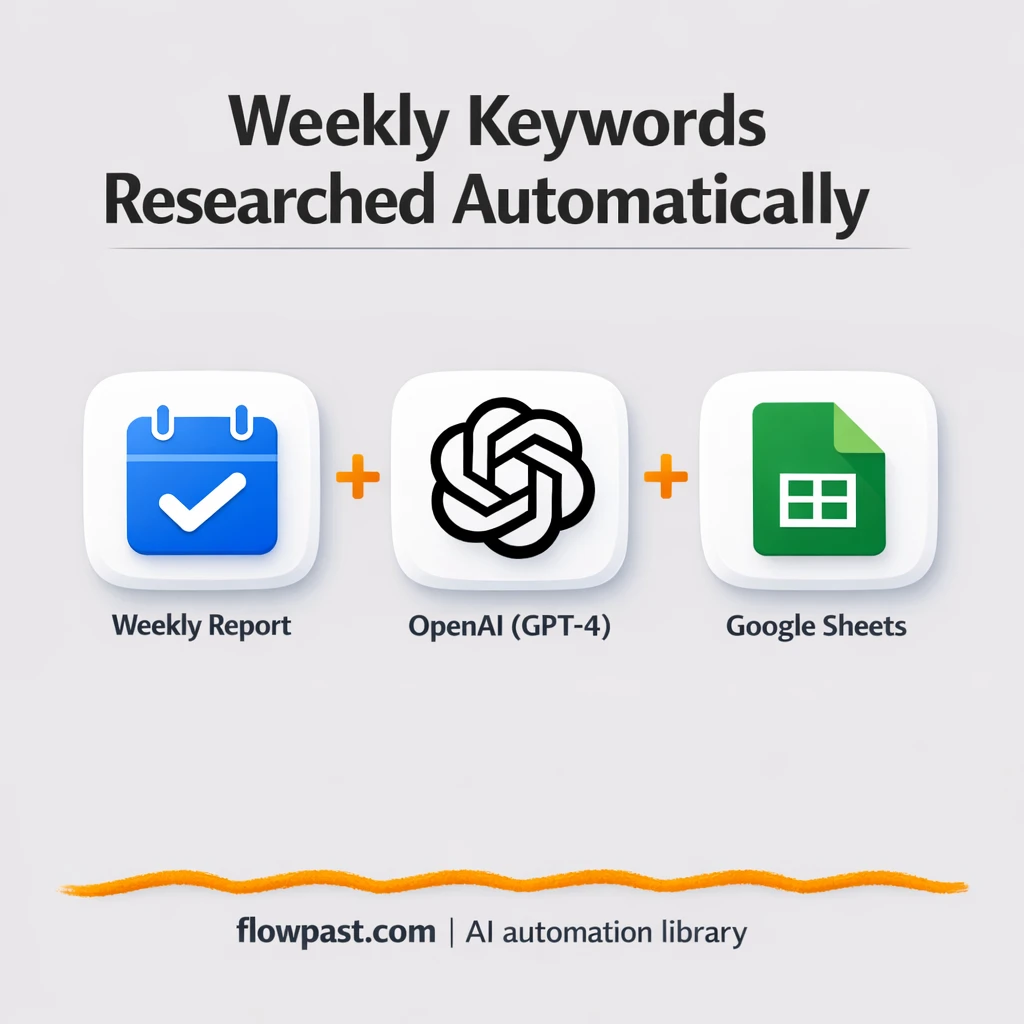

Keyword research has a way of turning into a recurring tax. You do a “quick check,” open ten tabs, copy ideas into a doc, then realize your spreadsheet is already outdated again. That’s why keyword research automation is so appealing when you’re juggling content, rankings, and deadlines.
Content leads feel it when the calendar runs dry. SEO consultants feel it when clients ask, “What changed this week?” And founders doing their own marketing feel it most, because there’s no one else to hand it off to. This workflow keeps a rolling database of fresh keywords so you can plan with real data, not guesses.
Below, you’ll see exactly what the automation does, what you get out the other end, and what to watch out for when you set it up in n8n.
How This Automation Works
The full n8n workflow, from trigger to final output:
n8n Workflow Template: Bright Data + Google Sheets, keywords stay current
flowchart LR

    subgraph sg0["🕒 Run Weekly Flow"]
        direction LR
        n0@{ icon: "mdi:play-circle", form: "rounded", label: "🕒 Run Weekly", pos: "b", h: 48 }
        n1@{ icon: "mdi:swap-vertical", form: "rounded", label: "✏️ Define Topic or competitor", pos: "b", h: 48 }
        n2@{ icon: "mdi:robot", form: "rounded", label: "🤖 AI Agent (Keyword Finder)", pos: "b", h: 48 }
        n3@{ icon: "mdi:brain", form: "rounded", label: "💬 GPT Brain", pos: "b", h: 48 }
        n4@{ icon: "mdi:cog", form: "rounded", label: "🔍 MCP Keyword Search", pos: "b", h: 48 }
        n5@{ icon: "mdi:database", form: "rounded", label: "📄 Save to Google Sheets", pos: "b", h: 48 }
        n6@{ icon: "mdi:robot", form: "rounded", label: "Auto-fixing Output Parser", pos: "b", h: 48 }
        n7@{ icon: "mdi:brain", form: "rounded", label: "OpenAI Chat Model", pos: "b", h: 48 }
        n8@{ icon: "mdi:robot", form: "rounded", label: "Structured Output Parser", pos: "b", h: 48 }
        n3 -.-> n2
        n0 --> n1
        n7 -.-> n6
        n4 -.-> n2
        n8 -.-> n6
        n6 -.-> n2
        n2 --> n5
        n1 --> n2
    end

    %% Styling
    classDef trigger fill:#e8f5e9,stroke:#388e3c,stroke-width:2px
    classDef ai fill:#e3f2fd,stroke:#1976d2,stroke-width:2px
    classDef aiModel fill:#e8eaf6,stroke:#3f51b5,stroke-width:2px
    classDef decision fill:#fff8e1,stroke:#f9a825,stroke-width:2px
    classDef database fill:#fce4ec,stroke:#c2185b,stroke-width:2px
    classDef api fill:#fff3e0,stroke:#e65100,stroke-width:2px
    classDef code fill:#f3e5f5,stroke:#7b1fa2,stroke-width:2px
    classDef disabled stroke-dasharray: 5 5,opacity: 0.5
    class n0 trigger
    class n2,n6,n8 ai
    class n3,n7 aiModel
    class n5 database
The Problem: Keyword Research Goes Stale Fast
If you do keyword research manually, you already know the pattern. You pull ideas from search results, competitor pages, “people also ask,” and a few paid tools. Then you paste everything into a spreadsheet, try to label intent, and promise yourself you’ll “clean it up later.” Later rarely happens. Even worse, the moment you finish, the landscape shifts. A competitor publishes something new, search intent drifts, and the keywords you’re planning around quietly lose momentum.
The friction compounds. Here’s where it usually breaks down.
- Weekly keyword checks often take about 2 hours, and that’s before you’ve even written a brief.
- Copy-pasting into Sheets invites messy formatting, duplicates, and “what did we mean by this?” columns.
- Competitor monitoring becomes reactive, so you spot trends after they’ve already peaked.
- When the data is scattered, planning feels like opinion, not prioritization.
The Solution: Weekly Keyword Discovery Stored in Google Sheets
This n8n workflow runs on a weekly schedule and does the “research grunt work” for you. It starts by setting a topic (your industry, a product area, or a competitor angle), then hands that context to an AI keyword discovery agent. The agent uses Bright Data-backed search access to pull fresh signals from the web, then uses an OpenAI chat model to analyze and structure the output into clean, consistent fields. If the AI output comes back slightly malformed (it happens), an auto-repair parser fixes it and a structured JSON parser makes sure the rows are safe to store. Finally, the workflow appends the new keyword set into Google Sheets so your database stays current without you babysitting it.
The workflow starts on a timer, then builds a research prompt from your chosen topic. Bright Data is used to access search data sources, while OpenAI turns that raw signal into organized keyword opportunities. Google Sheets becomes the living system of record you can sort, filter, and plan from.
What You Get: Automation vs. Results
| What This Workflow Automates | Results You’ll Get |
|---|---|
|
|
Example: What This Looks Like
Say you track 3 core topics and do a weekly refresh. Manually, you might spend about 2 hours per topic between searching, scanning competitors, and cleaning your spreadsheet, so roughly 6 hours a week. With this workflow, you spend maybe 10 minutes up front defining the topics in n8n, then let the weekly run do the collection and formatting. Even if the run takes a bit to process in the background, your hands-on time drops to a quick review in Google Sheets.
What You’ll Need
- n8n instance (try n8n Cloud free)
- Self-hosting option if you prefer (Hostinger works well)
- Bright Data for search access and data collection.
- Google Sheets to store your rolling keyword database.
- OpenAI API key (get it from the OpenAI dashboard).
Skill level: Intermediate. You’ll connect credentials, edit the research topic, and test one full run to confirm the sheet output looks right.
Don’t want to set this up yourself? Talk to an automation expert (free 15-minute consultation).
How It Works
A weekly trigger kicks things off. n8n runs the workflow on a schedule, so your keyword database refreshes without anyone remembering to do it.
The topic is set once, then reused. You define the industry or theme you care about (and you can extend this to multiple topics later). That context is what keeps the results relevant instead of randomly “SEO-ish.”
Bright Data + AI do the heavy lifting. The keyword discovery agent uses Bright Data-powered search access to gather signals, and an OpenAI chat model turns those signals into structured keyword opportunities you can actually work with. If the model response has formatting issues, the auto-fix and structured parsing steps clean it up.
Google Sheets becomes the output hub. Each run appends new rows into your spreadsheet, which means you can filter by topic, cluster, intent, or whatever columns you choose to keep.
You can easily modify the research topic to track competitors, product categories, or new markets based on your needs. See the full implementation guide below for customization options.
Step-by-Step Implementation Guide
Step 1: Configure the Schedule Trigger
Set the workflow to run on a weekly schedule so keyword reporting is generated automatically.
- Add and open ⏰ Weekly Schedule Trigger.
- Set the schedule rule to weekly with Trigger At Day set to
1and Trigger At Hour set to9. - Confirm the node outputs to ✍️ Set Research Topic.
Step 2: Connect Google Sheets
Configure the output destination so keyword results are appended to your spreadsheet.
- Open 📄 Append to Sheets.
- Credential Required: Connect your googleSheetsOAuth2Api credentials.
- Set Operation to
append. - Set Document to
[YOUR_ID]and Sheet togid=0(Sheet1). - Map columns: Topic to
{{ $json.output.topic }}and Trending Keyword to{{ $json.output.description }}.
Topic and Trending Keyword, the append will fail or create misaligned data.Step 3: Set Up the AI Prompt and Topic Input
Define the research topic and prompt the AI agent to discover trending keywords.
- Open ✍️ Set Research Topic and add a string field named Topic with value
AI blogging. - Open 🤖 Keyword Discovery Agent and set Text to
=Provide me trending keywords for the topic below.
{{ $json.Topic }}
. - Set Prompt Type to
defineand keep Has Output Parser enabled. - Ensure the flow is connected: ✍️ Set Research Topic → 🤖 Keyword Discovery Agent.
Step 4: Configure AI Tools and Parsing
Connect the language model, search utility, and output parsers to structure reliable keyword results.
- Open 💬 LLM Chat Engine and select model
gpt-4o-mini. - Credential Required: Connect your openAiApi credentials in 💬 LLM Chat Engine, which is linked to 🤖 Keyword Discovery Agent.
- Open 🔎 MCP Search Utility and confirm Tool Name is
search_enginewith Tool Parameters set to{{ /*n8n-auto-generated-fromAI-override*/ $fromAI('Tool_Parameters', ``, 'json') }}. - Credential Required: Connect your mcpClientApi credentials in 🔎 MCP Search Utility (used as the tool for 🤖 Keyword Discovery Agent).
- Open Structured JSON Parser and confirm JSON Schema Example matches
{ "topic": "AI Blogging", "keyword": "Artificial Intelligence", "description": "General discussions about AI technologies." }. - Open OpenAI Chat Engine and select model
gpt-4o-mini. - Credential Required: Connect your openAiApi credentials in OpenAI Chat Engine, which powers Auto-Repair Output Parser.
- Keep Auto-Repair Output Parser linked between Structured JSON Parser and 🤖 Keyword Discovery Agent to fix malformed AI outputs.
Step 5: Configure the Output Action
Ensure the AI results are sent to Google Sheets after generation.
- Confirm 🤖 Keyword Discovery Agent outputs to 📄 Append to Sheets.
- Review the mapping to ensure
{{ $json.output.topic }}and{{ $json.output.description }}exist in the AI output.
Step 6: Test and Activate Your Workflow
Run a manual test to confirm your weekly automation is appending keyword data correctly.
- Click Execute Workflow to trigger a manual run from ⏰ Weekly Schedule Trigger.
- Verify 📄 Append to Sheets adds a new row in your spreadsheet with topic and keyword data.
- If the output is empty or malformed, recheck the prompt in 🤖 Keyword Discovery Agent and the schema in Structured JSON Parser.
- Toggle the workflow to Active to enable weekly runs.
Common Gotchas
- Bright Data credentials can expire or need specific permissions. If things break, check the Bright Data dashboard and the n8n credential record first.
- If you’re using Wait nodes or external processing, runtimes vary. Bump up the wait duration if downstream parsing nodes fail on empty responses.
- OpenAI prompts that stay generic produce generic keyword lists. Add your ICP, geography, and brand angle early or you will be editing outputs forever.
Frequently Asked Questions
About an hour if you already have your Bright Data, OpenAI, and Google Sheets accounts ready.
No. You’ll mostly paste API keys, connect Google Sheets, and edit the research topic.
Yes. n8n has a free self-hosted option and a free trial on n8n Cloud. Cloud plans start at $20/month for higher volume. You’ll also need to factor in OpenAI API usage (often pennies per run) and your Bright Data plan.
Two options: n8n Cloud (managed, easiest setup) or self-hosting on a VPS. For self-hosting, Hostinger VPS is affordable and handles n8n well. Self-hosting gives you unlimited executions but requires basic server management.
Yes, but you’ll want to adjust the “Set Research Topic” step to loop through a list (topics, products, or competitors). The Keyword Discovery Agent can then run once per topic, and you can append a “topic” column into Google Sheets for filtering. A common tweak is adding a second sheet tab per topic if you prefer clean separation. You can also swap the schedule to daily during a launch, then back to weekly once things stabilize.
Usually it’s credentials or permissions. Re-check your Bright Data account status, confirm the right token is saved in n8n, and make sure the Bright Data product you’re using allows the type of access your query requires. If it fails only on big runs, it can be rate limiting, so reduce topics per run or space them out with a wait.
A lot, as long as you pace it. On n8n Cloud, your monthly execution limit depends on your plan, and each weekly run counts toward it. If you self-host, there’s no execution cap, but your server still has to handle the workload and API response times. Practically, most small teams start with a few topics and scale up once the sheet format feels solid.
Often, yes. This workflow relies on an AI agent, structured parsing, and the kind of “fix it and keep going” logic that gets awkward (and expensive) in simpler automation tools. n8n also gives you a self-hosting option, which is a big deal if you want to run research frequently without watching task counts. Zapier or Make can still work if you only need a lightweight keyword-to-sheet push and you don’t care about structured JSON. If you’re unsure, Talk to an automation expert and describe your volume and goals. You’ll get a straight answer.
Set this up once, and your keyword list stops decaying in the background. The workflow handles the weekly refresh so you can focus on picking winners and publishing.
Need Help Setting This Up?
Our automation experts can build and customize this workflow for your specific needs. Free 15-minute consultation—no commitment required.
