


Google Sheets to Gmail, meeting minutes sent clean
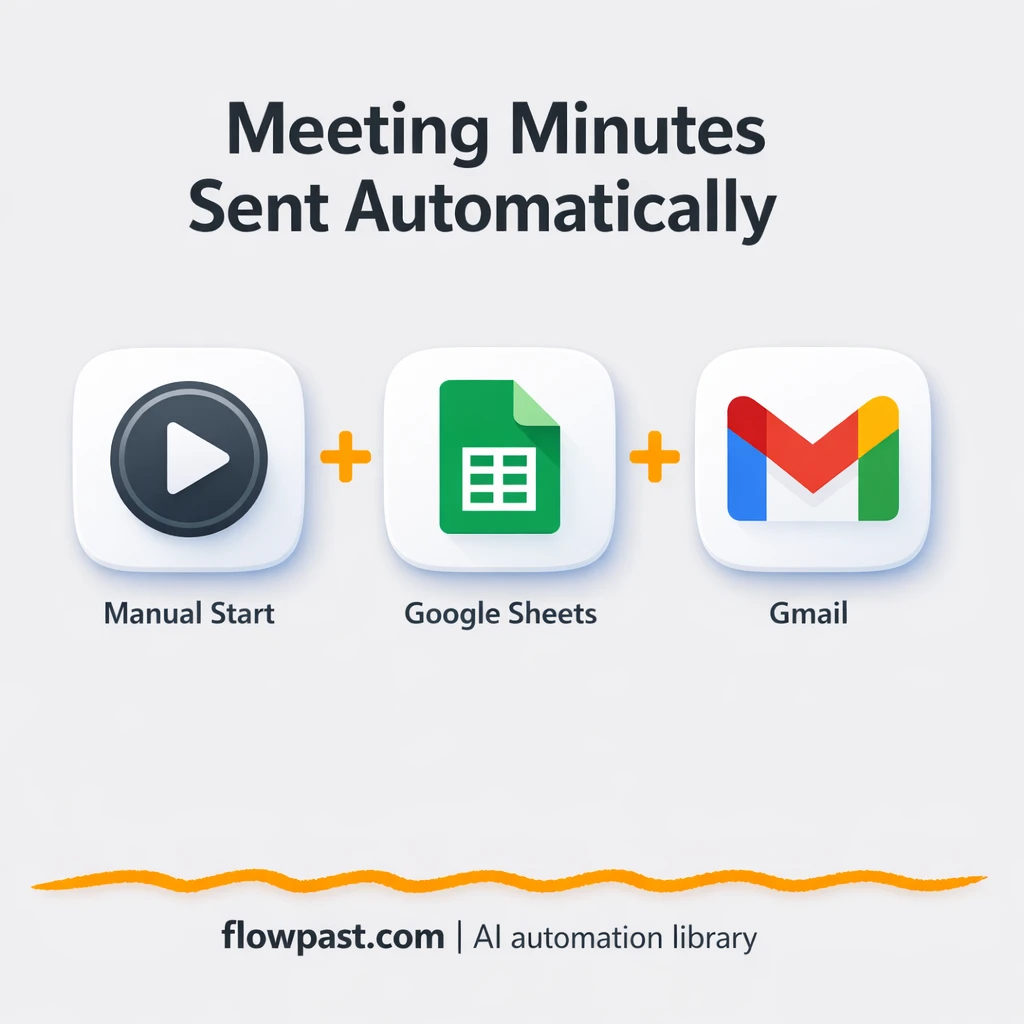

You finish the meeting, your notes are sitting in a Google Sheet… and then the real time sink starts. Copying, cleaning, rewriting, and emailing “minutes” that somehow still come back with questions.
Project managers feel it after every standup. Ops leads deal with it when action items slip. And client-facing consultants get stuck chasing approvals because the recap wasn’t clear. This Sheets Gmail minutes automation turns your sheet rows into a clean, sendable recap without the extra polish-work.
You’ll see how the workflow pulls your latest meeting minutes from Google Sheets, formats them into a readable email, and sends them through Gmail so everyone gets the same version, fast.
How This Automation Works
Here’s the complete workflow you’ll be setting up:
n8n Workflow Template: Google Sheets to Gmail, meeting minutes sent clean
flowchart LR

    subgraph sg0["Manual Start Flow"]
        direction LR
        n0@{ icon: "mdi:play-circle", form: "rounded", label: "Manual Start Trigger", pos: "b", h: 48 }
        n1@{ icon: "mdi:database", form: "rounded", label: "Retrieve Sheet Rows", pos: "b", h: 48 }
        n2["<div style='background:#f5f5f5;padding:10px;border-radius:8px;display:inline-block;border:1px solid #e0e0e0'><img src='https://flowpast.com/wp-content/uploads/n8n-workflow-icons/code.svg' width='40' height='40' /></div><br/>Compose Email Body"]
        n3@{ icon: "mdi:message-outline", form: "rounded", label: "Send Minutes Email", pos: "b", h: 48 }
        n0 --> n1
        n1 --> n2
        n2 --> n3
    end

    %% Styling
    classDef trigger fill:#e8f5e9,stroke:#388e3c,stroke-width:2px
    classDef ai fill:#e3f2fd,stroke:#1976d2,stroke-width:2px
    classDef aiModel fill:#e8eaf6,stroke:#3f51b5,stroke-width:2px
    classDef decision fill:#fff8e1,stroke:#f9a825,stroke-width:2px
    classDef database fill:#fce4ec,stroke:#c2185b,stroke-width:2px
    classDef api fill:#fff3e0,stroke:#e65100,stroke-width:2px
    classDef code fill:#f3e5f5,stroke:#7b1fa2,stroke-width:2px
    classDef disabled stroke-dasharray: 5 5,opacity: 0.5
    class n0 trigger
    class n1 database
    class n2 code
    classDef customIcon fill:none,stroke:none
    class n2 customIcon
Why This Matters: Meeting notes that never turn into action
Meeting notes are only useful when they get shared quickly, in a format people actually read. But most teams jot things down in a spreadsheet, then rely on someone (usually you) to translate that raw log into a “proper” email. It’s repetitive, easy to procrastinate, and frankly annoying after a long call. Worse, delays cause the same follow-up loop: “Who owns this?” “What’s next?” “Is this blocked?” You end up doing recap support instead of doing the work the meeting was supposed to unblock.
It adds up fast. Here’s where it breaks down.
- People remember different decisions when the recap goes out hours (or days) later.
- Copying rows into an email introduces small mistakes, and those mistakes create big confusion.
- Action items get buried because owners and next steps aren’t consistently formatted.
- You spend about 20 minutes per meeting “cleaning it up” instead of moving on.
What You’ll Build: Google Sheets minutes that email themselves
This workflow turns the Google Sheet you already use for meeting minutes into an automatic Gmail recap. After your meeting, you add your notes as rows in a sheet with a simple structure (Topic, Status, Owner, Next Step). When the workflow runs, it pulls the latest rows from the sheet, assembles them into a clean email body, and sends that recap to the recipients you choose. No copy-paste. No “let me format this later.” Just one consistent summary, every time. If you want the email to sound more polished, you can also layer in the AI Agent and OpenAI Chat Model nodes later to rewrite the raw notes into a more executive-friendly recap.
The workflow starts from n8n (in the provided version it’s a manual trigger, which is great for testing). Google Sheets provides the source of truth. A small compose step formats the minutes into something readable, then Gmail delivers it to your team.
What You’re Building
| What Gets Automated | What You’ll Achieve |
|---|---|
|
|
Expected Results
Say you run 5 meetings a week and send minutes to 8 people each time. Manually, you’ll usually spend about 20 minutes rewriting the sheet into an email and checking names, owners, and next steps, so that’s roughly 2 hours a week. With this workflow, you update the sheet as you normally would, then trigger the send and let n8n format and email it in a couple minutes. The “work” becomes the notes, not the recap.
Before You Start
- n8n instance (try n8n Cloud free)
- Self-hosting option if you prefer (Hostinger works well)
- Google Sheets to store minutes in required columns.
- Gmail to deliver minutes to your recipients.
- Google account access (authorize Sheets and Gmail in n8n)
Skill level: Beginner. You’ll connect accounts, pick a sheet, and paste recipient emails.
Want someone to build this for you? Talk to an automation expert (free 15-minute consultation).
Step by Step
You trigger the send. In the included workflow, a Manual Start begins the run, which is perfect while you’re testing. In production, many teams switch this to “when a new row is added” so minutes go out right after the meeting.
Google Sheets becomes the source of truth. The workflow retrieves rows from your meeting-minutes sheet. The structure matters: Topic, Status, Owner, and Next Step give the workflow something stable to format.
The email body gets assembled. A compose step (code) takes the raw rows and turns them into a readable recap. This is where you can add small quality touches like headers, spacing, and a short intro line.
Gmail sends the recap. The final step emails the minutes to your chosen recipients so everyone receives the same summary, in the same format, every time.
You can easily modify the email format to match your internal template based on your needs. See the full implementation guide below for customization options.
Step-by-Step Implementation Guide
Step 1: Configure the Manual Trigger
Set up the workflow entry point so you can manually run the automation during setup and testing.
- Add the Manual Start Trigger node as the trigger for the workflow.
- Leave all settings at their defaults in Manual Start Trigger.
- Optionally keep the Flowpast Branding sticky note for documentation purposes (no configuration required).
Step 2: Connect Google Sheets
Pull meeting data from your Google Sheet that will be formatted into the email summary.
- Add the Retrieve Sheet Rows node and connect it after Manual Start Trigger.
- Set Document to
[YOUR_ID]using the URL selector. - Set Sheet to
[YOUR_ID]using the ID selector. - Credential Required: Connect your Google Sheets credentials.
Topic, Status, Owner, and Next Step, the email table will show blank cells.Step 3: Set Up the Email Body Builder
Transform the Google Sheets rows into a formatted HTML table for the email content.
- Add the Compose Email Body node and connect it after Retrieve Sheet Rows.
- In JavaScript Code, paste the provided script that builds the HTML table and returns
{ json: { html } }. - Ensure the code references the correct JSON fields:
Topic,Status,Owner, andNext Step.
Step 4: Configure the Email Sender
Send the formatted meeting minutes email using Gmail.
- Add the Send Minutes Email node and connect it after Compose Email Body.
- Set To to
[YOUR_EMAIL]. - Set Subject to
Meeting notes today's meeting. - Set Message to the expression
{{$json.html}}. - Credential Required: Connect your Gmail credentials.
{{$json.html}}.Step 5: Test and Activate Your Workflow
Run a manual test to verify the sheet is read correctly and the email is sent with a formatted table.
- Click Execute Workflow to run the Manual Start Trigger.
- Confirm Retrieve Sheet Rows outputs rows from your sheet.
- Check Compose Email Body returns a
htmlfield in the output. - Verify that Send Minutes Email delivers an email containing the HTML table.
- Once successful, toggle the workflow to Active for production use.
Troubleshooting Tips
- Google Sheets credentials can expire or need specific permissions. If things break, check the Google connection in n8n’s Credentials section first.
- Gmail can refuse to send if your “From” identity isn’t allowed or you hit sending limits. Look at the Gmail node error message and verify the authorized account matches the sender.
- If your columns don’t match (Topic, Status, Owner, Next Step), the email output will look wrong. Fix the sheet headers before you start rewriting the compose step.
Quick Answers
About 30 minutes if your sheet is already structured.
No. The compose step is already included, and you can adjust text without writing real code.
Yes. n8n has a free self-hosted option and a free trial on n8n Cloud. Cloud plans start at $20/month for higher volume. You’ll also need to factor in $0 for AI costs unless you add OpenAI later.
Two options: n8n Cloud (managed, easiest setup) or self-hosting on a VPS. For self-hosting, Hostinger VPS is affordable and handles n8n well. Self-hosting gives you unlimited executions but requires basic server management.
Yes, and you probably should. You can change the “Retrieve Sheet Rows” step to filter only the latest meeting, then adjust “Compose Email Body” to match your internal template. Common tweaks include adding a meeting title/date, splitting “Decisions” vs “Action items,” and sending different recipients based on the Owner column.
Usually it’s an expired Google authorization or the wrong Google account connected. Reconnect the Google Sheets credential in n8n, then confirm the sheet ID and tab name still exist. If your org uses Google Workspace restrictions, an admin may need to allow the n8n app or OAuth scopes.
On n8n Cloud Starter, you can run thousands of executions per month, which is plenty for most teams sending minutes after meetings. If you self-host, there’s no execution cap, it mainly depends on your server. Practically, this workflow is lightweight; it’s reading rows and sending one email, so it scales fine unless you’re pulling huge sheets every run. If you do have a large sheet, filter to a date range or a “Meeting ID” column so each execution only formats what you need.
Often, yes, because you can keep the logic flexible without paying extra for every branch or filter, and you can self-host for high volume. n8n also makes it easier to control formatting when you care about how the minutes read. Zapier or Make can still be a good fit if you want the simplest possible setup and you already live in their ecosystem. If your minutes need conditional routing (only email owners their tasks, for example), n8n is usually the calmer choice. Talk to an automation expert if you’re not sure which fits.
Once this is running, meeting minutes stop being a chore and start being a system. You write the notes once, and the workflow does the rest.
Need Help Setting This Up?
Our automation experts can build and customize this workflow for your specific needs. Free 15-minute consultation—no commitment required.
