


Google Sheets to Mailchimp, leads added automatically

You finally have leads coming in. Then you realize you still have to export, clean columns, re-import, and double-check Mailchimp didn’t swallow duplicates. That little “admin task” quietly becomes a weekly tax on your attention.
This Sheets Mailchimp sync hits marketing managers first, because campaigns stall when the list is stale. But small business owners feel it too. Same with a freelancer running newsletters for clients who expect “new leads” to mean “email-ready.”
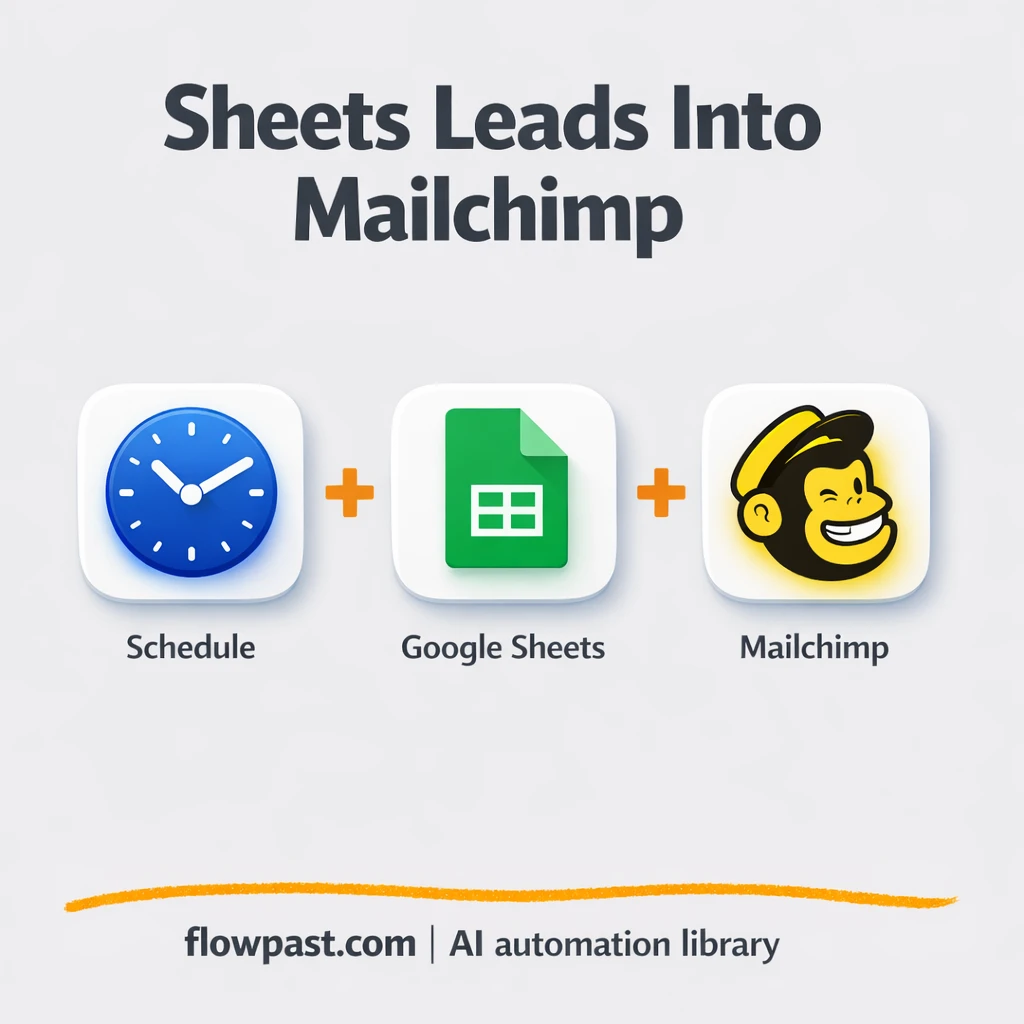
This workflow watches your Google Sheet and adds new rows to Mailchimp automatically, on a schedule. You’ll learn what it does, what you need, and how to avoid the common gotchas that cause messy audiences.
How This Automation Works
Here’s the complete workflow you’ll be setting up:
n8n Workflow Template: Google Sheets to Mailchimp, leads added automatically
flowchart LR

    subgraph sg0["Flow 1"]
        direction LR
        n1@{ icon: "mdi:database", form: "rounded", label: "Retrieve Sheet Rows", pos: "b", h: 48 }
        n2["<div style='background:#f5f5f5;padding:10px;border-radius:8px;display:inline-block;border:1px solid #e0e0e0'><img src='https://flowpast.com/wp-content/uploads/n8n-workflow-icons/mailchimp.dark.svg' width='40' height='40' /></div><br/>Add Mailchimp Subscriber"]
        n3@{ icon: "mdi:cog", form: "rounded", label: "Scheduled Interval Pulse", pos: "b", h: 48 }
        n3 --> n1
        n1 --> n2
    end

    subgraph sg1["Utility: Manual Start Flow"]
        direction LR
        n0@{ icon: "mdi:play-circle", form: "rounded", label: "Utility: Manual Start", pos: "b", h: 48 }
    end

    %% Styling
    classDef trigger fill:#e8f5e9,stroke:#388e3c,stroke-width:2px
    classDef ai fill:#e3f2fd,stroke:#1976d2,stroke-width:2px
    classDef aiModel fill:#e8eaf6,stroke:#3f51b5,stroke-width:2px
    classDef decision fill:#fff8e1,stroke:#f9a825,stroke-width:2px
    classDef database fill:#fce4ec,stroke:#c2185b,stroke-width:2px
    classDef api fill:#fff3e0,stroke:#e65100,stroke-width:2px
    classDef code fill:#f3e5f5,stroke:#7b1fa2,stroke-width:2px
    classDef disabled stroke-dasharray: 5 5,opacity: 0.5
    class n0 trigger
    class n1 database
    classDef customIcon fill:none,stroke:none
    class n2 customIcon
Why This Matters: Keeping Your Email List Clean Without Manual Imports
Manual list management is the kind of work that looks harmless until it stacks up. You grab new leads from a Google Sheet, import them into Mailchimp, fix a formatting issue, re-import, and then wonder if you just created duplicates or missed half the rows. And because imports often happen “when you get time,” your welcome emails and campaigns start later than they should. The cost isn’t just about 30 minutes here and there. It’s the mental load of remembering, checking, and correcting when you’d rather be writing copy or building the offer.
It adds up fast. Here’s where it breaks down in real life:
- New leads sit in Sheets for days, so your follow-up is late and colder than it needs to be.
- CSV imports encourage “quick fixes,” which often means inconsistent fields and mismatched names across audiences.
- You end up re-importing the same people, and list hygiene becomes a guessing game instead of a system.
- One broken import can derail a launch because segmentation relies on clean, current data.
What You’ll Build: Scheduled Google Sheets → Mailchimp Subscriber Sync
This n8n workflow turns your Google Sheet into a reliable “source of truth” for Mailchimp. On a scheduled interval, it pulls the latest rows from your spreadsheet, then pushes each lead into your chosen Mailchimp audience as a subscriber. You stop doing exports. You stop doing batch imports. And you stop wondering if the newest leads made it into the right list before your next campaign goes out.
The automation starts with a simple schedule (interval). From there it retrieves rows from Google Sheets and sends each contact to Mailchimp to be created or updated as a subscriber. Once it’s live, your list stays current in the background while you focus on messaging and offers.
What You’re Building
| What Gets Automated | What You’ll Achieve |
|---|---|
|
|
Expected Results
Let’s say you collect 50 new leads a week in a Google Sheet from ads, referrals, and a contact form. Manually, you might spend about 20 minutes exporting, importing, fixing fields, and checking Mailchimp, and it usually happens more than once (call it about 1–2 hours a week). With this workflow, the “work” is basically zero after setup: the interval runs, Sheets is read, subscribers are added. You only step in when you want to change mapping or fix a bad row.
Before You Start
- n8n instance (try n8n Cloud free)
- Self-hosting option if you prefer (Hostinger works well)
- Google Sheets for your lead list (rows as contacts).
- Mailchimp to store subscribers in an audience.
- Mailchimp API key (get it from Mailchimp Account → Extras → API keys).
Skill level: Beginner. You’ll connect accounts and map a few fields like email, name, and tags.
Want someone to build this for you? Talk to an automation expert (free 15-minute consultation).
Step by Step
A scheduled check runs automatically. The workflow starts with an Interval trigger, so it runs every X minutes or hours (you decide) without anyone clicking a button.
New data is pulled from your spreadsheet. n8n reads rows from Google Sheets. In most setups, this sheet is fed by forms, ad lead exports, partner lists, or a VA logging inbound requests.
Subscribers are created in Mailchimp. Each row is sent to Mailchimp’s “add subscriber” action, using the columns you mapped (email is the big one, then name fields, tags, and any custom merge fields you use).
Your audience stays ready to send. Once leads land in Mailchimp consistently, automations like welcome sequences and segmented campaigns are working with current data, not last week’s export.
You can easily modify the schedule frequency or the sheet you read from based on your needs. See the full implementation guide below for customization options.
Step-by-Step Implementation Guide
Step 1: Configure the Interval Trigger
Set up the timed trigger that drives the sync cycle.
- Add or open the Scheduled Interval Pulse node.
- Set the Interval to
2. - Confirm Scheduled Interval Pulse is connected to Retrieve Sheet Rows as the first step in the execution flow.
- Keep Utility: Manual Start available for manual testing (it is not part of the automated execution flow).
Step 2: Connect Google Sheets
Pull subscriber data from your spreadsheet.
- Open Retrieve Sheet Rows.
- Set Sheet ID to
[YOUR_ID]. - Set Range to
sheetone!A:C. - Credential Required: Connect your googleApi credentials.
email so the Mailchimp node can read {{$node["Retrieve Sheet Rows"].json["email"]}}.Step 3: Configure Mailchimp Subscriber Creation
Send each row’s email address to your Mailchimp list.
- Open Add Mailchimp Subscriber.
- Set List to
[YOUR_ID]. - Set Email to
={{$node["Retrieve Sheet Rows"].json["email"]}}. - Set Status to
subscribed. - Credential Required: Connect your mailchimpApi credentials.
Step 4: Test and Activate Your Workflow
Validate the end-to-end sync and enable scheduled runs.
- Click Execute Workflow and manually run Utility: Manual Start to test node configurations.
- Verify Retrieve Sheet Rows outputs rows with an
emailfield. - Confirm Add Mailchimp Subscriber adds subscribers to your Mailchimp list successfully.
- Turn the workflow Active to allow Scheduled Interval Pulse to run automatically.
Troubleshooting Tips
- Google Sheets access can fail if the connected Google account loses permission to the spreadsheet. If it breaks, check the sheet sharing settings and the Google credential inside n8n first.
- If you’re using an Interval trigger, timing can overlap when executions take longer than expected. Space out the interval so a new run doesn’t start while the previous one is still pushing subscribers.
- Mailchimp will reject bad emails and sometimes returns “member exists” style errors. Decide upfront if you want to update existing subscribers or only add new ones, then align your mapping and list settings to match.
Quick Answers
About 30 minutes if your sheet and Mailchimp audience are ready.
No. You’ll connect Google Sheets and Mailchimp, then map a few fields.
Yes. n8n has a free self-hosted option and a free trial on n8n Cloud. Cloud plans start at $20/month for higher volume. You’ll also need to factor in Mailchimp costs based on your list size.
Two options: n8n Cloud (managed, easiest setup) or self-hosting on a VPS. For self-hosting, Hostinger VPS is affordable and handles n8n well. Self-hosting gives you unlimited executions but requires basic server management.
Yes, and you probably should. You can change the Interval schedule to run hourly, daily, or during business hours only, and you can swap the Google Sheets “Retrieve Sheet Rows” configuration to point at a different spreadsheet or tab. Many teams also add an “If” check before Mailchimp to skip empty emails, filter by lead status, or only sync rows added since the last run. If you want to route different leads to different audiences, add a simple condition and send them to separate Mailchimp lists or tags.
Usually it’s an API key issue or the wrong audience selected in the Mailchimp node. Regenerate your Mailchimp API key, update it in n8n credentials, and confirm the audience/list ID matches where you want subscribers to go. Also check that the email field from Google Sheets is actually populated, because Mailchimp will reject blank or invalid emails. If you’re syncing a lot at once, you may also hit rate limits, so slow the interval or batch the updates.
On n8n Cloud, it depends on your plan’s monthly executions; self-hosted has no fixed execution limit and mainly depends on your server. For typical lead lists (dozens or a few hundred at a time), it runs comfortably.
Often, yes, if you care about control and scaling. n8n is flexible with scheduling, branching, and adding safeguards like filters, dedupe checks, and retries without turning every extra step into a higher bill. It’s also easier to keep costs predictable if you self-host. Zapier or Make can be faster for a simple two-step sync, though, especially if you never plan to customize. If you’re torn, Talk to an automation expert and we’ll sanity-check your use case.
Once this is running, your Mailchimp audience stops being a fragile, manual process. The workflow handles the repetitive parts, and you get back to sending campaigns on time.
Need Help Setting This Up?
Our automation experts can build and customize this workflow for your specific needs. Free 15-minute consultation—no commitment required.
