


Google Sheets to Orbit, member records stay complete
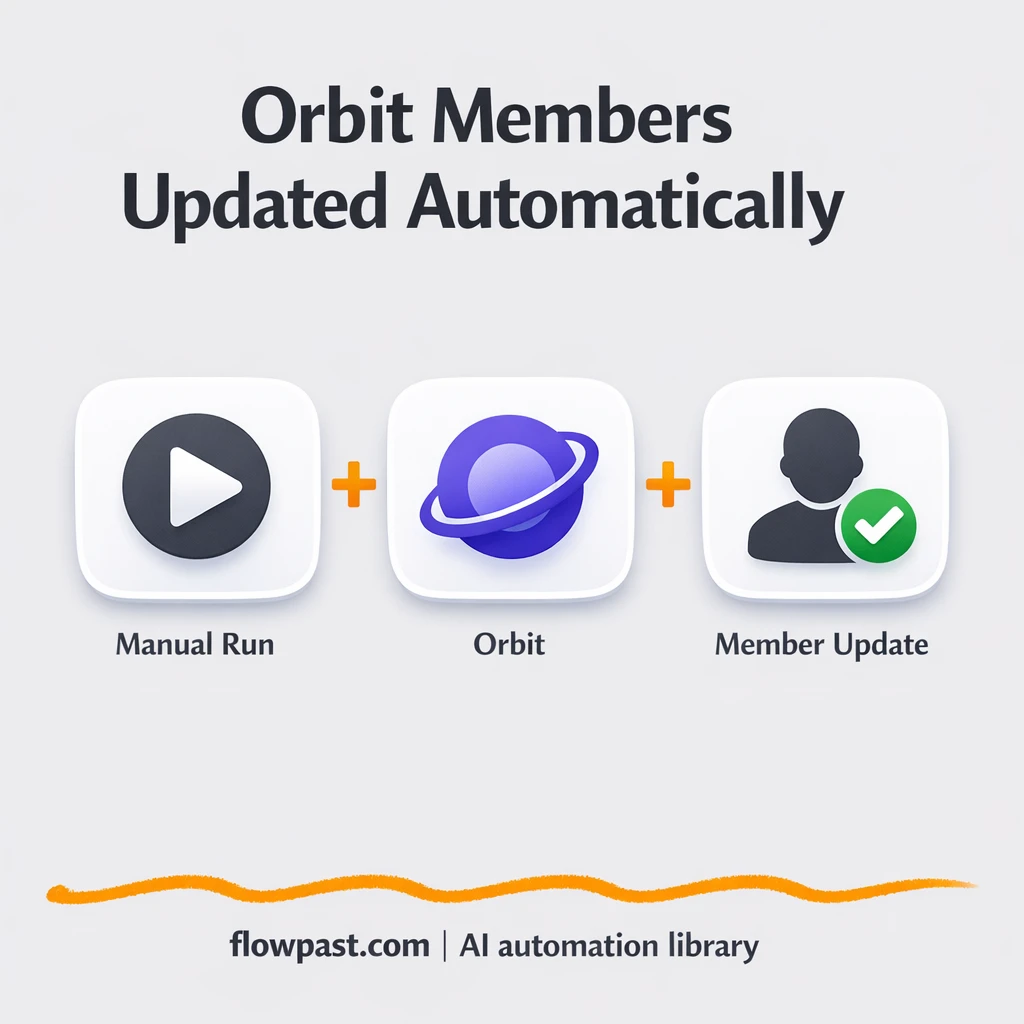

Keeping member data “up to date” usually means chasing stale spreadsheets, fixing duplicates, and re-copying notes into your CRM. It’s not hard work. It’s just endless.
This Sheets Orbit sync hits community managers first, but marketing ops and founders feel it too. You get complete Orbit member profiles (with notes and activity) without babysitting every row change.
Below you’ll see exactly how the workflow runs, what it automates inside Orbit, and the kind of time it gives back once it’s set up.
How This Automation Works
The full n8n workflow, from trigger to final output:
n8n Workflow Template: Google Sheets to Orbit, member records stay complete
flowchart LR

    subgraph sg0["Manual Execution Start Flow"]
        direction LR
        n0@{ icon: "mdi:play-circle", form: "rounded", label: "Manual Execution Start", pos: "b", h: 48 }
        n1["<div style='background:#f5f5f5;padding:10px;border-radius:8px;display:inline-block;border:1px solid #e0e0e0'><img src='https://flowpast.com/wp-content/uploads/n8n-workflow-icons/orbit.dark.svg' width='40' height='40' /></div><br/>Orbit Member Upsert"]
        n2["<div style='background:#f5f5f5;padding:10px;border-radius:8px;display:inline-block;border:1px solid #e0e0e0'><img src='https://flowpast.com/wp-content/uploads/n8n-workflow-icons/orbit.dark.svg' width='40' height='40' /></div><br/>Adjust Member Profile"]
        n3["<div style='background:#f5f5f5;padding:10px;border-radius:8px;display:inline-block;border:1px solid #e0e0e0'><img src='https://flowpast.com/wp-content/uploads/n8n-workflow-icons/orbit.dark.svg' width='40' height='40' /></div><br/>Append Member Note"]
        n4["<div style='background:#f5f5f5;padding:10px;border-radius:8px;display:inline-block;border:1px solid #e0e0e0'><img src='https://flowpast.com/wp-content/uploads/n8n-workflow-icons/orbit.dark.svg' width='40' height='40' /></div><br/>Publish Member Post"]
        n1 --> n2
        n2 --> n3
        n3 --> n4
        n0 --> n1
    end

    %% Styling
    classDef trigger fill:#e8f5e9,stroke:#388e3c,stroke-width:2px
    classDef ai fill:#e3f2fd,stroke:#1976d2,stroke-width:2px
    classDef aiModel fill:#e8eaf6,stroke:#3f51b5,stroke-width:2px
    classDef decision fill:#fff8e1,stroke:#f9a825,stroke-width:2px
    classDef database fill:#fce4ec,stroke:#c2185b,stroke-width:2px
    classDef api fill:#fff3e0,stroke:#e65100,stroke-width:2px
    classDef code fill:#f3e5f5,stroke:#7b1fa2,stroke-width:2px
    classDef disabled stroke-dasharray: 5 5,opacity: 0.5
    class n0 trigger
    classDef customIcon fill:none,stroke:none
    class n1,n2,n3,n4 customIcon
The Problem: Orbit profiles drift out of sync
Google Sheets is where member info lands first. Someone imports a list, a teammate adds notes from a call, you tag a person as “high intent,” and then… Orbit never quite matches what’s in the sheet. So you do the “quick fix” that turns into a habit: copy fields over, paste a note, maybe add an activity post to keep the timeline useful. Multiply that by a few new members per week and you’re spending real time on clerical work. Worse, you start second‑guessing your own CRM because you’re not sure which source is current.
The friction compounds. Here’s where it breaks down most often:
- You update the spreadsheet, but the Orbit profile still has old company, role, or tags.
- Notes live in random places, so the next person reaching out misses key context.
- Duplicates slip in when names are similar or emails get entered differently.
- Even when you do update Orbit, you skip the activity timeline because it takes extra clicks.
The Solution: Upsert members, then update profile, notes, and activity
This n8n workflow takes the “member row in Sheets” idea and turns it into a reliable Orbit record that stays complete over time. It starts with a simple manual run in n8n (great for testing or batch updates). From there, the workflow upserts the member in Orbit, which means it creates the person if they don’t exist and updates them if they do. Next, it adjusts the member profile details to match what you consider the source of truth. Then it appends a member note (so your team keeps context in the right place). Finally, it publishes a member post to Orbit, giving you a clean activity trail that supports outreach, reporting, and relationship history.
The flow is straightforward. Trigger the run, push the member into Orbit, and then enrich that record with profile updates, a note, and an activity post. You end up with one place to work from, instead of a spreadsheet plus a half-updated CRM.
What You Get: Automation vs. Results
| What This Workflow Automates | Results You’ll Get |
|---|---|
|
|
Example: What This Looks Like
Say you add 20 new members from a Google Sheet each week, and for each one you normally do three manual tasks in Orbit: create/update the profile (about 5 minutes), paste a note (about 2 minutes), and add an activity post (about 2 minutes). That’s roughly 9 minutes per person, or about 3 hours a week. With this workflow, you trigger the run once (a couple minutes), let n8n process the list, and you’re mostly just spot-checking. For many teams, that’s closer to 15 minutes of oversight instead of an afternoon of upkeep.
What You’ll Need
- n8n instance (try n8n Cloud free)
- Self-hosting option if you prefer (Hostinger works well)
- Google Sheets as the source of member details.
- Orbit to store member profiles, notes, and activity.
- Orbit API key (get it from your Orbit workspace settings).
Skill level: Beginner. You’ll connect Orbit credentials and map a few member fields once.
Don’t want to set this up yourself? Talk to an automation expert (free 15-minute consultation).
How It Works
Manual run to kick things off. You start the workflow from n8n when you want to sync a batch or test your mappings. It’s simple, and frankly it’s a nice safety net while you’re getting it dialed in.
Member creation or update in Orbit. The workflow upserts the member, so Orbit gets one clean record instead of a new duplicate when someone already exists.
Profile enrichment and context. After the upsert, it adjusts the member profile fields and appends a note, which means your internal context follows the person.
Activity timeline stays alive. The workflow publishes a member post in Orbit so you have a visible “what happened” trail for outreach and reporting.
You can easily modify which fields get updated and what the note/post contains based on your needs. See the full implementation guide below for customization options.
Step-by-Step Implementation Guide
Step 1: Configure the Manual Trigger
This workflow starts manually, which is ideal for testing member updates before automating.
- Add the Manual Execution Start node as the trigger.
- Leave all settings at their defaults since this node has no parameters.
- Connect Manual Execution Start to Orbit Member Upsert.
Step 2: Connect Orbit
All Orbit actions in this workflow require Orbit API credentials.
- Open Orbit Member Upsert and select Credential Required: Connect your orbitApi credentials.
- Repeat the same credential selection for Adjust Member Profile, Append Member Note, and Publish Member Post.
- Verify your Orbit workspace ID is available so you can reference it later in downstream nodes.
Step 3: Set Up Orbit Member Upsert
This step creates or updates the member in Orbit and provides the member ID used throughout the workflow.
- In Orbit Member Upsert, set Operation to
upsert. - Under Identity, set Source to
githuband Search By tousername. - Enter the GitHub username value to match the member (leave it blank only if you plan to supply it dynamically).
- Set Workspace ID to
[YOUR_ID].
⚠️ Common Pitfall: Leaving the GitHub username blank will prevent the member from being found or created. Populate this field or map it from incoming data before testing.
Step 4: Configure Orbit Member Updates and Activity
These nodes update the member profile, append a note, and publish a post in sequence using the member ID from the upsert step.
- In Adjust Member Profile, set Member ID to
={{$node["Orbit Member Upsert"].json["id"]}}and Workspace ID to={{$node["Orbit Member Upsert"].parameter["workspaceId"]}}. - Set Operation to
updateand add tags in Tags To Add as needed. - In Append Member Note, set Resource to
note, Member ID to={{$node["Orbit Member Upsert"].json["id"]}}, and Workspace ID to={{$node["Orbit Member Upsert"].parameter["workspaceId"]}}. - Fill the Note field in Append Member Note with the message you want stored.
- In Publish Member Post, set Resource to
post, Member ID to={{$node["Orbit Member Upsert"].json["id"]}}, and Workspace ID to={{$node["Orbit Member Upsert"].parameter["workspaceId"]}}. - Provide the URL for the post in Publish Member Post.
Step 5: Test and Activate Your Workflow
Validate the end-to-end member update flow before turning it on for regular use.
- Click Execute Workflow to run Manual Execution Start and follow the sequence through Publish Member Post.
- Confirm that a member is created or updated in Orbit and that the note and post appear under the same member.
- If everything looks correct, toggle the workflow to Active for production use.
Common Gotchas
- Orbit credentials can expire or lack write permissions. If things break, check your Orbit API key in n8n credentials and confirm the workspace still allows member write access.
- If you’re using Wait nodes or external rendering, processing times vary. Bump up the wait duration if downstream nodes fail on empty responses.
- Default prompts in AI nodes are generic. Add your brand voice early or you’ll be editing outputs forever.
Frequently Asked Questions
About 30 minutes if your Orbit API key is ready.
No. You’ll mostly map fields and connect your Orbit credentials in n8n.
Yes. n8n has a free self-hosted option and a free trial on n8n Cloud. Cloud plans start at $20/month for higher volume. You’ll also need to factor in Orbit API usage (usually minimal for member updates).
Two options: n8n Cloud (managed, easiest setup) or self-hosting on a VPS. For self-hosting, Hostinger VPS is affordable and handles n8n well. Self-hosting gives you unlimited executions but requires basic server management.
Yes, and it’s the part you should spend time on. You can change what gets written to the profile in the “Adjust Member Profile” step, then tailor internal context in “Append Member Note.” Many teams customize (1) which spreadsheet columns map to Orbit tags, (2) how notes are formatted (call summary vs. lead source vs. onboarding status), and (3) what the activity post says so it’s readable in a timeline. If you later switch sources, you can keep Orbit as the destination and just swap the upstream input.
Usually it’s an expired or rotated API key. Regenerate your Orbit API key, update the n8n credential, and confirm you’re pointing at the right workspace. If it fails only on larger batches, you may be hitting rate limits, so slow down executions or split the run into smaller chunks.
A few thousand members in a run is normal, as long as your n8n instance has time to process them.
Often, yes, if you care about keeping member profiles, notes, and activity updated in one pass. n8n is easier to extend when you want conditional logic (like only posting an activity when a “status” column changes) and it won’t nickel-and-dime you for multi-step flows. Zapier or Make can still be fine for a simple “new row → create member” setup, especially if you never need notes or posts. But once you want a repeatable, clean upsert process, n8n tends to feel more solid. Talk to an automation expert if you want a quick recommendation for your stack.
Once Orbit becomes the place your member data reliably lands, outreach gets easier and handoffs get smoother. Set it up once, then let the workflow handle the cleanup.
Need Help Setting This Up?
Our automation experts can build and customize this workflow for your specific needs. Free 15-minute consultation—no commitment required.
