


Keap to Google Sheets, contacts ready for reporting
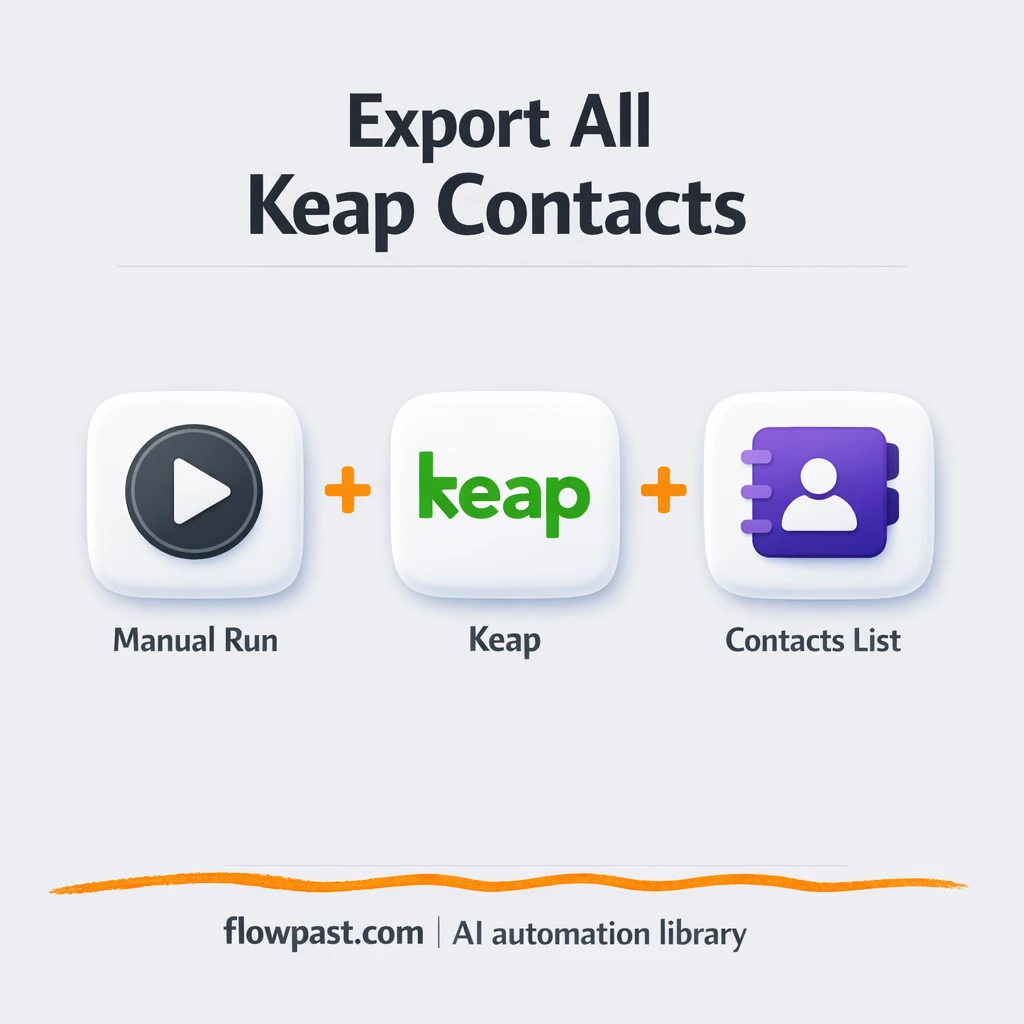

Your contact list lives in Keap, but your reporting lives somewhere else. So you export a CSV, clean it up, re-import it, then do it again next week because the “final” file is already stale.
This Keap Sheets automation is the kind of small win that hits marketing managers and ops leads first. But agency owners running client reporting feel it too. You get a reliable Google Sheet of Keap contacts you can filter, share, and report on without the messy re-exports.
Below, you’ll see how the workflow behaves, what it removes from your week, and how to adjust it if your Keap list needs specific fields for campaigns.
How This Automation Works
See how this solves the problem:
n8n Workflow Template: Keap to Google Sheets, contacts ready for reporting
flowchart LR

    subgraph sg0["Manual Execution Start Flow"]
        direction LR
        n0@{ icon: "mdi:play-circle", form: "rounded", label: "Manual Execution Start", pos: "b", h: 48 }
        n1["<div style='background:#f5f5f5;padding:10px;border-radius:8px;display:inline-block;border:1px solid #e0e0e0'><img src='https://flowpast.com/wp-content/uploads/n8n-workflow-icons/keap.png' width='40' height='40' /></div><br/>Retrieve Keap Contacts"]
        n0 --> n1
    end

    %% Styling
    classDef trigger fill:#e8f5e9,stroke:#388e3c,stroke-width:2px
    classDef ai fill:#e3f2fd,stroke:#1976d2,stroke-width:2px
    classDef aiModel fill:#e8eaf6,stroke:#3f51b5,stroke-width:2px
    classDef decision fill:#fff8e1,stroke:#f9a825,stroke-width:2px
    classDef database fill:#fce4ec,stroke:#c2185b,stroke-width:2px
    classDef api fill:#fff3e0,stroke:#e65100,stroke-width:2px
    classDef code fill:#f3e5f5,stroke:#7b1fa2,stroke-width:2px
    classDef disabled stroke-dasharray: 5 5,opacity: 0.5
    class n0 trigger
    classDef customIcon fill:none,stroke:none
    class n1 customIcon
The Challenge: Keap Contacts Don’t Stay “Report-Ready”
Reporting breaks down the moment your source-of-truth and your reporting spreadsheet stop matching. In Keap, contacts change daily: new leads arrive, tags get added, emails get corrected, people unsubscribe. Meanwhile your Google Sheet (the one everyone actually looks at) still reflects last Tuesday’s export, plus a few manual edits that now only exist in that file. It’s not just time. It’s trust. Once the team suspects the list is off, everyone starts keeping their own copy, and now you’ve got five versions of “the real list.”
It adds up fast. Here’s where it usually breaks down in real teams.
- CSV exports become a weekly ritual, and someone always forgets a column or filter.
- Manual clean-up in Sheets invites subtle errors, like shifted columns or overwritten emails.
- Teams start making decisions from outdated data because “it’s close enough,” until it isn’t.
- Sharing lists with stakeholders turns into back-and-forth because the numbers never match Keap.
The Fix: Pull Keap Contacts into Google Sheets on Demand
This workflow gives you a repeatable way to fetch contacts from Keap and prepare them for reporting in Google Sheets. You run it when you need fresh data (before a campaign send, before a client call, before month-end). n8n connects to Keap, retrieves the contact records, and passes them forward in a structured format so you can map fields into a sheet the way you want. The end result is simple: instead of “export, download, clean, upload,” you press run and get an updated dataset you can filter, pivot, and share. Honestly, even if you keep it manual-triggered at first, it’s still a huge reduction in friction.
The workflow starts with a manual trigger in n8n. Then it calls Keap to retrieve your contacts. From there, you can extend it to write rows into Google Sheets, update an existing tab, or generate a clean reporting view for your team.
What Changes: Before vs. After
| What This Eliminates | Impact You’ll See |
|---|---|
|
|
Real-World Impact
Say you refresh a contact list twice a week for reporting and email sends. Manually, it’s usually 10 minutes to export, another 20 minutes to clean and align columns, plus 10 minutes of “wait, which file is current?” so call it about 40 minutes per refresh. That’s roughly 80 minutes a week. With this workflow, you click “Execute,” wait a minute or two for the pull, and your sheet can be updated the same way every time, so you’re closer to 10 minutes total for the whole refresh.
Requirements
- n8n instance (try n8n Cloud free)
- Self-hosting option if you prefer (Hostinger works well)
- Keap to retrieve your CRM contacts.
- Google Sheets to store and share reporting-ready lists.
- Keap API access (get it from your Keap developer/API settings).
Skill level: Beginner. You’ll connect Keap, test a pull, then map the fields you care about into a sheet.
Need help implementing this? Talk to an automation expert (free 15-minute consultation).
The Workflow Flow
Manual run from n8n. You trigger the workflow when you want a fresh pull, like before a weekly dashboard update or a campaign export.
Keap contact retrieval. n8n connects to Keap and fetches contact records so you’re working from the live CRM instead of last week’s file.
Field shaping (optional, but recommended). In practice you’ll usually add a mapping step so your sheet columns stay consistent (name, email, company, tags, status, and anything custom you track).
Write to Google Sheets. You can append rows, update an existing table, or rebuild a reporting tab so stakeholders always see the same format.
You can easily modify which Keap fields you pull to match the columns you already use in Sheets. See the full implementation guide below for customization options.
Step-by-Step Implementation Guide
Step 1: Configure the Manual Trigger
This workflow starts manually so you can run it on demand while testing or retrieving contacts from Keap.
- Add the Manual Execution Start node to your canvas as the trigger.
- Leave the default settings as-is because this trigger runs only when you click Execute Workflow.
- Optionally keep the Flowpast Branding sticky note for documentation and visual labeling.
Step 2: Connect Keap
Authenticate your Keap account so n8n can retrieve contact data.
- Select the Retrieve Keap Contacts node.
- Credential Required: Connect your keapOAuth2Api credentials.
- Authorize access in the Keap OAuth window and return to n8n to confirm it is connected.
Step 3: Configure Retrieve Keap Contacts
Set the Keap node to pull all contacts from your Keap account.
- In Retrieve Keap Contacts, set Resource to
contact. - Set Operation to
getAll. - Connect Manual Execution Start to Retrieve Keap Contacts to follow the execution flow: Manual Execution Start → Retrieve Keap Contacts.
Step 4: Test and Activate Your Workflow
Run a manual test to confirm contacts are returned and then activate if needed.
- Click Execute Workflow to run the manual trigger.
- Open the output of Retrieve Keap Contacts and verify that contact records are returned.
- If the output is correct, save the workflow and keep it ready for manual use.
Watch Out For
- Keap credentials can expire or need specific permissions. If things break, check the Keap API/app authorization area in your Keap account first.
- If you’re using Wait nodes or external rendering, processing times vary. Bump up the wait duration if downstream nodes fail on empty responses.
- Default prompts in AI nodes are generic. Add your brand voice early or you’ll be editing outputs forever.
Common Questions
Usually within an hour if you already have Keap API access.
Yes. You will connect Keap, then choose which fields go into your Google Sheet.
Yes. n8n has a free self-hosted option and a free trial on n8n Cloud. Cloud plans start at $20/month for higher volume. You’ll also need to factor in Keap costs (your Keap plan) and any Google Workspace costs if your team uses paid accounts.
Two options: n8n Cloud (managed, easiest setup) or self-hosting on a VPS. For self-hosting, Hostinger VPS is affordable and handles n8n well. Self-hosting gives you unlimited executions but requires basic server management.
You can keep the same “Retrieve Keap Contacts” step and swap what happens after it. Common tweaks include filtering to a tag or status, mapping custom fields into fixed columns, and writing to separate tabs for different audiences (sales, marketing, operations). If you don’t want to rebuild the sheet each run, change the Google Sheets write behavior to “update existing rows” using email as the unique key. That one change alone keeps your reports stable.
Most of the time it’s an expired or revoked Keap token, so re-authenticate Keap in n8n and run the workflow again.
On n8n Cloud, capacity depends on your plan’s monthly executions, and self-hosting has no fixed execution cap (it depends on your server). For contact pulls, the practical limit is usually Keap API rate limits and how many contacts you’re writing into Google Sheets at once. If you’re moving thousands of records, batching is the trick: pull and write in chunks so Sheets doesn’t time out. For most small teams refreshing lists a few times a week, you won’t hit limits.
Often, yes, especially if you want more control over filtering, deduping, and how rows get updated in Sheets. n8n is flexible without punishing you for adding branches and logic, and self-hosting can make frequent refreshes affordable. Zapier or Make can still be fine if your version is a simple “Keap contact created → add row.” The moment you need “sync and clean,” n8n tends to feel less cramped. Talk to an automation expert if you’re deciding between them.
Once your Keap contacts are easy to refresh in Sheets, reporting stops being a scramble. Set it up, run it when you need it, and move on to work that actually pays off.
Need Help Setting This Up?
Our automation experts can build and customize this workflow for your specific needs. Free 15-minute consultation—no commitment required.
