


MailerLite + Google Sheets: clean subscriber records

Your email list gets messy faster than you think. One person signs up twice, another uses a different email, and suddenly you’re paying for duplicates and second-guessing every campaign result.
Marketing managers feel it when segmentation breaks. Small business owners feel it when billing creeps up. And the ops person stuck “cleaning the list” feels it most. This MailerLite Sheets automation keeps subscriber records consistent so you can trust the numbers again.
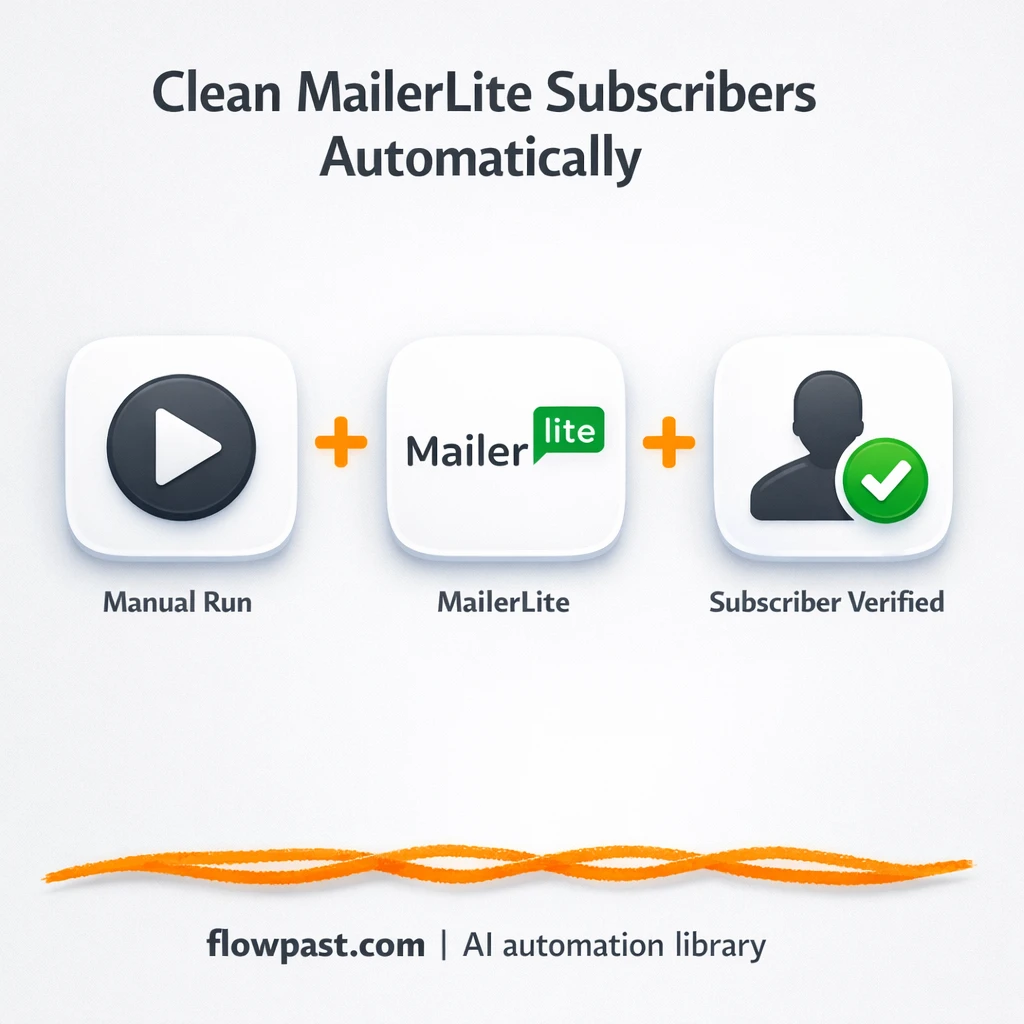
This workflow creates a subscriber, updates the fields you care about, then re-fetches the final record so you log what MailerLite actually stored. You’ll see what it does, what you need, and where teams usually trip up.
How This Automation Works
The full n8n workflow, from trigger to final output:
n8n Workflow Template: MailerLite + Google Sheets: clean subscriber records
flowchart LR

    subgraph sg0["Manual Launch Flow"]
        direction LR
        n0@{ icon: "mdi:play-circle", form: "rounded", label: "Manual Launch Trigger", pos: "b", h: 48 }
        n1["<div style='background:#f5f5f5;padding:10px;border-radius:8px;display:inline-block;border:1px solid #e0e0e0'><img src='https://flowpast.com/wp-content/uploads/n8n-workflow-icons/MailerLite.svg' width='40' height='40' /></div><br/>Create Subscriber Entry"]
        n2["<div style='background:#f5f5f5;padding:10px;border-radius:8px;display:inline-block;border:1px solid #e0e0e0'><img src='https://flowpast.com/wp-content/uploads/n8n-workflow-icons/MailerLite.svg' width='40' height='40' /></div><br/>Modify Subscriber Record"]
        n3["<div style='background:#f5f5f5;padding:10px;border-radius:8px;display:inline-block;border:1px solid #e0e0e0'><img src='https://flowpast.com/wp-content/uploads/n8n-workflow-icons/MailerLite.svg' width='40' height='40' /></div><br/>Retrieve Subscriber Details"]
        n1 --> n2
        n2 --> n3
        n0 --> n1
    end

    %% Styling
    classDef trigger fill:#e8f5e9,stroke:#388e3c,stroke-width:2px
    classDef ai fill:#e3f2fd,stroke:#1976d2,stroke-width:2px
    classDef aiModel fill:#e8eaf6,stroke:#3f51b5,stroke-width:2px
    classDef decision fill:#fff8e1,stroke:#f9a825,stroke-width:2px
    classDef database fill:#fce4ec,stroke:#c2185b,stroke-width:2px
    classDef api fill:#fff3e0,stroke:#e65100,stroke-width:2px
    classDef code fill:#f3e5f5,stroke:#7b1fa2,stroke-width:2px
    classDef disabled stroke-dasharray: 5 5,opacity: 0.5
    class n0 trigger
    classDef customIcon fill:none,stroke:none
    class n1,n2,n3 customIcon
The Problem: Subscriber Records Drift (and Duplicates Multiply)
Subscriber data “decays” quietly. A form collects first name but your CRM has full name. Someone enters “gmail.com” wrong, then re-subscribes later with the corrected address. A teammate imports a CSV with different field labels, so custom fields end up half-filled or mismatched. Then the real damage hits: segments stop working, automations trigger for the wrong people, and you spend an afternoon trying to figure out why your list count jumped. Honestly, it’s not the single mistake. It’s the pile of small inconsistencies that makes your list hard to trust.
It adds up fast. Here’s where it breaks down in day-to-day work:
- Manual subscriber creation is inconsistent, so the same fields get formatted differently depending on who did it.
- Updates happen in the moment, but nobody verifies what MailerLite saved, which means errors stay hidden.
- Duplicates inflate your subscriber count, and you end up paying for people twice.
- When you can’t trust your list data, campaign reporting turns into guesswork instead of decisions.
The Solution: Create, Update, Verify, Then Log the Final Record
This n8n workflow is built around one simple idea: don’t just “send data” to MailerLite and hope it’s correct. Instead, it creates a subscriber entry in MailerLite, immediately modifies the subscriber record to normalize or enrich fields (think: consistent name formatting, tags, custom fields, or status), and then retrieves the subscriber details again to confirm the final state. That last step matters because it captures what MailerLite accepted, not what you intended to send. Once you have the verified record, you can safely log it in Google Sheets as your lightweight audit trail and reporting source. Cleaner data, fewer surprises.
The workflow starts with a manual launch in n8n, so you can test it safely with a few subscribers first. Then MailerLite handles create → update → verify in one run. Finally, you store the final subscriber snapshot in Google Sheets so your team has a reliable reference when questions pop up later.
What You Get: Automation vs. Results
| What This Workflow Automates | Results You’ll Get |
|---|---|
|
|
Example: What This Looks Like
Say you add or import about 50 new subscribers in a week, and it takes roughly 5 minutes each to create, correct fields, and double-check in MailerLite. That’s about 4 hours of fiddly work, plus the occasional “why is this contact in the wrong segment?” detour. With this workflow, you trigger a run per subscriber (or batch it later), let it create → update → verify automatically, then log the final details to Google Sheets. You’re mostly just reviewing exceptions, which often turns into maybe 30 minutes a week.
What You’ll Need
- n8n instance (try n8n Cloud free)
- Self-hosting option if you prefer (Hostinger works well)
- MailerLite for creating and updating subscribers.
- Google Sheets to store the verified subscriber record.
- MailerLite API key (get it from your MailerLite integrations/API settings).
Skill level: Beginner. You’ll connect accounts, map a few fields, and run a test subscriber through.
Don’t want to set this up yourself? Talk to an automation expert (free 15-minute consultation).
How It Works
Manual launch in n8n. You start the workflow when you’re ready, which is perfect for testing and for controlled imports. Once you’re confident, many teams switch this trigger to a form submission or a scheduled batch run.
Subscriber gets created in MailerLite. The workflow sends the core identity fields (usually email plus name) to create the record. This is where you decide your “minimum viable” subscriber data.
Fields are immediately standardized. Right after creation, the workflow modifies the subscriber record to enforce consistency (custom fields, tags, groups, or corrected formatting). That second pass prevents “half-saved” entries from staying messy.
The final record is retrieved for verification. The workflow pulls subscriber details again so you can confirm what MailerLite stored. That verified output is the version you want to log into Google Sheets for reporting and reconciliation.
You can easily modify which subscriber fields are updated to match your own data standards. See the full implementation guide below for customization options.
Step-by-Step Implementation Guide
Step 1: Configure the Manual Trigger
Set up the workflow to start on demand using the manual trigger node.
- Add the Manual Launch Trigger node as the workflow trigger.
- Leave all parameters at their defaults since this trigger does not require configuration.
Step 2: Connect MailerLite
All MailerLite actions require API credentials to create, update, and retrieve subscribers.
- Open Create Subscriber Entry and select Credential Required: Connect your mailerLiteApi credentials.
- Repeat the credential selection for Modify Subscriber Record with Credential Required: Connect your mailerLiteApi credentials.
- Repeat the credential selection for Retrieve Subscriber Details with Credential Required: Connect your mailerLiteApi credentials.
Step 3: Set Up Create Subscriber Entry
Create a new MailerLite subscriber with a base profile before updates and retrieval.
- Open Create Subscriber Entry and set Email to
[YOUR_EMAIL]. - Under Additional Fields, set Name to
Subscriber. - Connect Manual Launch Trigger to Create Subscriber Entry to match the execution flow.
[YOUR_EMAIL] with a real email address you control to avoid creating invalid subscribers.Step 4: Configure Subscriber Updates and Retrieval
Update a custom field and then retrieve the subscriber record using the email from the creation step.
- Open Modify Subscriber Record and set Operation to
update. - Set Subscriber ID to
={{$node["Create Subscriber Entry"].json["email"]}}. - In Update Fields → Custom Fields, add a value with Field ID
cityand ValueBerlin. - Open Retrieve Subscriber Details and set Operation to
get. - Set Subscriber ID to
={{$node["Create Subscriber Entry"].json["email"]}}. - Connect Create Subscriber Entry → Modify Subscriber Record → Retrieve Subscriber Details to match the execution flow.
Step 5: Test and Activate Your Workflow
Run a manual test to confirm creation, update, and retrieval work end-to-end.
- Click Execute Workflow to run Manual Launch Trigger manually.
- Confirm that Create Subscriber Entry returns the email and Modify Subscriber Record shows the updated custom field.
- Verify that Retrieve Subscriber Details returns the subscriber data including the
cityfield set toBerlin. - When results look correct, toggle the workflow to Active for production use.
Common Gotchas
- MailerLite credentials can expire or need specific permissions. If things break, check your MailerLite API key status and integration permissions first.
- If you’re using Wait nodes or external rendering, processing times vary. Bump up the wait duration if downstream nodes fail on empty responses.
- Default prompts in AI nodes are generic. Add your brand voice early or you’ll be editing outputs forever.
Frequently Asked Questions
About 30 minutes if your MailerLite fields are already defined.
No. You will mostly map fields and connect your accounts in n8n.
Yes. n8n has a free self-hosted option and a free trial on n8n Cloud. Cloud plans start at $20/month for higher volume. You’ll also need to factor in MailerLite costs based on your subscriber count.
Two options: n8n Cloud (managed, easiest setup) or self-hosting on a VPS. For self-hosting, Hostinger VPS is affordable and handles n8n well. Self-hosting gives you unlimited executions but requires basic server management.
Yes, but you’ll want to be intentional about where you do it. Keep “create subscriber” minimal, then handle tags, groups, and custom fields in the Modify Subscriber Record step so your rules stay in one place. Many teams add a simple If check before the update to apply different tags based on source (webinar, lead magnet, demo request). You can also adjust the final Retrieve Subscriber Details step to pull extra fields you want to log into Google Sheets.
Usually it’s an expired or rotated API key, so regenerate it in MailerLite and update the credentials in n8n. If the key is fine, check that the account has access to the subscriber endpoints and that you didn’t hit rate limits during a bulk run.
If you self-host n8n, there’s no execution cap (it mostly depends on your server and MailerLite rate limits). On n8n Cloud, the practical limit depends on your monthly execution allowance, and this workflow typically uses a few executions per subscriber because it creates, updates, and retrieves the record.
Often, yes, because this kind of “create then update then verify” pattern gets annoying (and expensive) in tools that charge more for multi-step runs. n8n is also easier to extend when you want branching rules, retries, or extra validation. Zapier or Make can still be fine if you only need a simple one-direction sync and you never plan to audit the final MailerLite state. The moment you care about data quality, verification steps matter. And if your list is business-critical, having the option to self-host is a big deal. Talk to an automation expert if you want help choosing the simplest setup.
Clean subscriber records aren’t glamorous, but they’re the foundation for everything you do in email. Set this up once, and the list stops quietly drifting out of shape.
Need Help Setting This Up?
Our automation experts can build and customize this workflow for your specific needs. Free 15-minute consultation—no commitment required.
